16. Advanced Programming 297
16.4 Auto Update
When you are programming a complex show, the look on stage may be built up from cuelists
and scenes on several masters. You can change the look by assigning fixture parameter
values in the Programmer, but it is difficult to know which cue or scene is contributing which
values to the total on stage. Hog 4 OS's Auto Update feature automatically suggests the
appropriate cues, palettes and scenes to merge the changes into, allowing you to choose how
the updates are performed.
When you have finished editing in the Programmer you can merge the parameter values into
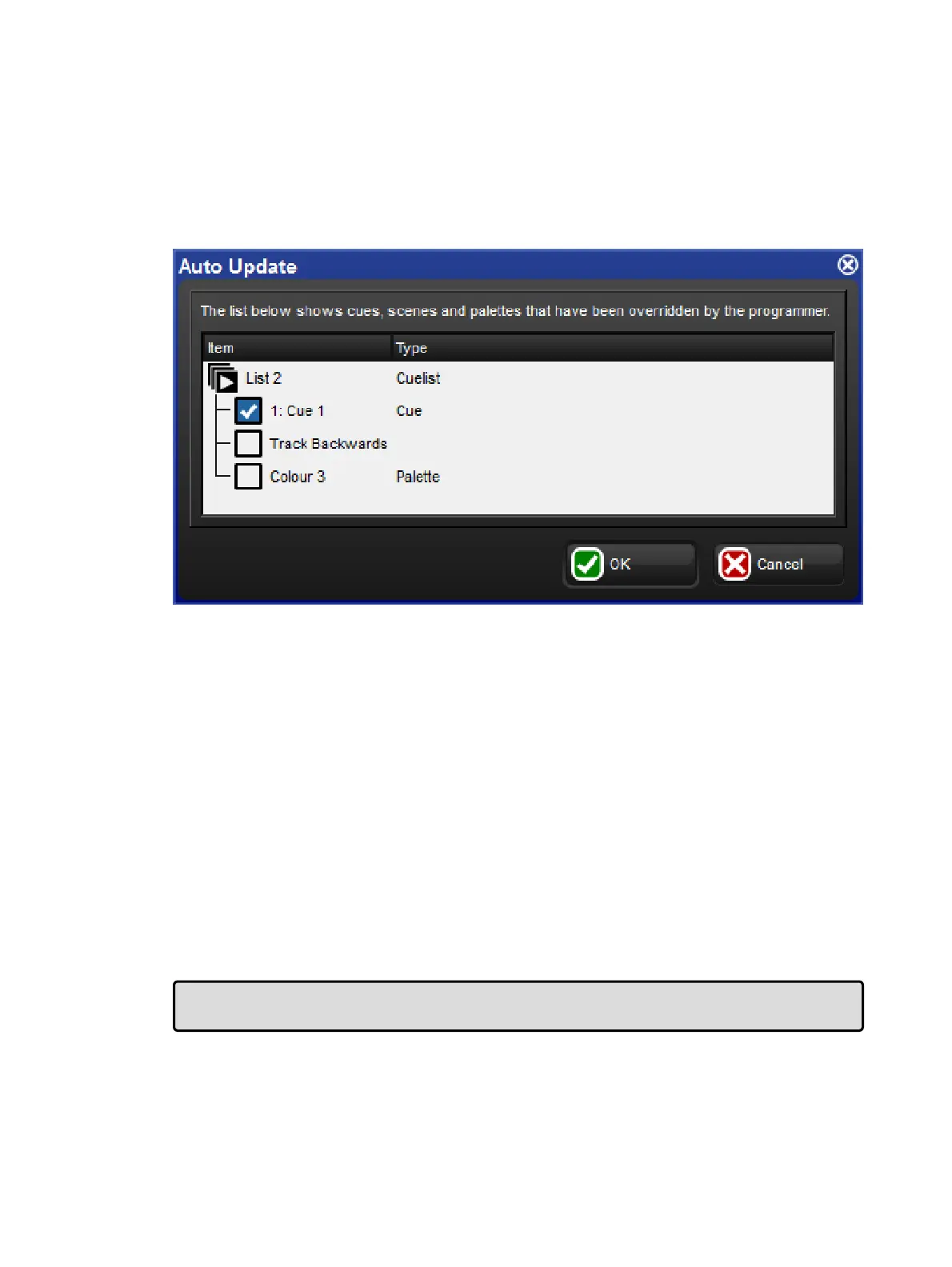
the currently playing cues, palettes and scenes by pressing the Upd ate key. The Au to
Upd ate window will open, showing which cuelists, cues, palettes and scenes are
contributing to the look on stage so that you can choose which to update
For cuelists, you have several choices:
Either update the current cue in the cuelist, or track the programming backwards so that
the new values are merged into the last cue with a hard value for that parameter; see
Tracking Values Backwards When Recording.
If you have existing programming that refers to a palette, you can choose to update the
palette instead of adding new parameter values to a cue. In this case, these updates
will be performed first, and anything left in the Programmer after this will be used to
update the selected cue or Track Backwards.
For scenes, you have the option to merge the programming into the scene, or into the palettes
that are referred to in that scene.
Once you have chosen your options, press OK to perform the update. Note that the
parameter values remain in the Programmer.
Tip: If there is no playback on stage when you press Up date, the Auto Update window will
not appear and the Update key press is ignored.











 To Next Page