42 Hog 4 Operations Manual
The Editor Toolbar
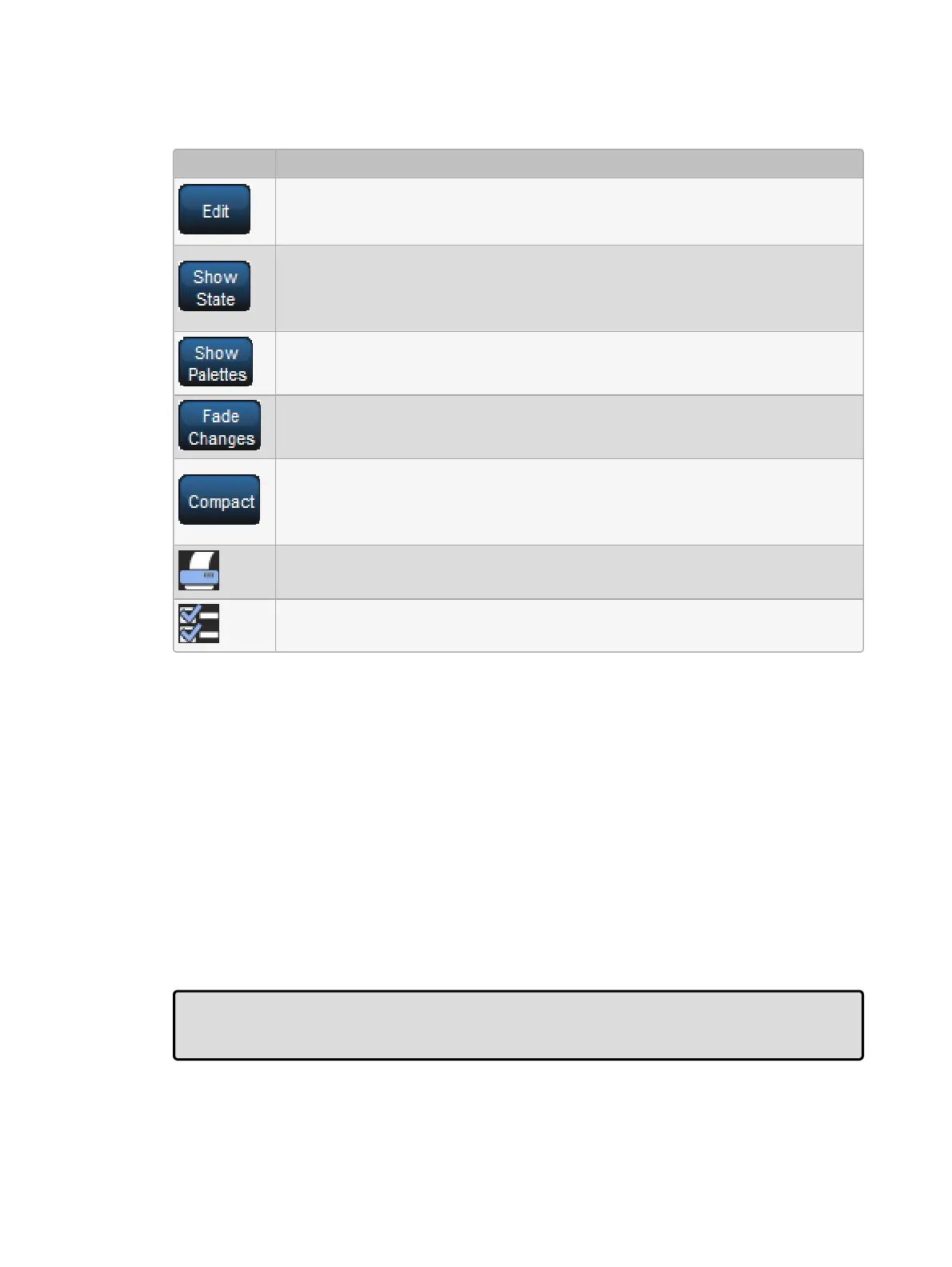
The Editor Toolbar has the following buttons:
Button Purpose
Press this to make the contents of the editor editable, rather than just to view
it. Instructions given to the command line, or using the parameter wheels and
I-Wheel, are directed to the editable editor.
In cue editors, press this to see all the parameters that will appear on stage,
including those that have tracked through from earlier cues in the cuelist. With
Show State deselected, only the hard values actually recorded in the cue are
displayed.
Press Sho w Palettes to see the palette name, rather than the parameter
value; see Palettes.
Press this to have parameter values changed in this editor fade rather than
snap onto stage; see Fade Changes.
Press this to toggle compact mode on and off. Compact mode fits more
information into the editor without having to scroll. However, the column for a
particular parameter won't necessarily be aligned across different fixture
types, so sorting is not possible.
Reports. This allows you to print the contents of the window.
Configure. This allows you to control various aspects of how the editor
window displays information.
The Jump Toolbar
The Jump Toolbar has a button for each type of fixture currently in the editor, allowing you to
quickly jump to the parameter values for that type of fixture. The Jump Toolbar only appears if
aggregation is turned on; see Aggregation.
2.9.2 Changing Parameter Values in the Editor
To make changes to the contents of an editor, you need to have its Edit button selected. You
can have up to eight editors open, but only one can be editable at a time, and the parameter
wheels, I-Wheel and command line all operate on the contents of the currently editable editor.
If you have several editors open at once, you can use the Edit button to determine which one
you are controlling (even if it is not the front-most window) or to ‘lock’ the editor to prevent
accidental changes.
Tip: When an editor is opened all of the fixtures within the editor are automatically selected.
To change this behavior disable the "Select All Fixtures when Activated" located under
theProgramming tab of the preference window.











 To Next Page