328 Hog 4 Operations Manual
For batches: individually numbered cells that represent the lists and scenes assigned
to the batch will appear inside the batch's playback bar display. Lists are represented
solely by a number whereas scenes are marked with an "s" before the number. The
running state of each list and scenes is then indicated by the background colour of the
cell.
Each master's fader level. If the fader is below 100%, then a red bar appears indicating
the level. It is possible for the position of the physical fader to be different to the master
level of the cuelist, in which case the vertical bar will be blue; see Matching Levels
When Changing Page.
If the cuelist is a chase. If it is, then its rate in BPM is shown; see Using a Cuelist as
a Chase.
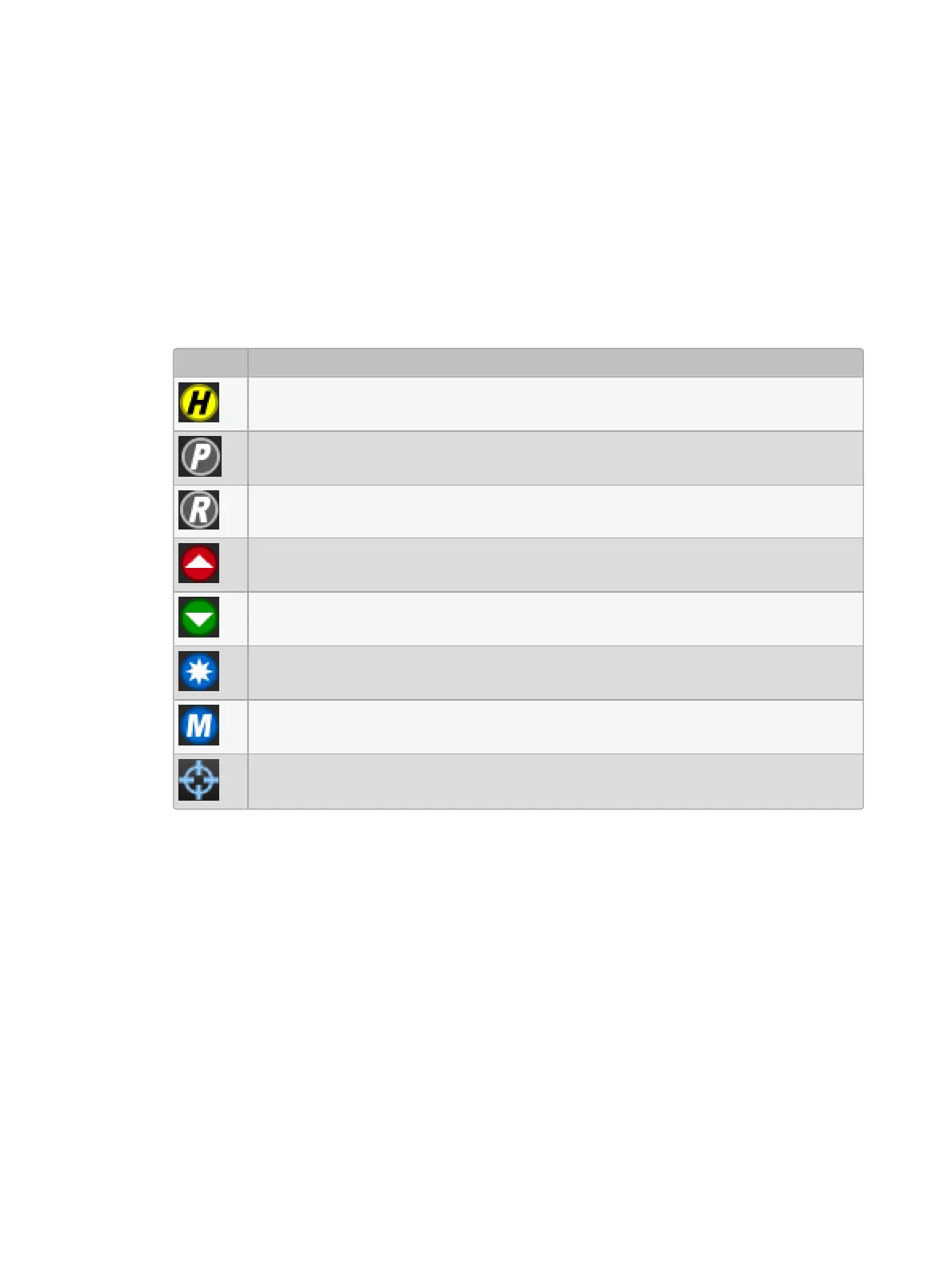
Options set for the cuelist will appear at the bottom of master on the playback bar. The
symbols used are shown in the table below:
Symbol Description
The cuelist is working under the HTP rule.
The cuelist is set to Persist on Override. See Changing a Cuelist's Priority.
The cuelist is set to Release on Other Go. See Releasing on Another Go.
The cuelist has a high priority. See Changing a Cuelist's Priority.
The cuelist has a low priority. See Changing a Cuelist's Priority.
The scene uses the master as an IPCB fader. Note that this applies to scenes
only.
The cuelist uses the master as a manual fader. See Manually Cross-fading
Cuelists.
The cuelist is set to Cue Only. See Cuelists and Tracking
Using the Playback Bar with Playback Wings
Multiple Playback Bars can be displayed using the Wings pane of the Control Panel or using
the front panel shortcuts mentioned in Adding Playback Wings. Once a playback bar is
displayed on the desktop it can be dragged to different locations on the display by clicking
and dragging on the drag handle on the left hand side of the playback bar. The recommended
location for a playback bar is at the bottom edge of the display as it helps to associate the
playback bar with the physical controls of the wing that is located under the display.
You can also click and drag on the outside edges of the Playback Bar's master area to better
align the playback bar's masters to the physical masters on the hardware.
For information on adding and setting up playback wings, see Adding Playback Wings.











 To Next Page