17. Playback 329
17.8.2 Cuelist Feedback
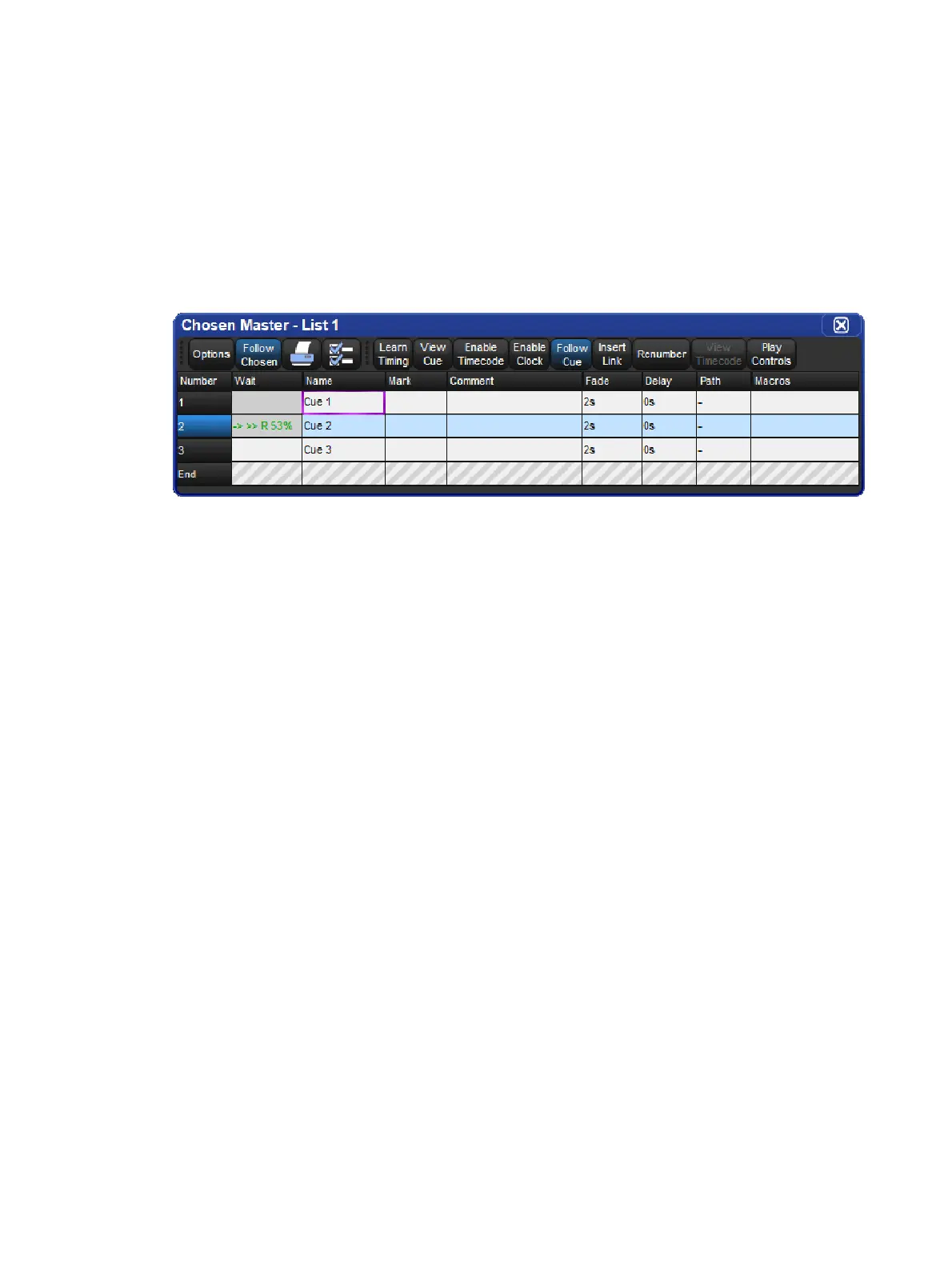
The master window for a cuelist shows all of the cues in the cuelist as well as their running
state.
Open + Choo se
Or:
Double click the Playback Bar above the required cuelist.
Or:
Open + [List 1] : select the cuelist from the cuelist directory.
The current cue is indicated by an arrow in the wait column and a light blue background
across the entire cue row. When a cue is triggered the arrow turns green and the letter R(for
Running) is displayed; the cue's progress is indicated by the percentage completed in the
same column. Pausing a cue will turn the arrow red and the letter H(Halted) is displayed.
Customizing Cuelist Feedback
There are several view options selected by buttons at the top of Cuelist window:
Play Controls: displays alternative play controls at the top of the Cuelist window.
These are useful for running virtual masters, see Using the Play Controls Toolbar to
Play a Cuelist, Scene, or Batch.
View Cue: opens the current cue (as denoted by an arrow in the wait column) in an
editor.
Follow Cue: selecting Follow Cue from the top of the Cuelist window will make the
list of cues scroll to keep the current cue in view as the cues are played back.
Follow Chosen: during playback, you may not want to have multiple Cuelist windows
open. Select Follow Chosen from the top of any Cuelist window so Hog 4 OS
automatically displays the cuelist of the currently chosen master. If Follow Chosen is
off, the same cuelist will always be shown in the window irrespective of the chosen
master.
View Timecode: turn the display of timecode information on or off.











 To Next Page