2. Hog OS Fundamentals 21
Double Pressing Keys: You can also open some windows by double-pressing the
appropriate key:
Position, Po sition : opens the Position Directory window.
Tip: If you prefer not to use the double-press shortcut to open windows, then assign the
double-press time to zero to disable it: see Keys and Button Preferences.
Closing Windows
Windows can be closed using the button located at the top right of the window.
Windows can also be closed by pressing Op en + Backspace.
Window Control
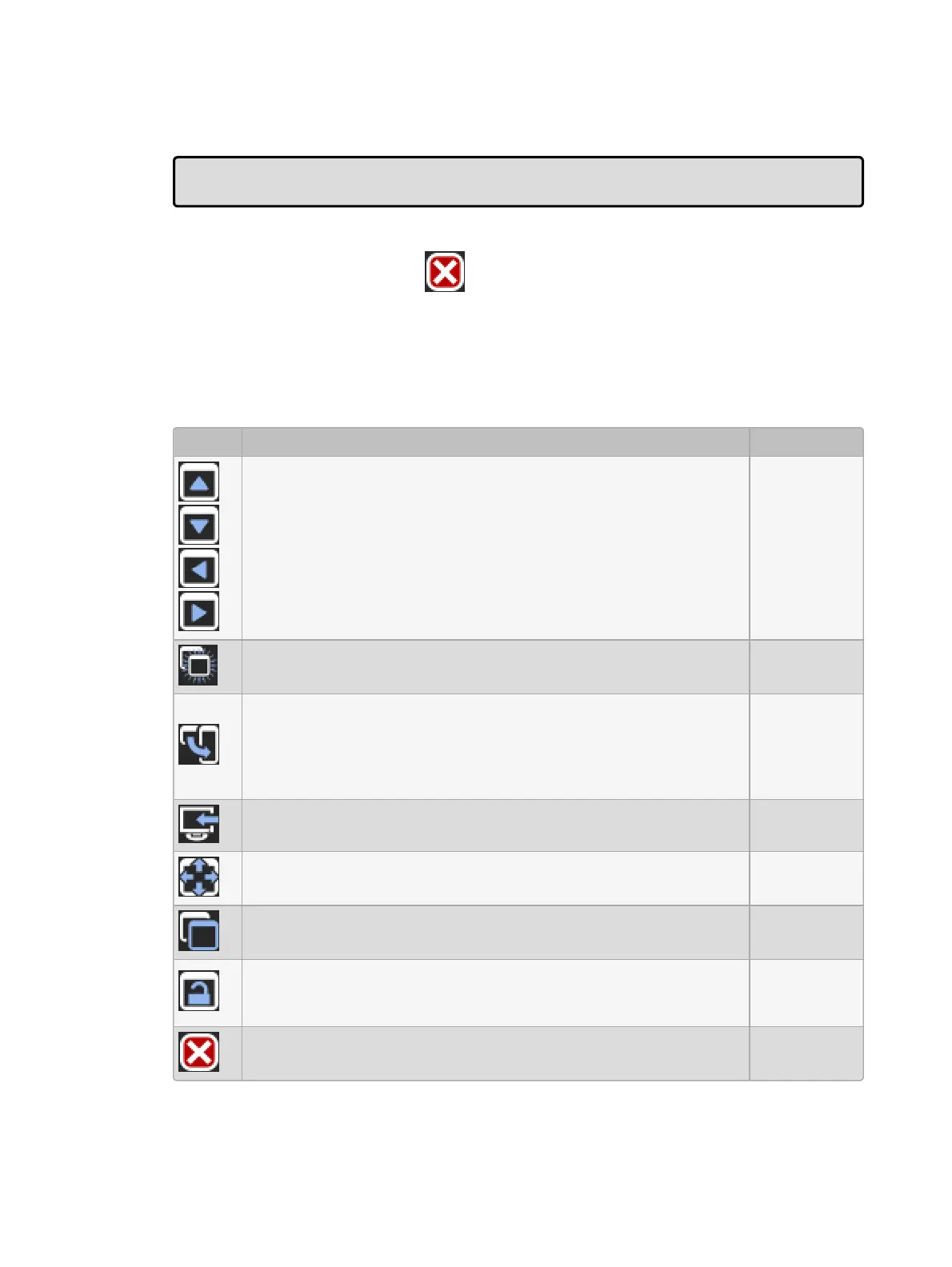
The Win dow Control Toolbar is located at the top of the right-hand touch screen and
provides a quick and easy way to manipulate windows. Its functions are also available as
keyboard shortcuts.
Button Function Shortcut
Page Up, Pag e Down, Pa ge Left and Page Right scroll the
currently selected window. The cursor isn't moved.
Cop y creates a copy of the selected window. This is helpful when
you need to view two parts of the same window at once.
Open +
[slash]
Size rotates through a range of set positions and sizes for the
selected window within its current screen. The options are full
screen, and top, bottom, left and right half and quarter screens.
Holding down the Pig key while pressing Size rotates through the
options in the reverse order.
Open +
[plus] or
[minus]
Move Screen moves the selected window between touch-
screens and external displays.
Open + @
Maximize toggles the size of the currently selected window
between full screen and its previous size.
Open + Full
Focus switches between windows in turn, bringing each to the
front.
Open +
Thru
The unlock button allows the positions and sizes of all windows to
be changed by the Trackball or mouse (but not the toolbar buttons).
Windows are unlocked when this button is enabled.
Open + .
Close closes the front-most window.
Open +
Backsp ace











 To Next Page