3. Setting up the System 53
3.1.4 Calibrating the Touch Screens
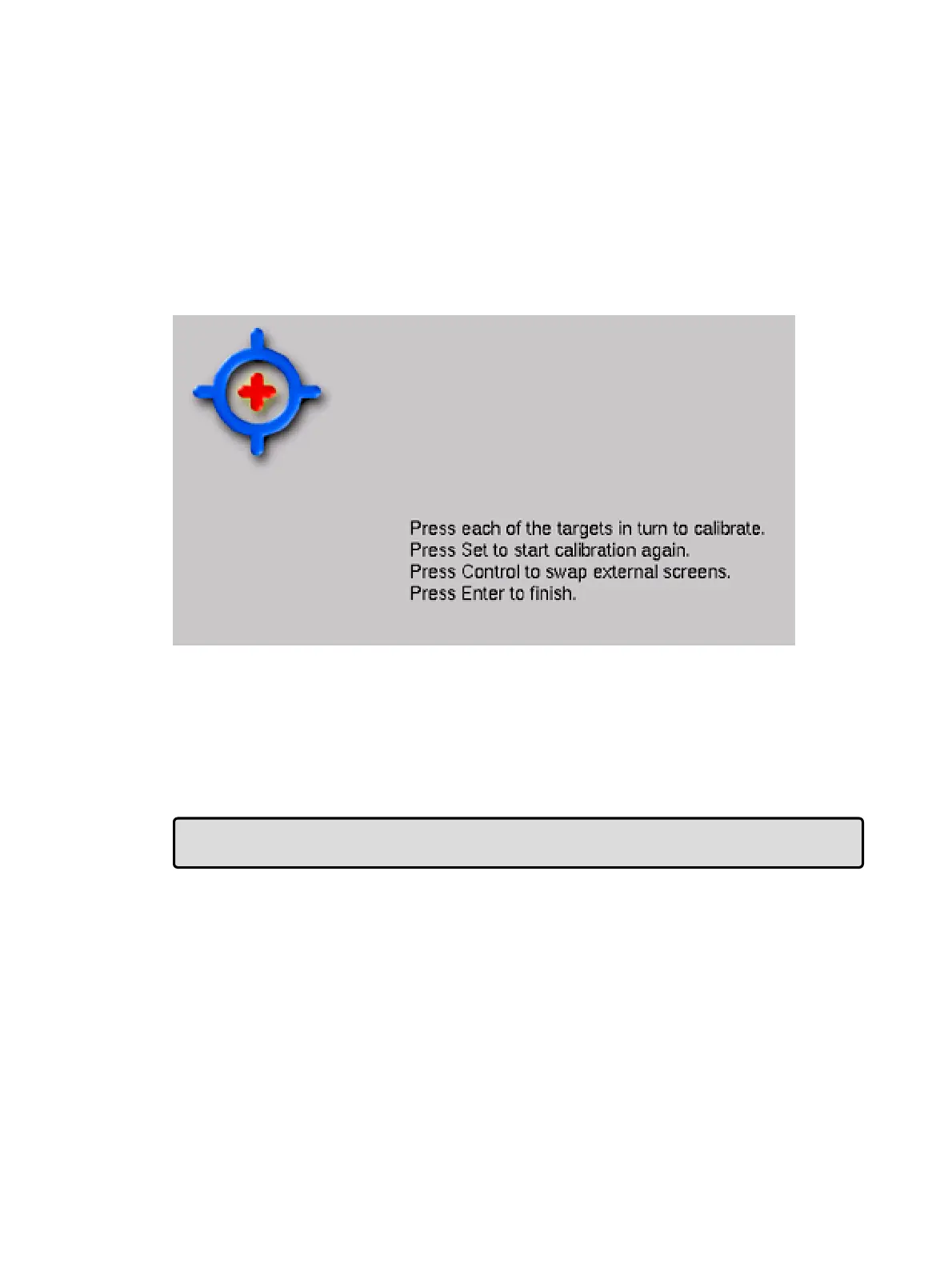
The touch screens may occasionally need to be calibrated. To recalibrate the touchscreens
before launching a show, select the Touch scree ns button in the Start window. Touch each
target as it appears sequentially across the screens. After the calibration sequence is
complete, press Enter. You can press the Set key to start the process again if necessary.
You can also calibrate the touch screens at any time while loaded in a show by pressing the
Calibrate Touch Scre ens button in the Displays pane of the Co ntrol Pan el. Users can
also start the touchscreen calibration at any time on their console by holding the Setup key
and pressing the encoder wheel button below the first main encoder wheel.
The calibration screen
3.1.5 Adjusting the Touchscreen LCD Backlight
You can adjust the brightness of the built-in touchscreens by adjusting the LCD backlight
settings of the console (Hog 4, Hog 4-18, and Full Boar 4 only). To adjust the LCD backlight
hold down the Setu p key and adjust the parameter wheels labelled Le ft Ba ckligh t or Right
Backlight.
Tip: If you find the graphics on the screens are too bright, you can change the console's
colour scheme to a darker one in Se tup → Prefe ren ces → Appea ran ce.











 To Next Page