Switching off the system
52 ProtoMat
®
S62
2. Make sure that the following values are entered:
3. Check the settings of the Windows system control
(see ProtoMat
®
S62 Installation Manual)
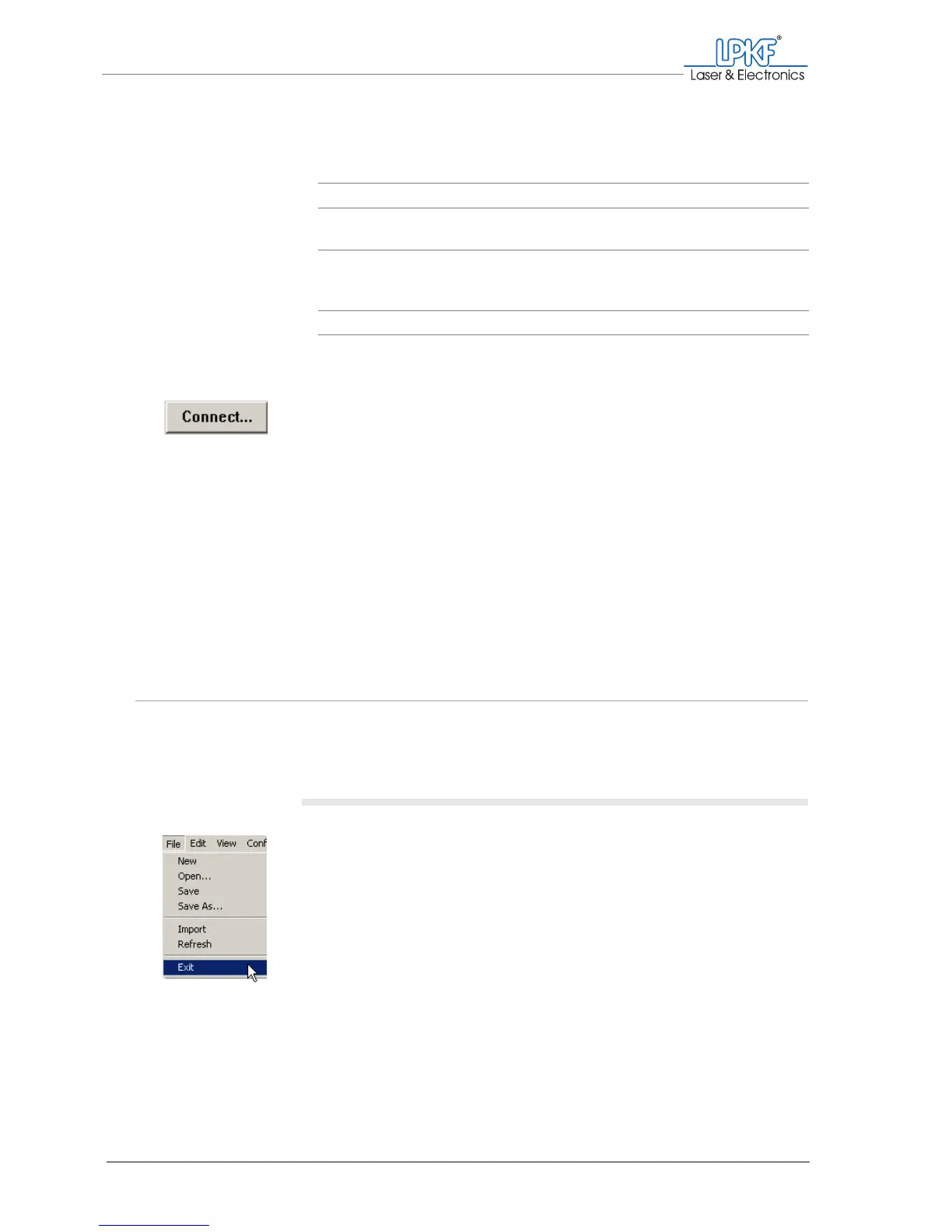
4. Click on Connect....
As soon as the connection to the circuit board plotter can be established,
the BoardMaster user interface appears.
5. If the Connect... window opens repeatedly:
Check the settings in the Windows system configuration (see "Con-
figuring the COM port" on page 29)
Note: If you click on Cancel BoardMaster will be opened, but the circuit
board plotter cannot be activated.
[ ] The BoardMaster user interface will be opened (see figure 20 on page 54).
4.2 Switching off the system
To switch off the ProtoMat
®
S62, quit the BoardMaster first and then
switch off the circuit board plotter and the computer.
I.
Quitting BoardMaster
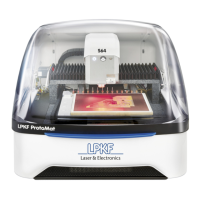
1. Click on File > Exit.
The message "Do you want to move the milling/drilling head to the refer-
ence point?" appears.
Control: SMCU 2
Machine: ProtoMat S62
Interface type: RS-232
(USB is only intended for service purposes)
COM Port: COM port to which the circuit board plotter is
connected and which was defined in the
Windows system control.
Baud rate: 57600


 To Next Page