Working sequence in automatic mode
Operating Manual 7.1 Rev.: 18.06.2008 93
Creating a new job
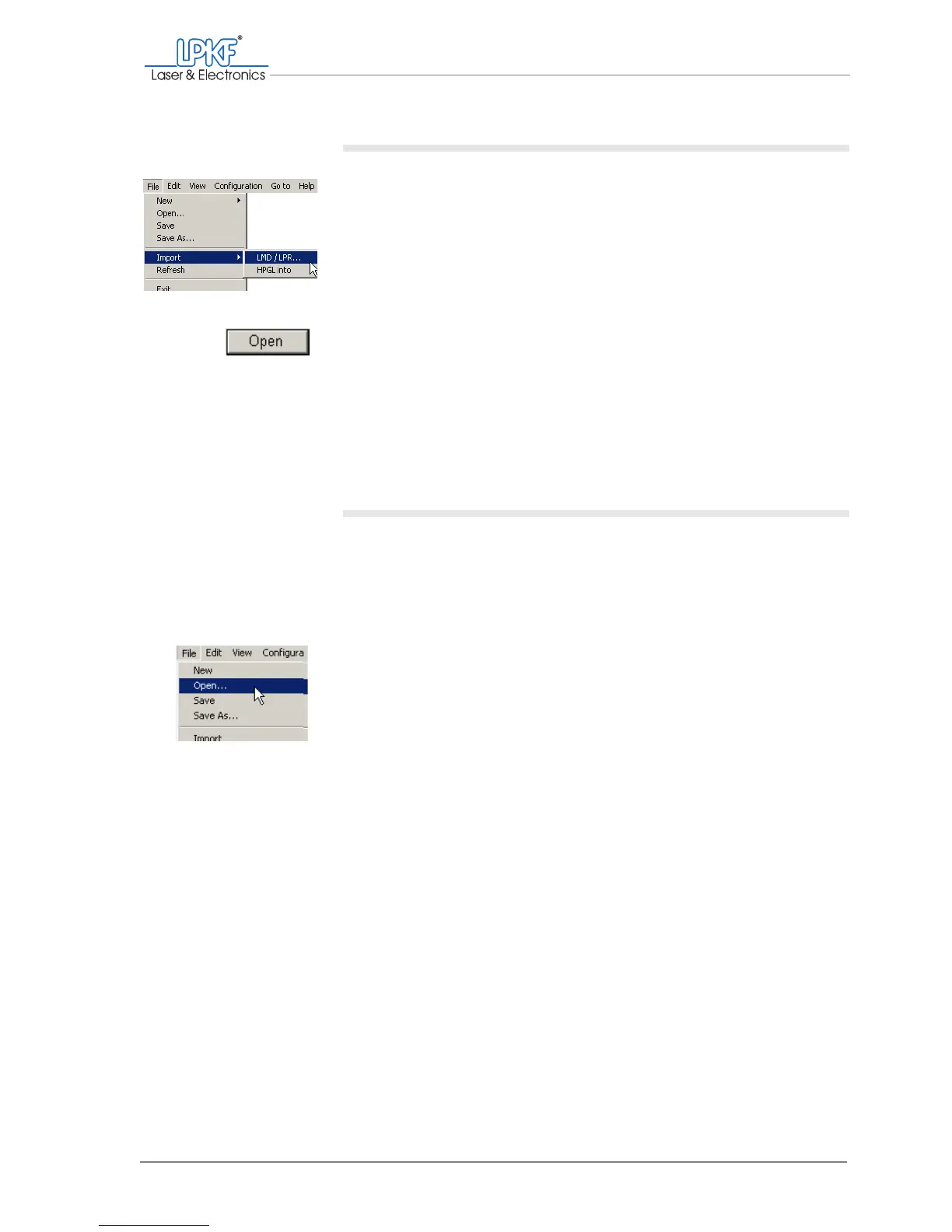
1. Click on File > Import > LMD/LPR....
The Import Project window will appear.
2. Select a project (*.LMD file).
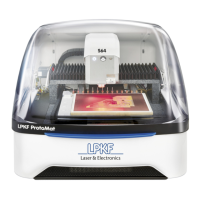
3. Click on Open.
The selected project will be placed in the centre of the work area.
4. Import other projects if you need them,
for example fiducial bores for automatic fiducial recognition (only
with the optional VisionSystem).
The imported projects can be moved and copied on the work area.
Opening an existing job
If already a job is open, you first have to decide whether you wish to
save any changes under a different name (see "Saving a job" on
page 95).
Once you have called the File > Open... menu item, an already opened
job can only be overwritten or the changes discarded.
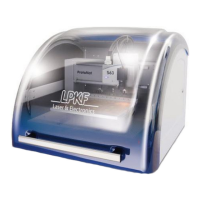
1. Click on File > Open....
The Open window is displayed.
2. Double-click on the required *.job file.
Select for example Tutor.job to open the production example
included in the delivery.
[ ] The projects contained in the job can be moved, copied or deleted on the
work area.


 To Next Page