136
Settin
Checkers
Cha
ter 6
To set a mask area (for all area shapes)
Set a mask area in cell unit. The number of settable mask areas is not limited.
Adding a mask area
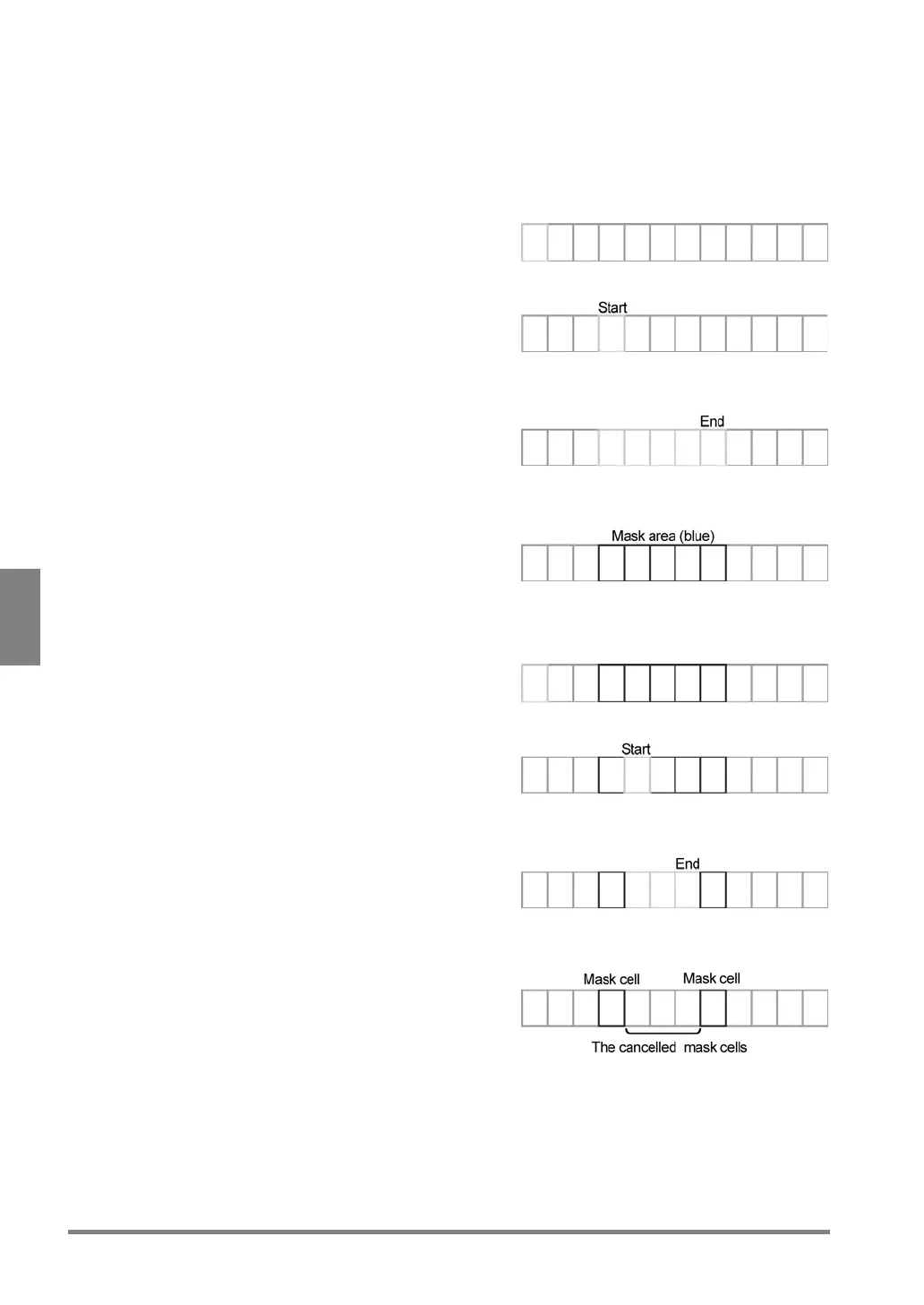
1. Select “Add Mask”.
The border of the first cell from the start point is displayed in yellow.
2. Select a start cell within the mask area.
3. Move the cursor to the end cell within the mask area.
The borders of the cells from start to end in the mask area are displayed in yellow.
4. When moving the cursor to the end cell, press the ENTER key.
The mask area you have set is displayed in blue.
Deleting a mask area
1. Select “Delete Mask”.
The border of the first cell from the start point is displayed in yellow.
2. Select the start cell within the mask area you wan to cancel.
3. Move the cursor to the end cell within the mask area.
The borders of the cells from start to end in the mask area you want to cancel are displayed in yellow.
4. When moving the cursor to the end cell, press the ENTER key.
The mask area is cancelled and the borders of the cells in the area are displayed in green.



 To Next Page