B.11
Date Code 20080213 Instruction Manual SEL-351A Relay
Firmware Upgrade Instructions
Relay Firmware Upgrade Instructions
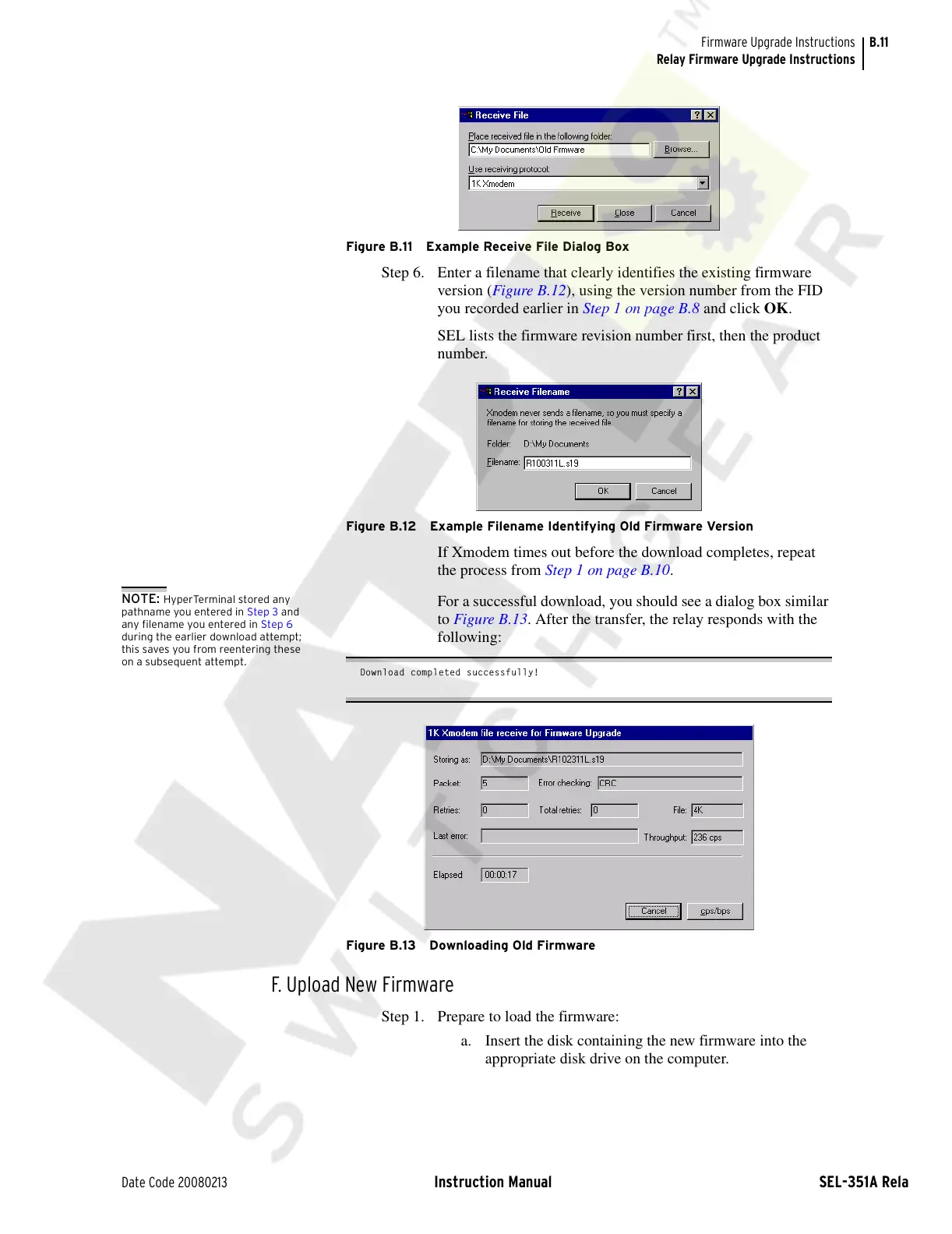
Figure B.11 Example Receive File Dialog Box
Step 6. Enter a filename that clearly identifies the existing firmware
version (Figure B.12), using the version number from the FID
you recorded earlier in Step 1 on page B.8 and click OK.
SEL lists the firmware revision number first, then the product
number.
Figure B.12 Example Filename Identifying Old Firmware Version
If Xmodem times out before the download completes, repeat
the process from Step 1 on page B.10.
NOTE: HyperTerminal stored any
pathname you entered in Step 3 and
any filename you entered in Step 6
during the earlier download attempt;
this saves you from reentering these
on a subsequent attempt.
For a successful download, you should see a dialog box similar
to Figure B.13. After the transfer, the relay responds with the
following:
Download completed successfully!
Figure B.13 Downloading Old Firmware
F. Upload New Firmware
Step 1. Prepare to load the firmware:
a. Insert the disk containing the new firmware into the
appropriate disk drive on the computer.
Courtesy of NationalSwitchgear.com


 To Next Page