B.22
SEL-351A Relay Instruction Manual Date Code 20080213
Firmware Upgrade Instructions
Ethernet Port Firmware Upgrade Instructions
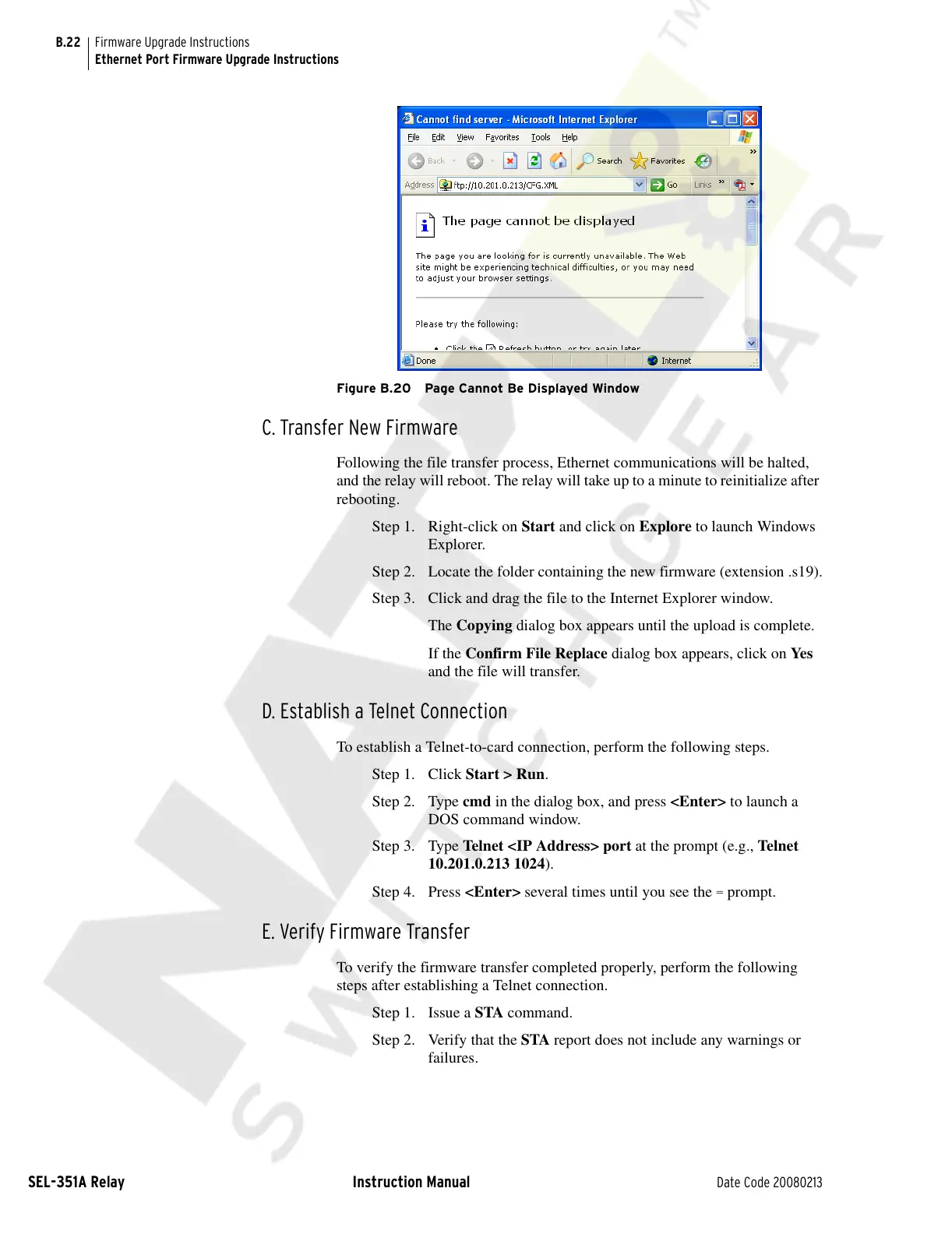
Figure B.20 Page Cannot Be Displayed Window
C. Transfer New Firmware
Following the file transfer process, Ethernet communications will be halted,
and the relay will reboot. The relay will take up to a minute to reinitialize after
rebooting.
Step 1. Right-click on Start and click on Explore to launch Windows
Explorer.
Step 2. Locate the folder containing the new firmware (extension .s19).
Step 3. Click and drag the file to the Internet Explorer window.
The Copying dialog box appears until the upload is complete.
If the Confirm File Replace dialog box appears, click on Yes
and the file will transfer.
D. Establish a Telnet Connection
To establish a Telnet-to-card connection, perform the following steps.
Step 1. Click Start > Run.
Step 2. Type cmd in the dialog box, and press <Enter> to launch a
DOS command window.
Step 3. Type Telnet <IP Address> port at the prompt (e.g., Telnet
10.201.0.213 1024).
Step 4. Press <Enter> several times until you see the
= prompt.
E. Verify Firmware Transfer
To verify the firmware transfer completed properly, perform the following
steps after establishing a Telnet connection.
Step 1. Issue a STA command.
Step 2. Verify that the STA report does not include any warnings or
failures.
Courtesy of NationalSwitchgear.com


 To Next Page