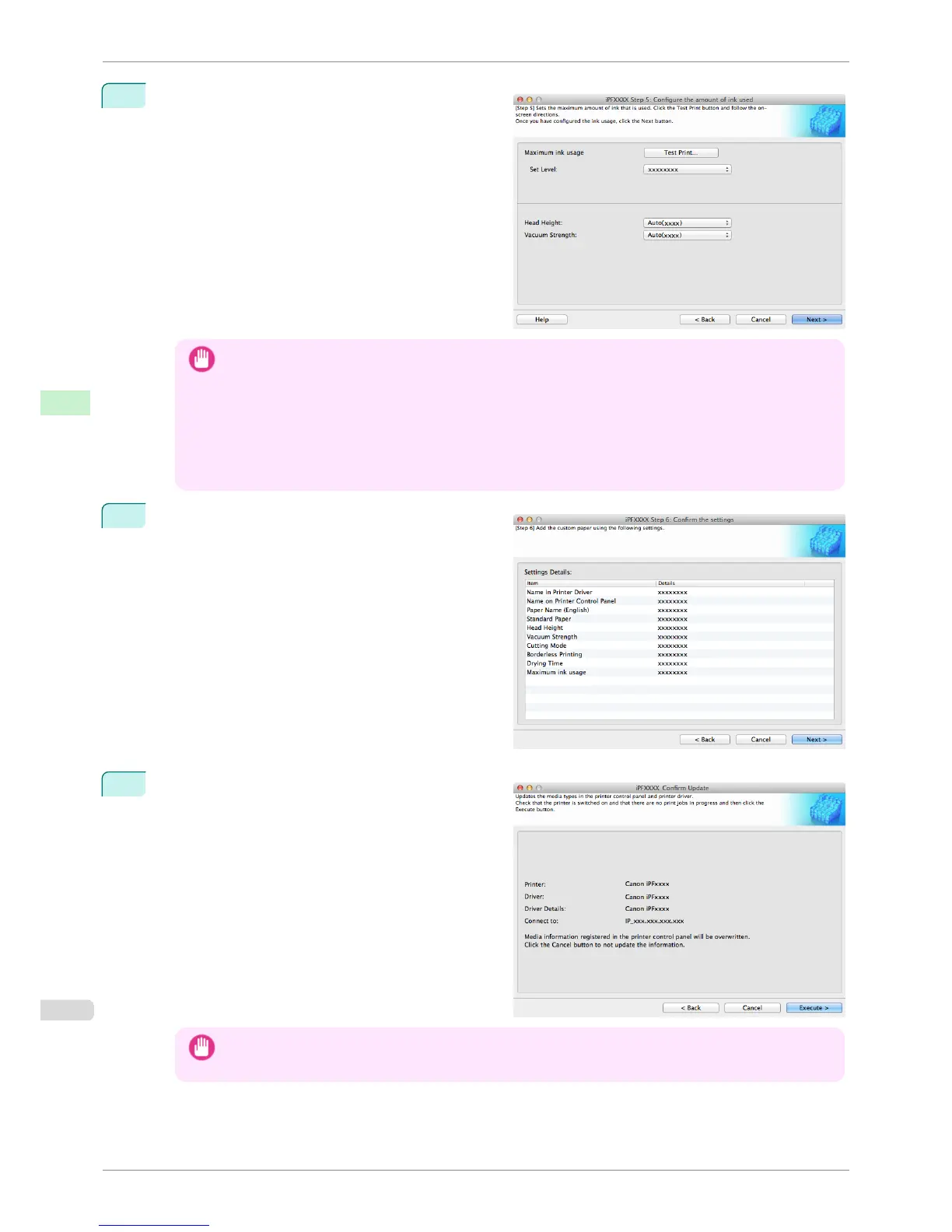
13
Configure Head Height and Vacuum Strength as
required and click the Next button.
Usually, these do not need to be set.
Important
• If you set the Head Height lower than the automatically set height in parentheses ( ), check that the printhead
does not rub against the paper. (If the printhead rubs against the paper, there will be scratches in the printing
results.) If the printhead rubs against the paper, this can cause damage to the printhead.
• If you change the Vacuum Strength, check that the printhead is not rubbing against the paper. (If the print-
head rubs against the paper, there will be scratches in the printing results.) If the printhead rubs against the
paper, this can cause damage to the printhead.
• For details on the Head Height and Vacuum Strength, refer to the help.
14
The Step 6: Confirm the settings dialog box is dis-
played.
Configure the settings of the custom paper, and then
click the Next button.
15
The Confirm Update dialog box is displayed.
Confirm the updates and then click the Execute but-
ton.
The custom paper is added to the control panel of the
printer and to the printer driver of the PC you are us-
ing.
Important
• If you have added custom paper with the POP Board / Cardboard category as the Standard Paper, remove
the loaded custom paper from the printer.
Add Custom Paper
iPF6400S
User's Guide
Handling and Use of Paper Media Configuration Tool (Mac OS)
560













 To Next Page