Important
• There may be ink around the ink supply section of ink tanks you removed. Handle ink tanks carefully during replace-
ment. The ink may stain clothing.
• Do not install used ink tanks in another model of printer.
This will prevent correct ink level detection, which may damage the printer or cause other problems.
• We recommend using up an Ink Tank in the course of printing within six months after breaking the seal. Printing quality
may be affected if you use older ink tanks.
• Do not leave the printer without ink tanks installed for extended periods (a month or more). Residual ink may become
clogged inside the printer and affect printing quality.
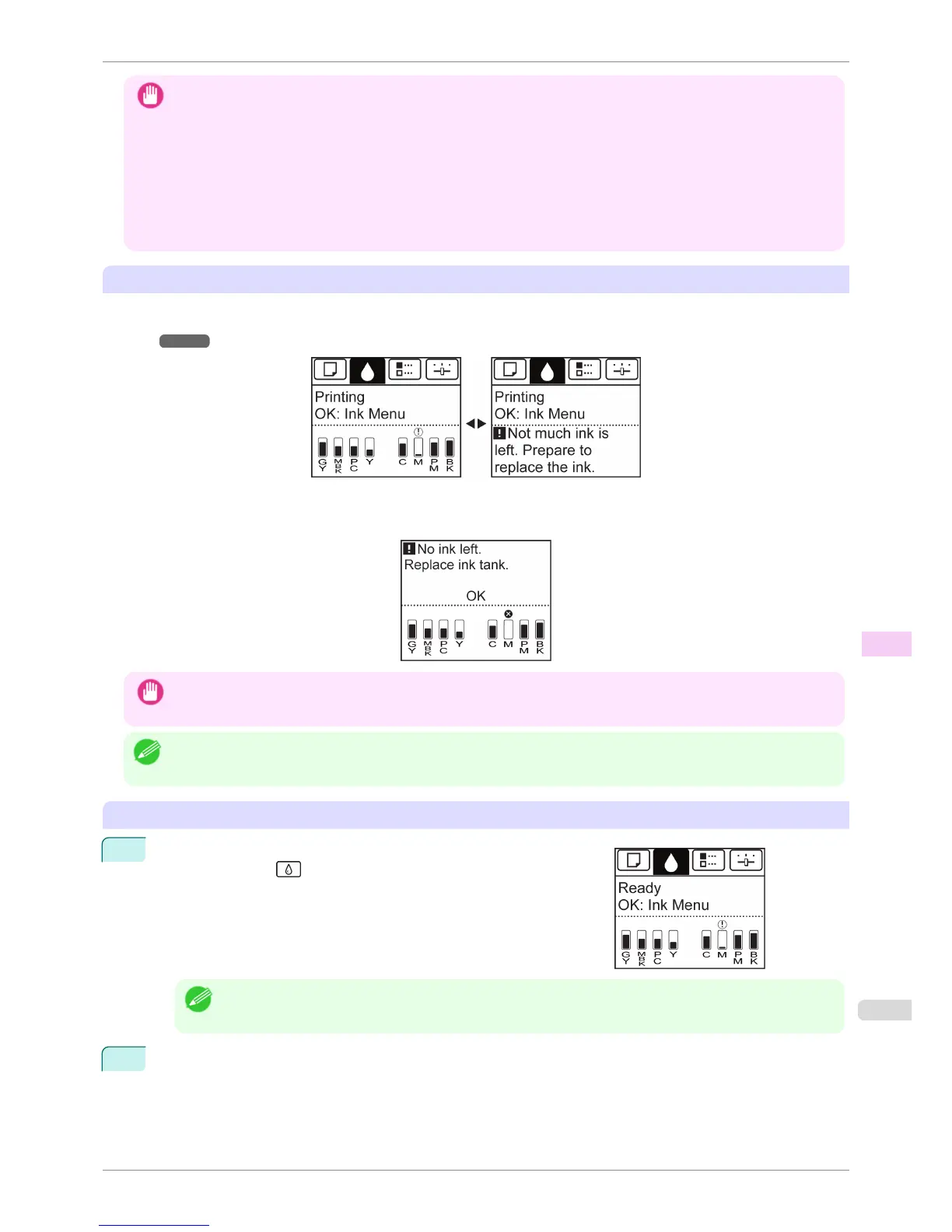
Confirm the message
When the ink level becomes low, a message is displayed on the Display Screen.
According to the message, replace the ink tank or prepare a new ink tank. (See "When to Replace Ink
Tanks.") ➔ P.822
If a message requests you to replace an Ink Tank, press the OK button. In this case, you can skip the step Access
the menu for ink tank replacement. Follow the instructions in Remove the ink tanks.
Important
• Do not remove an Ink Tank during initialization immediately after turning on the printer, or during printhead cleaning. Ink
may leak out.
Note
• Ink Tank replacement is possible even during printing, when print jobs are being canceled, or when paper is being ad-
vanced.
Access the menu for Ink Tank replacement
1
On the Tab Selection screen of the Control Panel, press ◀ or ▶ to
select the Ink tab ( ).
Note
• If the Tab Selection screen is not displayed, press the Menu button.
2
Press the OK button.
The Ink Menu is displayed.
iPF6400S
Replacing Ink Tanks
User's Guide
Maintenance and Consumables Ink Tanks
817













 To Next Page