If you do not attach the Spacer for Borderless Printing, the Platen may be soiled from borderless printing.
Important
• When borderless printing is used, the edge of the paper is cut during printing. Thus, ink density may be uneven at the
edges. If you require higher image quality, select No from the Automatic Cutting list in the Paper Detailed Settings
dialog box. In this case, the paper can be printed without borders on the left and right sides only. Once printed and cut,
please cut the upper and lower bands with scissors.
•
Document: Any type
•
Page size: A4 (210.0×297.0 mm)/Letter (8.3 × 11.7 in)
•
Paper: Roll
•
Paper type: Canon Heavyweight Coated Paper
•
Roll paper width: 10 inches (254.0 mm)
1
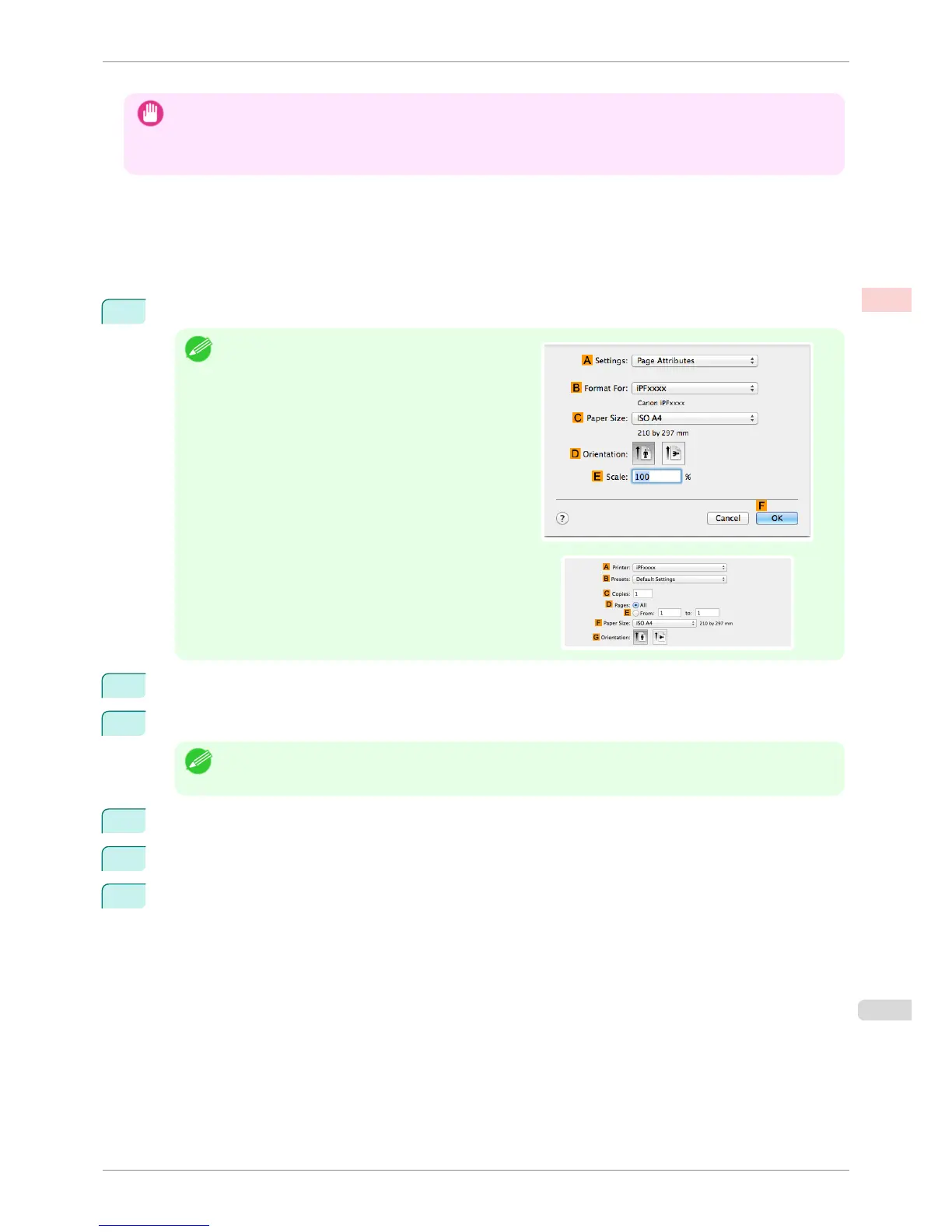
Choose Page Setup from the application menu to display the Page Attributes dialog box.
Note
•
The configuration method varies depending on the OS
and application software you are using.
If Page Setup is displayed in the application menu, the
settings are configured by opening the Page Attrib-
utes dialog box from Page Setup.
If it is not displayed, the settings are configured in the up-
per part of the printer driver displayed when you select
Print from the application software menu.
2
Select the printer in the B Format for list.
3
In C Paper Size, click the size of the original. In this case, click ISO A4.
Note
• All sizes are available in borderless printing if you resize originals to fit the roll width.
4
Click F OK to close the dialog box.
5
In the application, create an original that takes up the entire space of the paper size.
6
Choose Print in the application menu.
iPF6400S
Borderless Printing by Resizing Originals to Fit the Roll Width (Mac OS)
User's Guide
Enhanced Printing Options Borderless Printing
91













 To Next Page