7
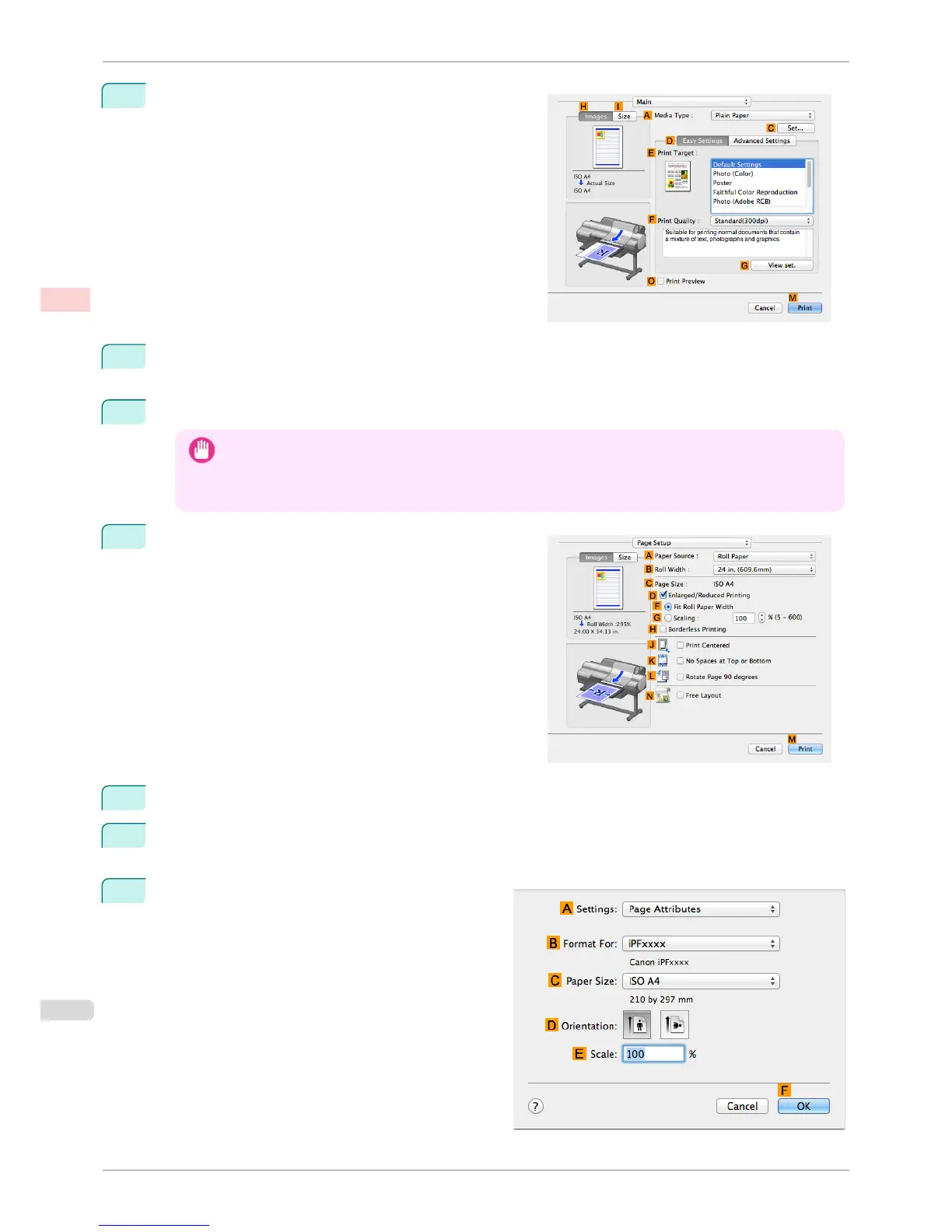
Access the Main pane.
8
In the A Media Type list, select the type of paper that is loaded. In this case, click Canon Heavyweight
Coated Paper.
9
Select the print target in the E Print Target list.
Important
• When you are using paper that takes longer for ink to adhere for borderless printing and the Cutter Unit touch-
es printing surfaces that are not dry yet, it may damage the paper or the edge of the document that is cut,
depending on frequency of use. In this kind of situation, change the ink drying time in Between Pages in the
Paper Detailed Settings dialog box.
10
Access the Page Setup pane.
11
Select and click a roll paper in the A Paper Source list.
12
Select the paper width of the roll loaded in the printer for B Roll Width. In this case, 10 in. (254.0mm) is
selected.
13
Make sure the C Page Size setting matches the orig-
inal size as selected in C Paper Size in the Page At-
tributes dialog box—in this case, ISO A4.
Borderless Printing by Resizing Originals to Fit the Roll Width (Mac OS)
iPF6400S
User's Guide
Enhanced Printing Options Borderless Printing
92













 To Next Page