8. Palettes 189
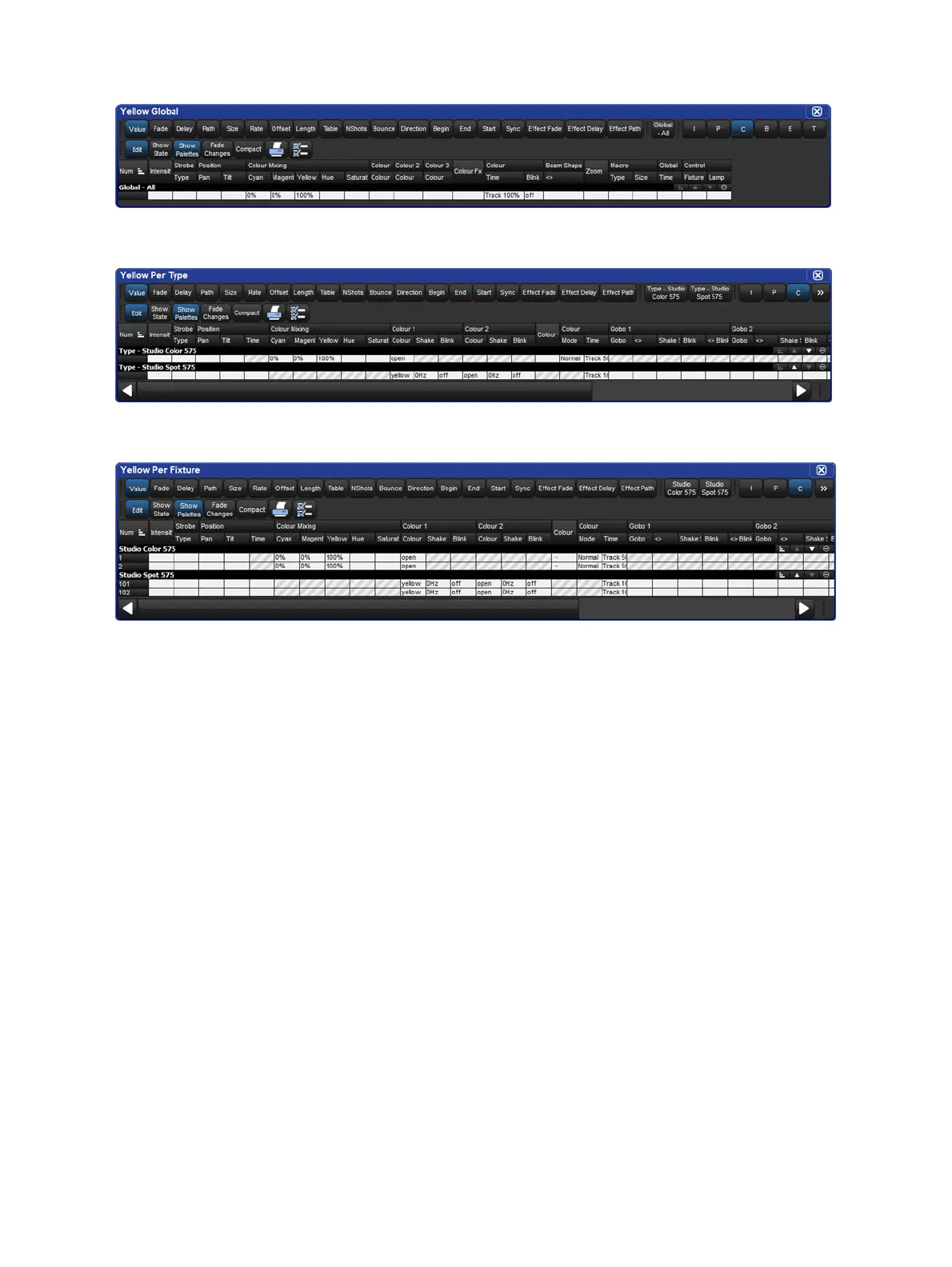
A Palette with Global Parameter Values
A Palette with Per Fixture Type Values
A Palette with Per Fixture Values
You can override the default settings using the Record Options Toolbar; for example to record
a single fixture's parameter values as per fixture:
1. Assign the parameters of the fixture as required.
2. Press Record.
3. The Reco rd Options Toolbar will appear on the bottom of the right-hand touch
screen. Select Per Fixture.
4. Press the key to choose the palette type, for example Colour. The Palette Directory
will open.
5. Select the palette location by pressing it in the Palette Directory window.
Similarly, to force a palette with one of each fixture type to be recorded as Per Fixture Type
rather than the default Per Fixture, use the Per Fixtu re Typ e button on the Record Options
Toolbar.
Forcing a palette to be Per Fixture Type can be useful if you want a palette that contains
programming for more than one type of fixture, but that you can apply to any fixture of a type
included in the palette. For example, you want to create a ‘red’ palette that can be applied to
both Studio Colors and Studio Spots. If you select the first Studio Spot and make red then
select the first Studio Color and make red (with different parameter values) and record this as
palette, it will by default be by fixture and work only for those two fixtures. However if you
select Per Fixture Type when recording, then the palette will work for all Studio Spots and all
Studio Colors, assigning them the same values as was used to create the palette.











 To Next Page