13. Timing 255
13.3.3 Assign Parameter Timings in an Editor
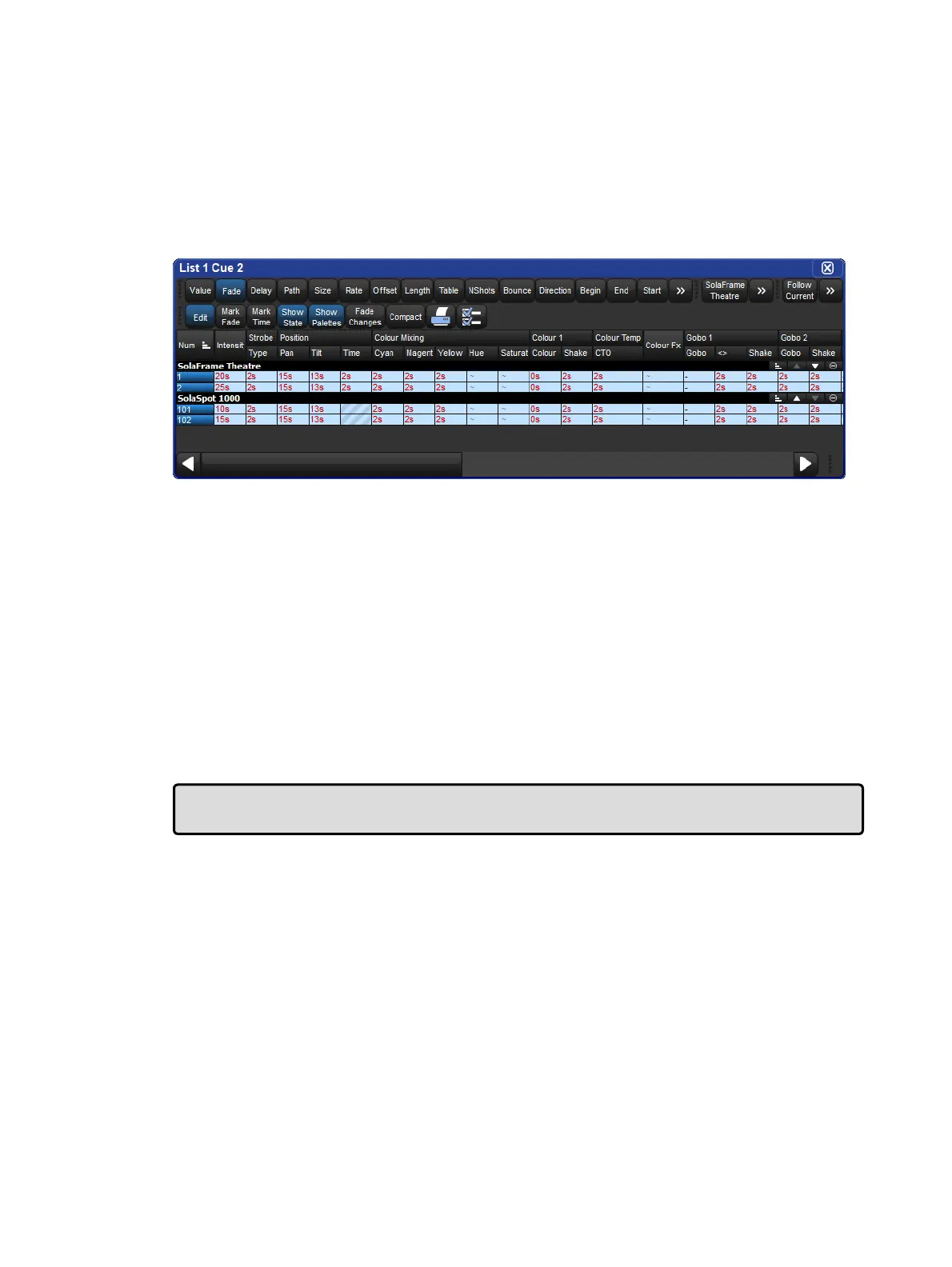
To assign fade or delay times directly in the spreadsheet of an editor:
1. View the required timing type by pressing either the Fade or Delay button in the top left
of the editor window.
2. Click in the cell for the desired parameter, or click and drag to select a range of cells.
3. Press Set.
4. Type in a time value, and press Enter.
When entering a time value, it should be in the form:
[h o u r s ] h [ mi n u t e s ] m [ s e c o n d s ] s / [ h o u r s ] h [ mi n u t e s ] m [ s e c o n d s ] s
For example:
2 s : 2 seconds in and out times.
2 s / 5 s : 2 seconds in, 5 seconds out.
1 m : 1 minute in and out times.
1 m1 0 s : 1 minute and 10 seconds in and out times.
1 h 1 0 m 3 0 s / 1 h : 1 hour, 10 minutes and 30 seconds in time, and 1 hour out time.
Use the H, M and S buttons that appear when editing a fade or delay time cell to enter the H,
M and S text into the cell. Alternatively, you can use an external keyboard.
Tip: If you enter 1 2 0 , this will be interpreted as 1 minute 20 seconds. To have the console
interpret it as 120 seconds (i.e. 2 minutes), enter 1 2 0 s .











 To Next Page