13. Timing 265
13.5.3 Tracking Through Loops
By default, Hog 4 OS's feature ensures that, when you use links to change the order of cue
playback, the cues appear on stage as if they had been played back in the order they appear
in the cuelist.
Sometimes, however, you might want to track through links rather than maintain state. For
example, you are creating a loop where the first time through you want the four fixtures to
come on one at a time, and throughout the loop you want them to alternate colour between red
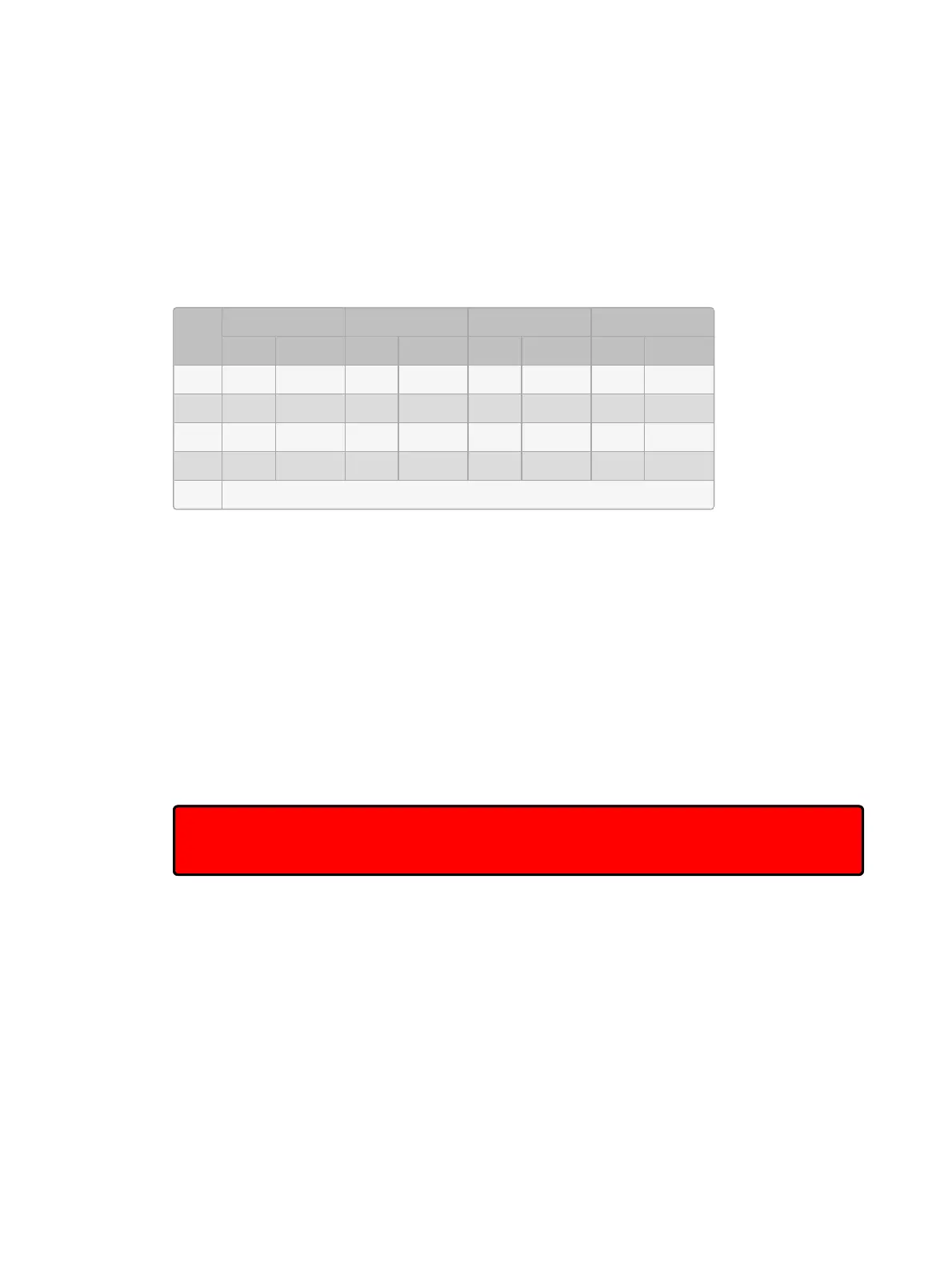
and blue. To do this, you might plot:
Cue
Fixture 1 Fixture 2 Fixture 3 Fixture 4
Int. Colour Int. Colour Int. Colour Int. Colour
1 50% Red Blue Red Blue
2 ↓ Blue 50% Red Blue Red
3 ↓ Red ↓ Blue 50% Red Blue
4 ↓ Blue ↓ Red ↓ Blue 50% Red
5 Link to Cue 1
The idea is that the intensity of the next fixture is brought to 50% in each cue, and that these
values then track through for the duration of the loop (shown by the arrows). However,
because of the Maintain State function, when the cuelist loops back to cue 1 Hog 4 OS will
make cue 1 look as it would have if you had run the cuelist in order. The result is that fixtures
2 to 4 will go out, just as they were the first time round the loop.
To stop this happening, you need to enable Track Th rou gh Loops, in the Cu elist Optio ns
window:
1. Open List 1 : open the cuelist window.
2. Press O ptio ns and select the Tra ck Throu gh Loops tick box.
Note that Track Through Loops also applies when the cuelist automatically loops back to the
start of the list after you play back the last cue in the list.
Important: The Tra ck Throu gh Loops option applies to the whole cuelist. Using it may
have unintended consequences when playing back other cues in the cuelist out of
sequence.











 To Next Page