17. Playback 307
The fader assignment for the currently active control set on a physical master can also be
hot-swapped without needing to access the master options window. To hot-swap the fader for
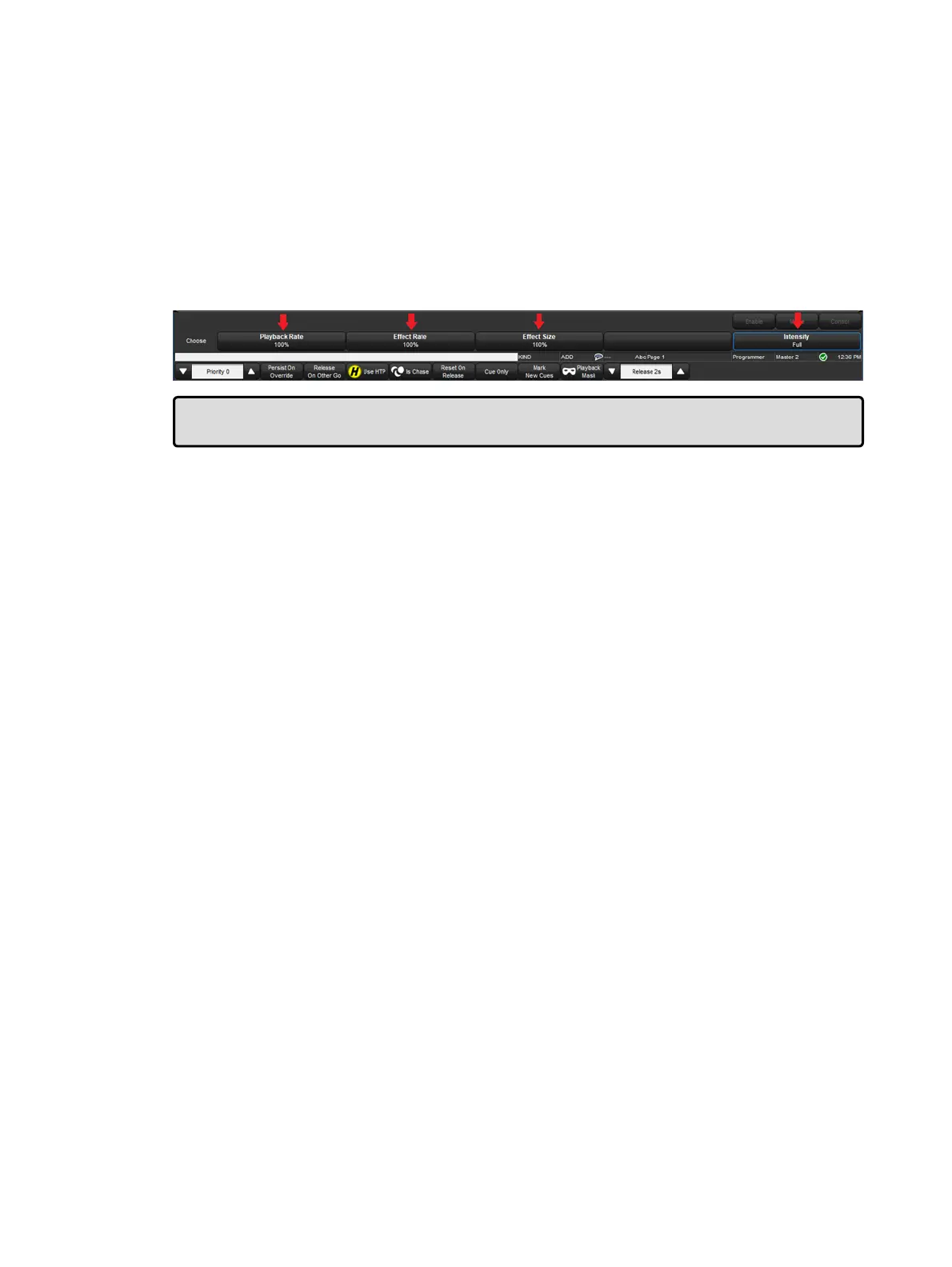
a contol set, hold choose and press one of the onscreen encoder wheel toolbar buttons
(located above the encoder wheels). The current fader assignment for the active control set
will be indicated with a blue outline. For example, in the figure below the current fader
assignment for the active control set is intensity (outline in blue). Pressing on the "playback
rate" encoder wheel button using the touchscreen or mouse would switch the fader
assignment under the current control set to scale playback rate.
Tip: Pressing or clicking on the Playback Bar is equivalent to pressing that master's
Cho ose key.
Main Control Set
The main playback controls, typically positioned to the right of master 10 act upon the
currently chosen master as well as any selected masters. The playback commands executed
by the main controls are configurable for each cuelist, scene, or batch.
To configure the main controls for a cuelist, scene, or batch already assigned to a physical
master hold the pig key and then press the [choose] key coordinating with physical master to
which the lists / scene / batch is assigned. Navigate to the "main" tab.
To configure the main controls for a cuelist, scene, or batch not already assigned to a
physical master open the master window using the open syntax (example: [L ist][ 1 ] [Op en ])
and then press the options button at the top of the master window. Navigate to the "main"
tab.











 To Next Page