3. Setting up the System 57
3.1.8 Keyboard
Using an External Keyboard
You can connect an external keyboard to the console via the console's USB ports. Choose a
keyboard model, and assign the keyboard layout according to the language of the keyboard
you have connected, in the Keyboar d pane of the Control Pane l.
You can adjust the timings for Repeat Delay, Repeat Period, and Double Press in the Key
Timings pane of the User Pre ferences window.
Tip: You can use an external keyboard to control many of the console's functions, as well
as entering numbers and text; see QWERTY Keyboard Shortcuts.
Using the On-screen Keyboard
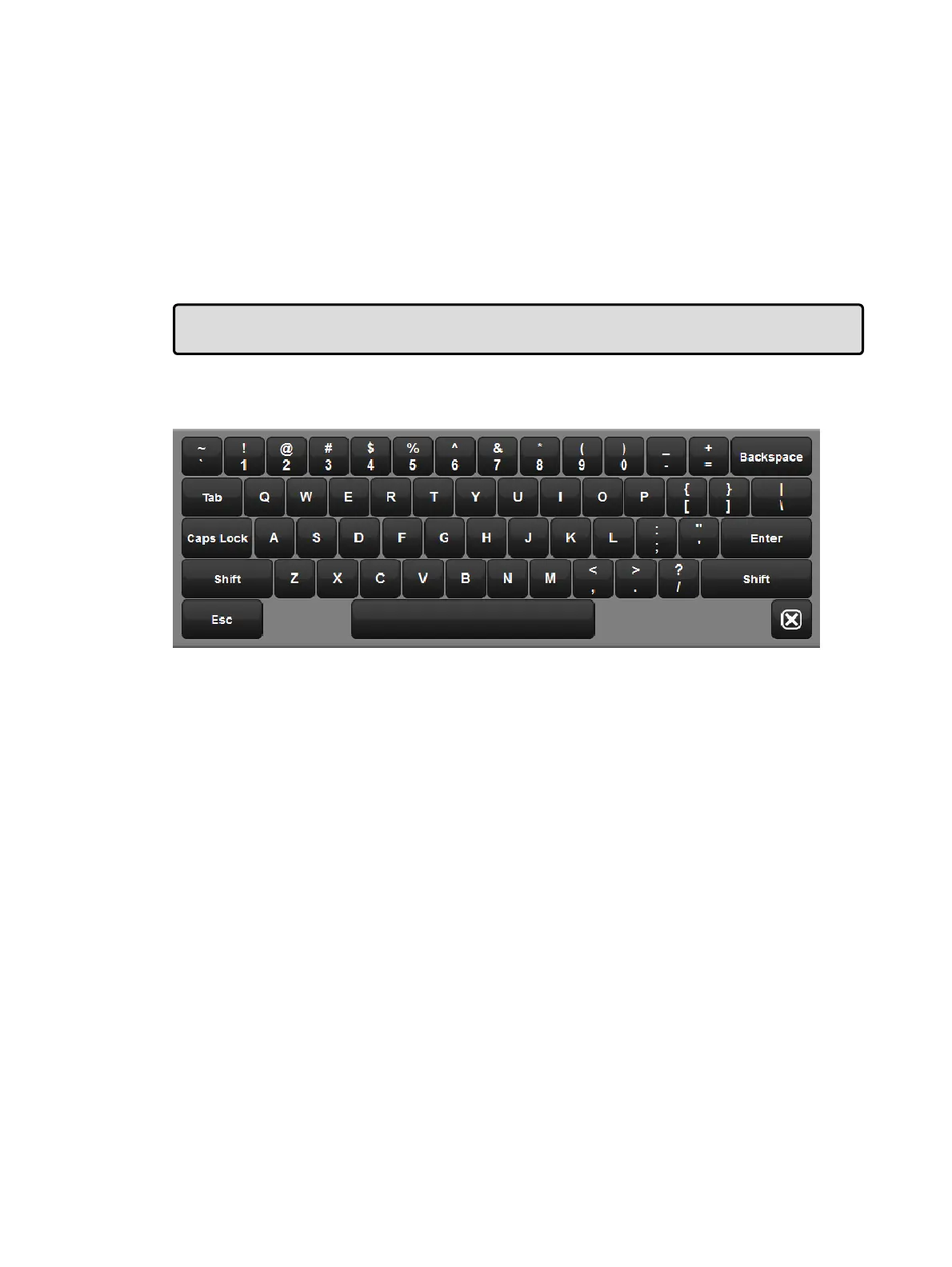
The on-screen keyboard
You can use the on-screen keyboard to enter text when an external keyboard is not present.
When prompted to insert text, press the Se t key to launch a touch-screen keyboard. You can
use the Pig key as a 'shift' for uppercase characters. Press the Enter key when you have
finished typing. To close the on-screen keyboard without making any changes, press Set
instead of En ter.
3.1.9 Trackball
Using an External Trackball
External USB trackballs can be connected to the console via the console's USB ports. Most
external USB trackballs are supported only as an external mouse with left and right click
capabilities however a select set of trackballs (listed below) are fully supported as functional
Hog 4 OS trackballs (support for all four trackball buttons and support for the use of the
trackball in both pointer and POS mode):
Kensington Expert Mouse (Model K64325)
Kensington Orbit Wireless Mobile Trackball (Model K72352US)
Kensington SlimBlade Trackball (Model K72327US)











 To Next Page