Kayenne/Karrera/GV Korona
User Manual
335
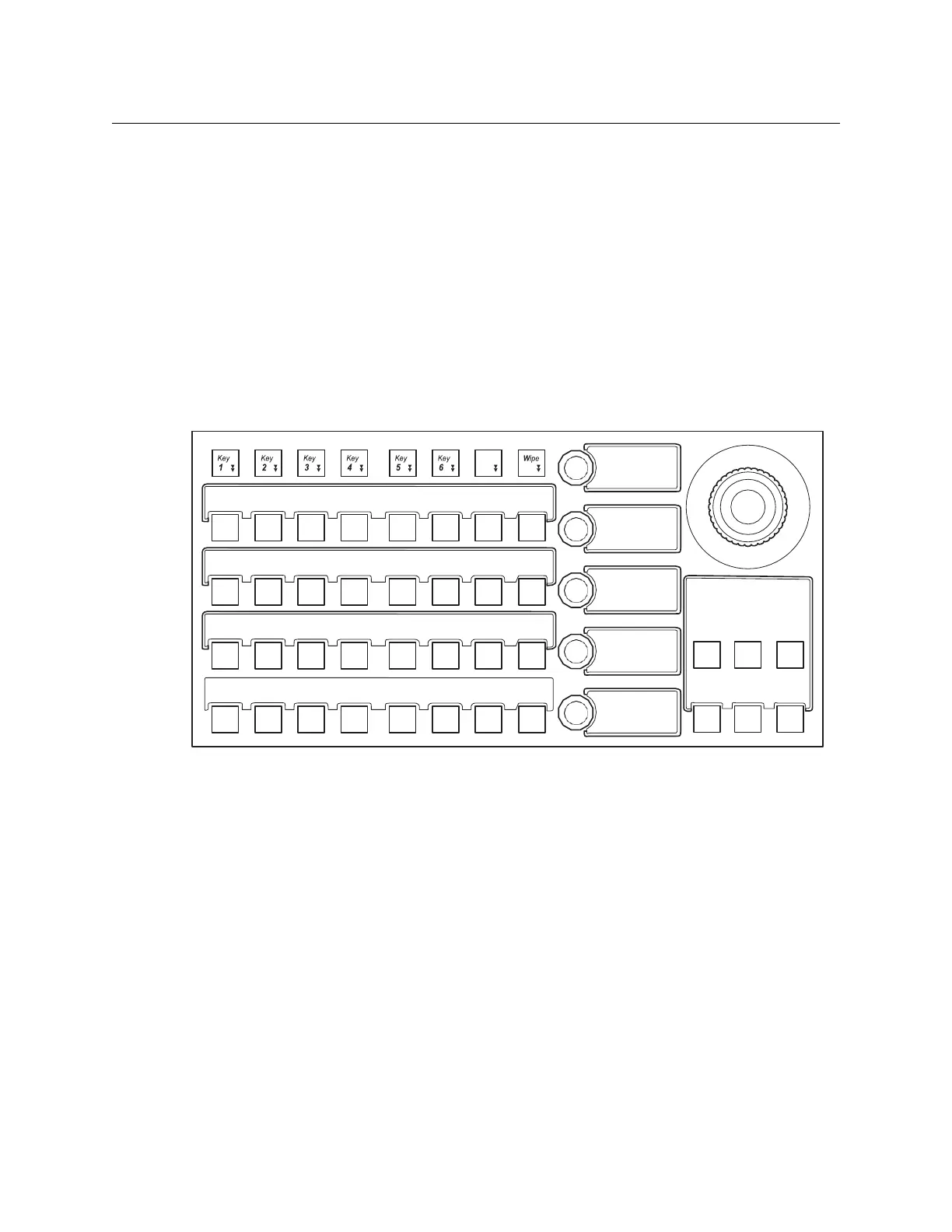
Set Edge Pinning with the Kayenne Multi-Function Module
Edge Pinning can be performed from the MFM (Multi-Function Module) of the Kayenne
Control Panel, in the 2DPM (and identically the eDPM), EPin menu.
In this example of a shot clock box effect, used in a sporting event, a 2D DPM cropped box
effect will be created and the edges of the box’s video source pinned to the cropped edges.
Then, using pan and scan, the video source will be repositioned inside the 2D DPM box
effect without moving the box. This effect is very useful if the camera is bumped or moved
so the switcher operator can reposition the video from the switcher.
1 Select a background source.
2 Select a keyer with the source for the box; in this case a camera pointed at a shot clock,
and cut on the key over the background.
3 On the MFM, press
2DPM, Crop and the Dlg button just below Crop.
2D DPM (Edge Pinning) Crop—Multi-Function Module
4 Adjust the crop edges using the soft knobs to include the portion of the video you
want in the box (key); the shot clock in this example.
5 Press the
Size button and use the Size and X and Y positioning soft knobs to size and
locate the cropped key over the background.
a On the MFM, press
Thru to turn it on to see the location of the box effect over the
background video. This will set the opacity of the video in the key to 50%. The
opacity can be adjusted by turning the
Thru soft knob.
6 Turn off the
Dlg button.
7 On the MFM, press EPin and then the Dlg button directly below to turn on Edge
Pinning.
CR B
CR L
CR A
CR R
CR T








 To Next Page