Kayenne/Karrera/GV Korona
User Manual
371
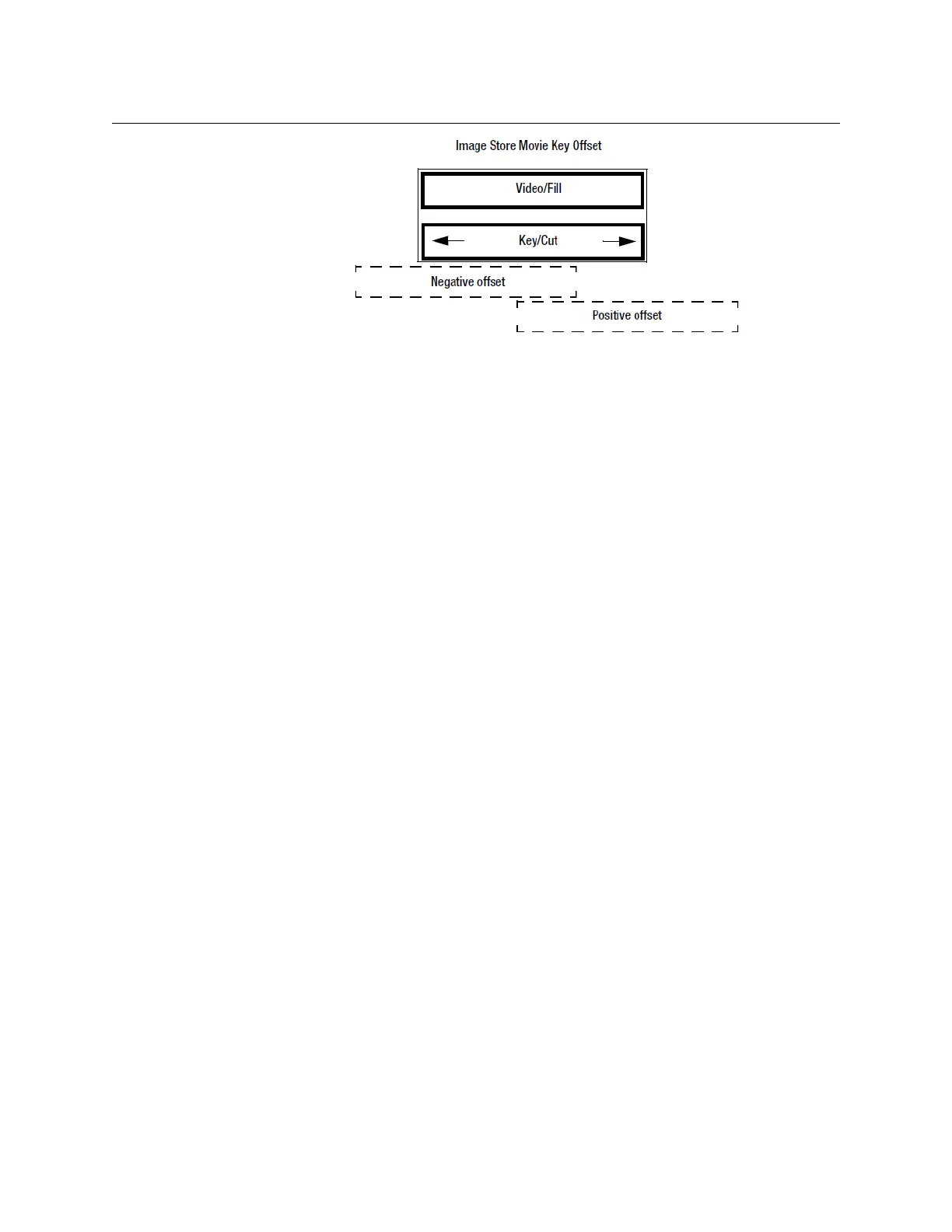
Image Store Key/Cut Offset
Prerequisite: Image Store audio output groups are configured and enabled.
1 Select Image Store, Images, Movie Edit tab in the menu.
2 Select the Key/Cut element movie and assign an Image Store channel by selecting it
(right).
3 Enter the offset value in the
Key Offset data pad (a negative (-) value means the audio is
set to begin before the video):
a Turn the Menu Panel soft knob to select a value or,
b Select the
Key Offset data pad, enter a value in the pop-up keypad, and select
Enter.
Creating a Sequenced Movie
A series of suitable related still images can be sequenced into a movie, using the Library
menu Sequence Image Operation.
Prerequisites:
• Images must be PNG or TGA (Targa) format.
• All images must be in an accessible Disk/Folder.
• Each still image file needs to be named as a four digit number (i.e. 0001.png, 1092.tga).
• The sequence of files must be in ascending numerical order, matching their relative
position in the movie. The lowest numbered file will be the first movie frame, and the
highest numbered file the last. Numbers can be skipped (i.e, 0001, 0002, 0101, 0102,
0103 is valid), but the presentation order is always ascending.
Create a Still Sequenced Movie
1 Go to the Image Store/Library menu.
2 Select From Disk/Folders on the left and navigate to the folder holding the stills.
3 Select To Cache on the right. The Sequence Image Operations button will appear.Select
Sequence so it highlights.
4 Click
Images in the center and enter the sequence of stills in the pop up menu.
5 Click Start ID and enter the file name number for the resulting movie. If that file name
already exists it will be overwritten.



 To Next Page