3.
If required, tap to undo the deletion.
4.
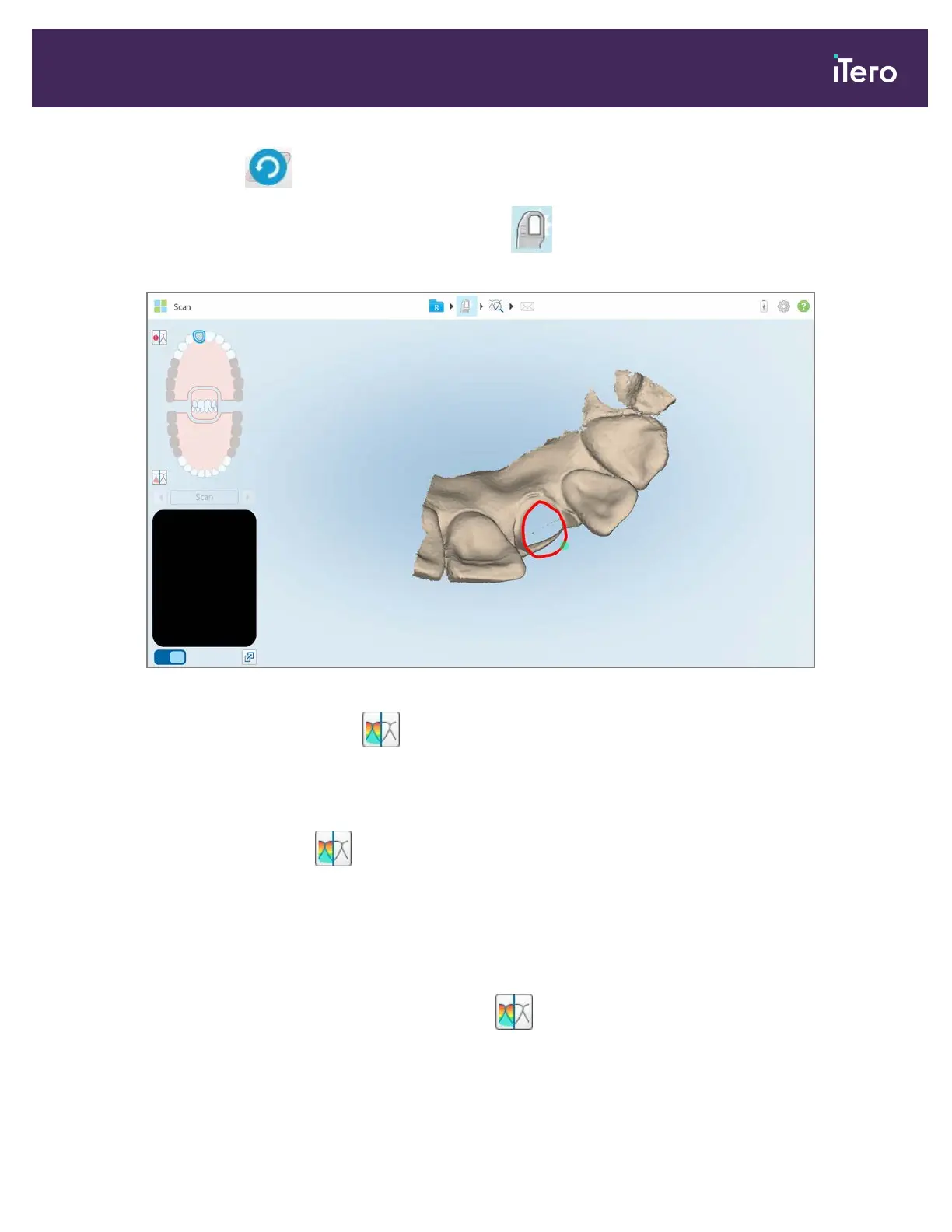
After adjusting the clearance on the patient’s tooth, tap to return to Scan mode and rescan the deleted
area, which is marked in red.
Figure 152: Deleted area marked in red
5.
Tap the Occlusal Clearance tool to confirm that the prepped tooth was sufficiently reduced.
9.7 Working with the Occlusal Clearance tool
The Occlusal Clearance tool enables you to view the contact and distance between the opposing teeth, to
ensure that the prepped tooth has sufficient reduction for the material chosen in the Rx.
The Occlusal Clearance tool can be accessed while in View mode and from the Viewer.
Note: The Occlusal Clearance tool is displayed only after you have scanned the upper and lower jaws, and the bite.
To display the occlusal clearance while in View mode:
1.
In the View window, tap the Occlusal Clearance tool .
The occlusal clearance between the opposing teeth is displayed.
iTero Element® 5D Plus User manual
© 2020 Align Technology, Inc. All rights reserved. 135



 To Next Page