11. Tap Next.
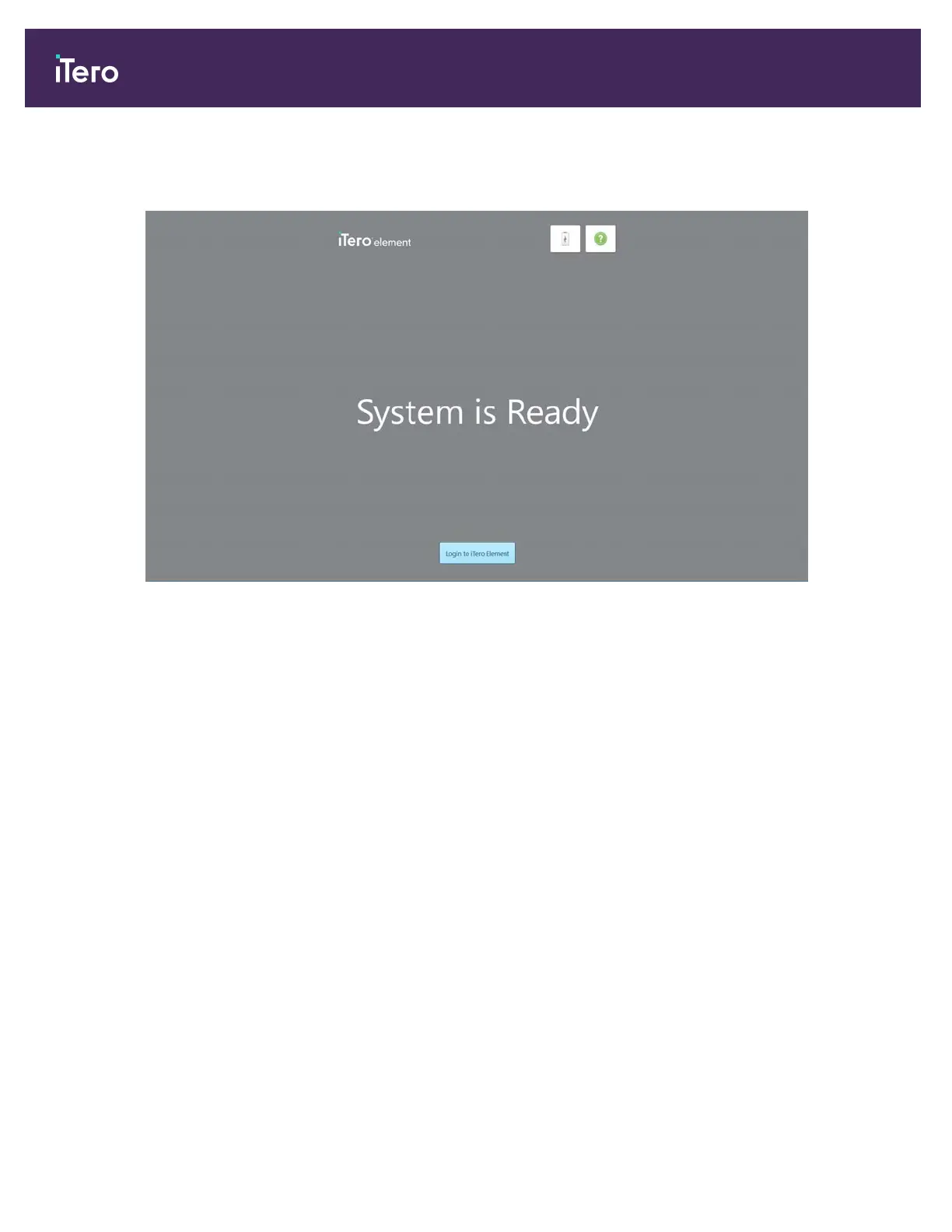
The system has been registered and is ready.
Figure 22: System is registered and ready
12. Tap Login to iTero Element to log in to the system.
The Login window is displayed. For more details on logging in to the system, see section 3.1.
2.4 Working in Demo Mode
Demo Mode is designed for training new staff members and for practicing scanning. Demo Mode is available anytime
for dental practices to train on an iTero scanner, for scanning techniques, how-to guidelines for prescription forms,
case types, and to familiarize themselves with the iTero interface. Demo Mode features all the aspects of the
scanning process and includes a wide variety of sample cases, such as clinical cases, Invisalign cases, and
restorative cases. In addition, demo cases that can be used for demonstration and training purposes of the iTero
Element 5D Review tool and clinical indications shown by NIRI, are displayed.
When Demo Mode is in use for practice scanning, a lightly striped background and red tag in the upper left-hand
corner indicates that Demo Mode is currently running. Demo Mode is available from the Welcome screen when
logging in for the first time, or at any point by tapping the iTero logo on the home screen.
Note: Scans captured in Demo Mode cannot be saved or submitted for patient treatment.
iTero Element® 5D Plus User manual
20 © 2020 Align Technology, Inc. All rights reserved.



 To Next Page