If you are taking screenshots while using the Review tool, the following screenshots are included:
l Entire Review tool window, including 3D image, and 2D NIRI and color viewfinder images
l 3D image
l 2D NIRI viewfinder image (if the loupe has been dragged onto the 3D image)
l 2D color viewfinder image (if the loupe has been dragged onto the 3D image)
Each set of screenshots is saved in a separate folder and saved in a folder with the patient’s name, which can be
downloaded from MyiTero as a zipped file.
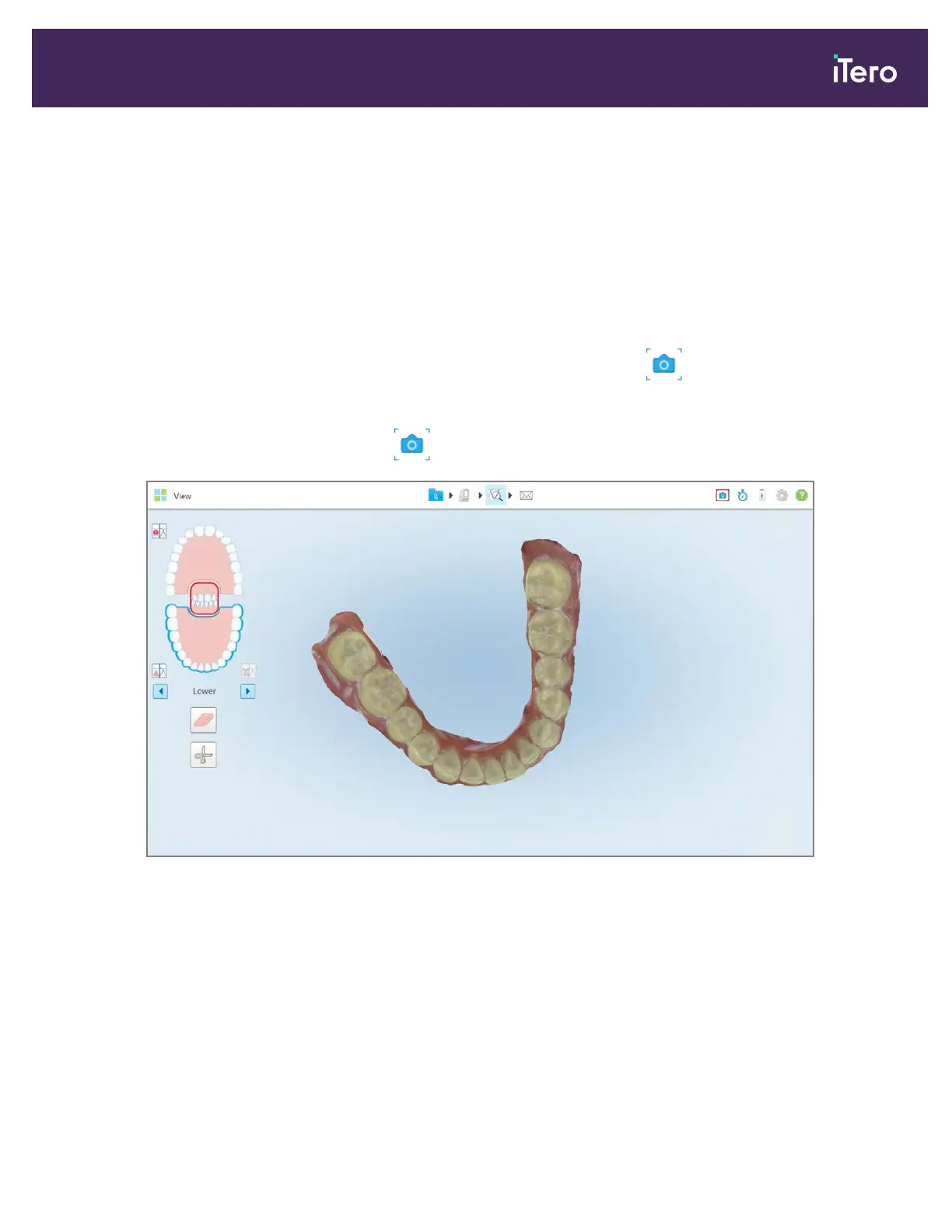
Screenshots can be captured from any window that includes the Snapshot tool on the toolbar.
To capture a screenshot of a scanned image:
1.
In View mode, tap the Snapshot tool on the toolbar.
Figure 173: View mode – with Snapshot tool
The screen flashes, indicating that the screenshot was captured. A thumbnail of the screenshot is displayed on
the bottom left of the window, and remains for 7 seconds.
iTero Element® 5D Plus User manual
© 2020 Align Technology, Inc. All rights reserved. 151



 To Next Page