l
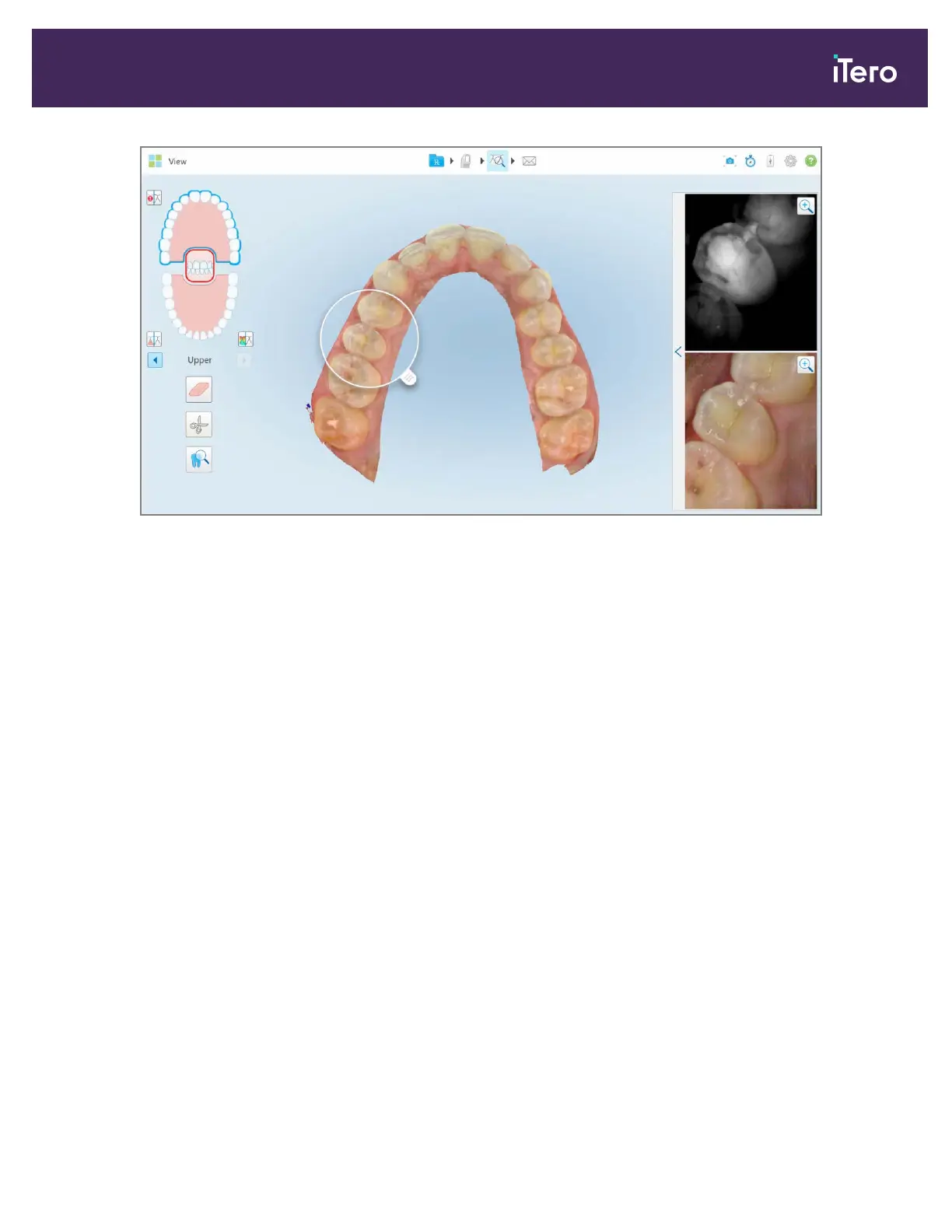
Figure 168: Image pane on the right showing the area of interest as both NIRI and colored intraoral images
9.10.1 Zooming in to and out of the images in the image pane
In order to better evaluate the scanned images in the image pane, you can zoom in to and out of the images, as well
as adjust the contrast and brightness of each image.
You can zoom in to or out of the selected area of the images displayed in the image pane using the following
methods:
l Using a spreading or pinching gesture on one of the images displayed in the image pane
l Double-tapping an image in the image pane to toggle zoom in/zoom out
l Tapping the zoom button displayed on the required image
Zooming in or out using the first two methods will enlarge or decrease the size of both image pane images
simultaneously, but keep the image pane windows the same size.
Zooming in using the zoom tool will enlarge the image pane and display only the relevant image.
iTero Element® 5D Plus User manual
© 2020 Align Technology, Inc. All rights reserved. 147



 To Next Page