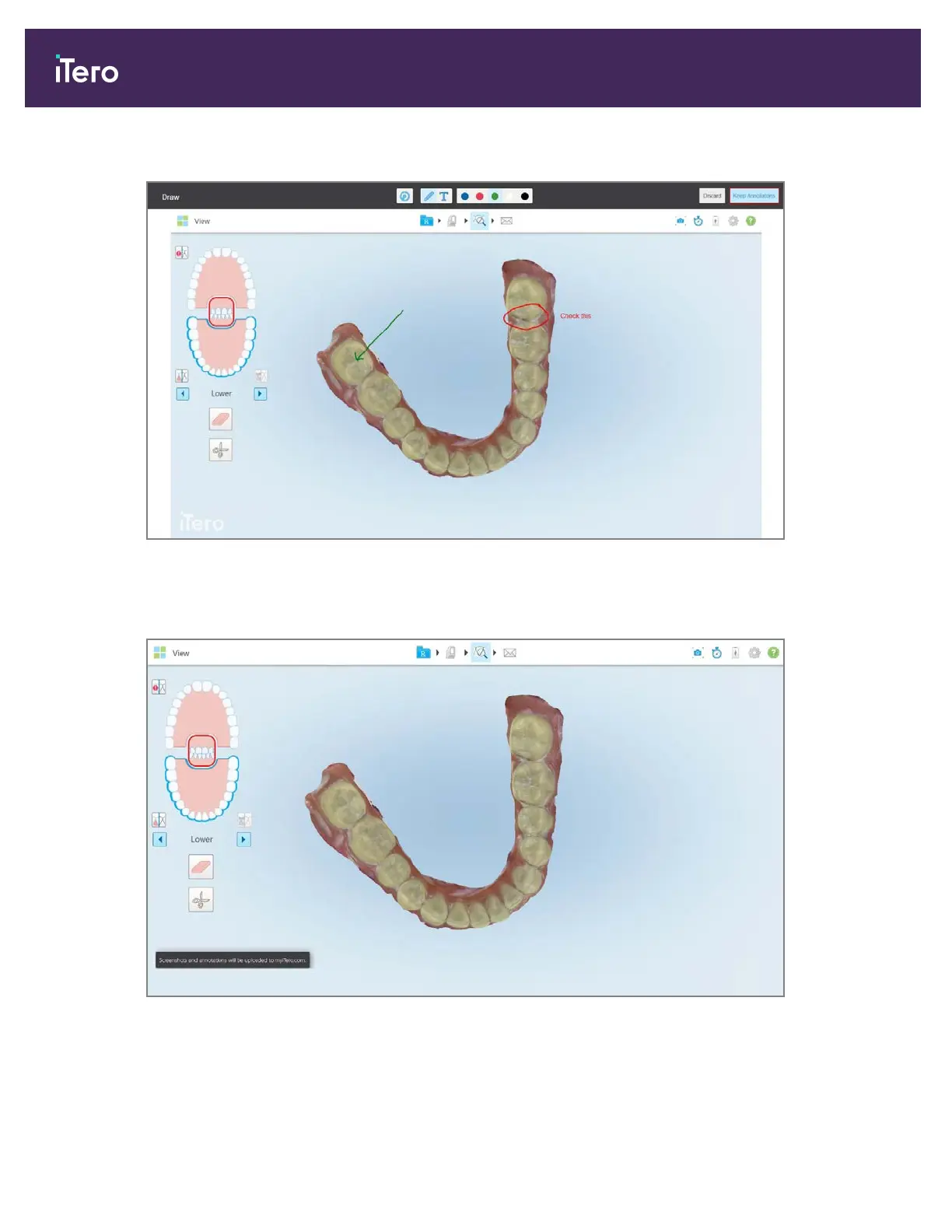
4. To save the screenshot with the annotations, tap Keep Annotations.
Figure 178: Screenshot with annotations
A pop-up message is displayed at the bottom of the screen, notifying that the screenshots and annotations will be
uploaded to MyiTero, where you can access them.
Figure 179: Notification that the screenshots and annotations will be uploaded to MyiTero
5. To save only the screenshots without the annotations, tap Discard.
A confirmation message is displayed.
iTero Element® 5D Plus User manual
154 © 2020 Align Technology, Inc. All rights reserved.



 To Next Page