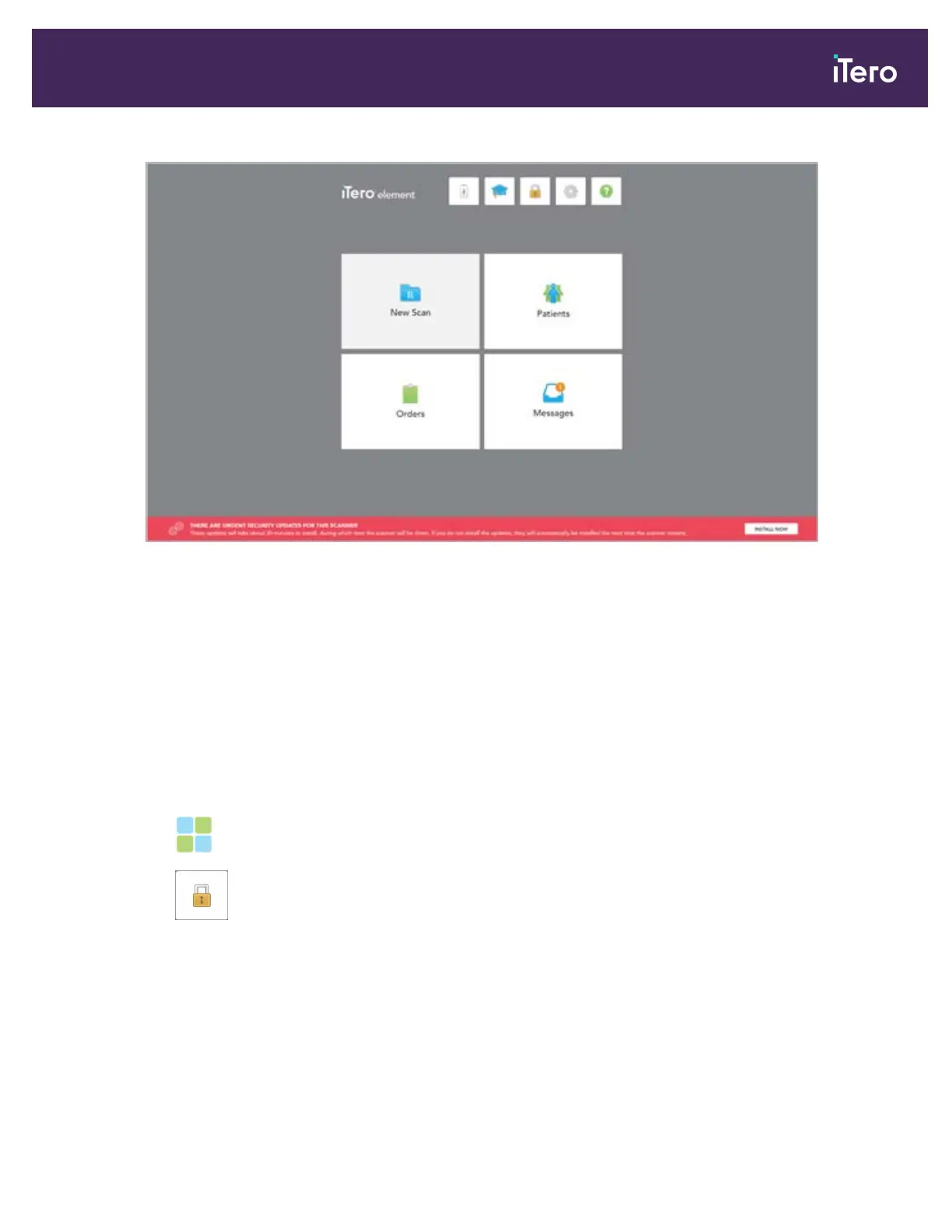
Figure 37: Home screen with notification about Windows security updates
A Windows progress bar is displayed during the installation. Once the updates have been installed, the scanner
restarts and the Login page is displayed.
3.2 Logging out of the scanner
In order to protect the patient information, you should log out of the scanner when it is not in use.
By default, you will be logged out after a predefined period of inactivity, which can be defined in the Login settings,
described in section 3.6.3.1.
To log out of the scanner:
1.
Tap to return to the home screen.
2.
Tap to log out of the system.
The Login window is displayed, ready for the next user to log in to the system.
3.3 Shutting down the scanner
It is recommended to shut down the system at the end of each day to allow software updates to be installed.
Note: If you do not shut down the scanner correctly, the next time you log on, you will need to acknowledge this.
Incorrect shutdown includes letting the battery run down and pressing the Power button for longer than 4 seconds.
iTero Element® 5D Plus User manual
© 2020 Align Technology, Inc. All rights reserved. 33



 To Next Page