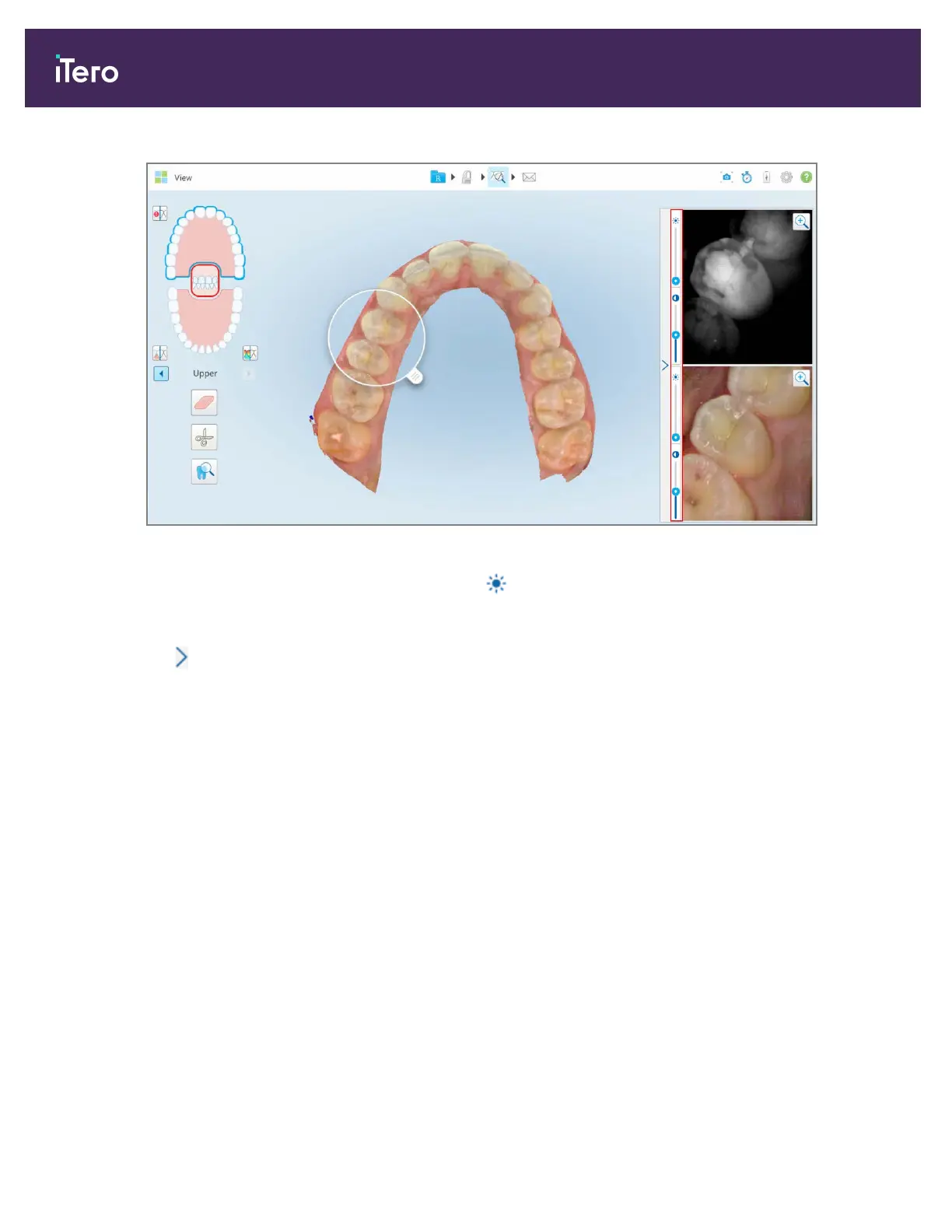
Figure 172: Brightness and contrast toolbars
2.
Move the slider up or down to adjust the brightness or contrast.
Tip: You can tap anywhere in the slider area and drag up or down to adjust the settings.
3.
Tap to collapse the toolbar.
9.10.3 Capturing the Review tool images
If required, you can capture the images displayed when using the Review tool. These images become part of the
patient’s export package, and can later be downloaded from MyiTero.
For more information, see section 9.11
9.11 Working with the Snapshot tool
The Snapshot tool enables you to capture screenshots of the scanned model. These screenshots become part of the
patient’s export package, and can later be downloaded from MyiTero. In addition, these screenshots can added to
the iTero Scan Report, which is created in MyiTero. For more information on the iTero Scan Report, refer to the
MyiTero User Guide.
Once the image has been captured, you can add annotations, if required.
By default, each time you tap the Snapshot tool, the following images are captured and saved in a separate folder,
whose name includes the Order ID and date and time of the screenshots:
l Entire View window
l 3D image
iTero Element® 5D Plus User manual
150 © 2020 Align Technology, Inc. All rights reserved.



 To Next Page