A Clinic LAN network guidelines
A.1 Introduction
The scanner uses Wi-Fi to send and retrieve scans to and from the iTero cloud.
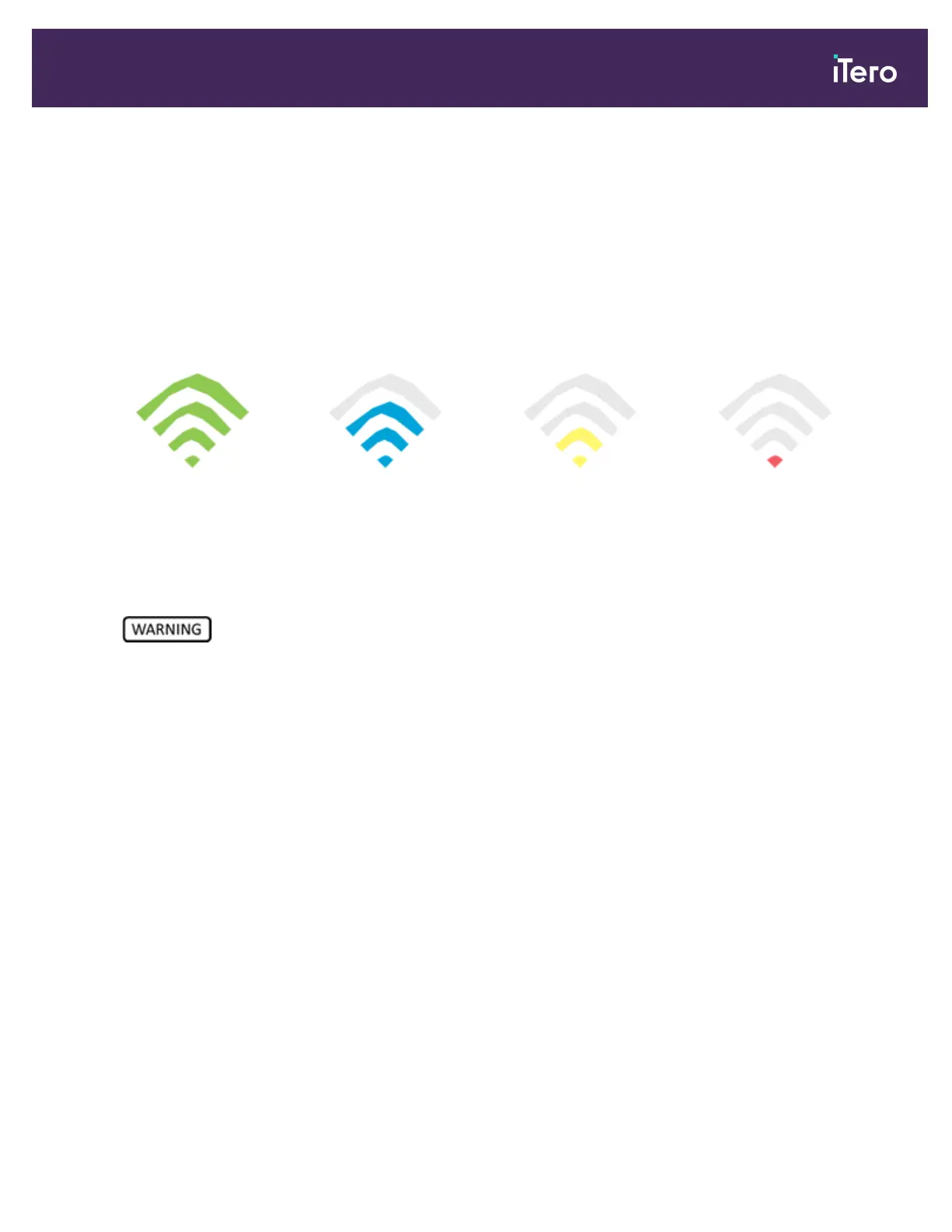
Below are some helpful guidelines for the best Wi-Fi connection.
Levels of Wi-Fi Internet Connectivity
Excellent
>-50 dBm
Good
-50 to -60 dBm
Fair
-60 to -70 dBm
Weak
<-70 dBm
IMPORTANT: In order to achieve the best performance of your iTero scanner, ensure that the Wi-Fi signal strength
is Excellent or at least Good.
Never connect the LAN cable to the scanner, in order to prevent electrical shock.
A.2 Preparations
l The required modem/router should be configured with the WPA2 security standard, including a password.
l Ensure that your IT professional staff will be available when the scanner installation is planned to take place.
l Make sure that the Wi-Fi SSID credentials are available: Login & password.
l The minimum Wi-Fi strength signal for the system should display at least two lines, as shown above.
l Following are some suggestions for the office IT personnel, regarding what should be considered in order to
prevent issues such as access or connectivity to/with the iTero scanner:
l Hostname recommendations related to Align services listening to ports 80 and 443, as described in
section A.7.
l Do not prevent FTP communication since the scanner sends specific file types (.3ds and.3dc/.3dm).
l Disable any proxy clients for data communication through TCP/IP.
l Do not add the scanner to any domain group.
l Do not run any group policy on the scanner as it may disrupt its proper functioning.
iTero Element® 5D Plus User manual
© 2020 Align Technology, Inc. All rights reserved. 167



 To Next Page