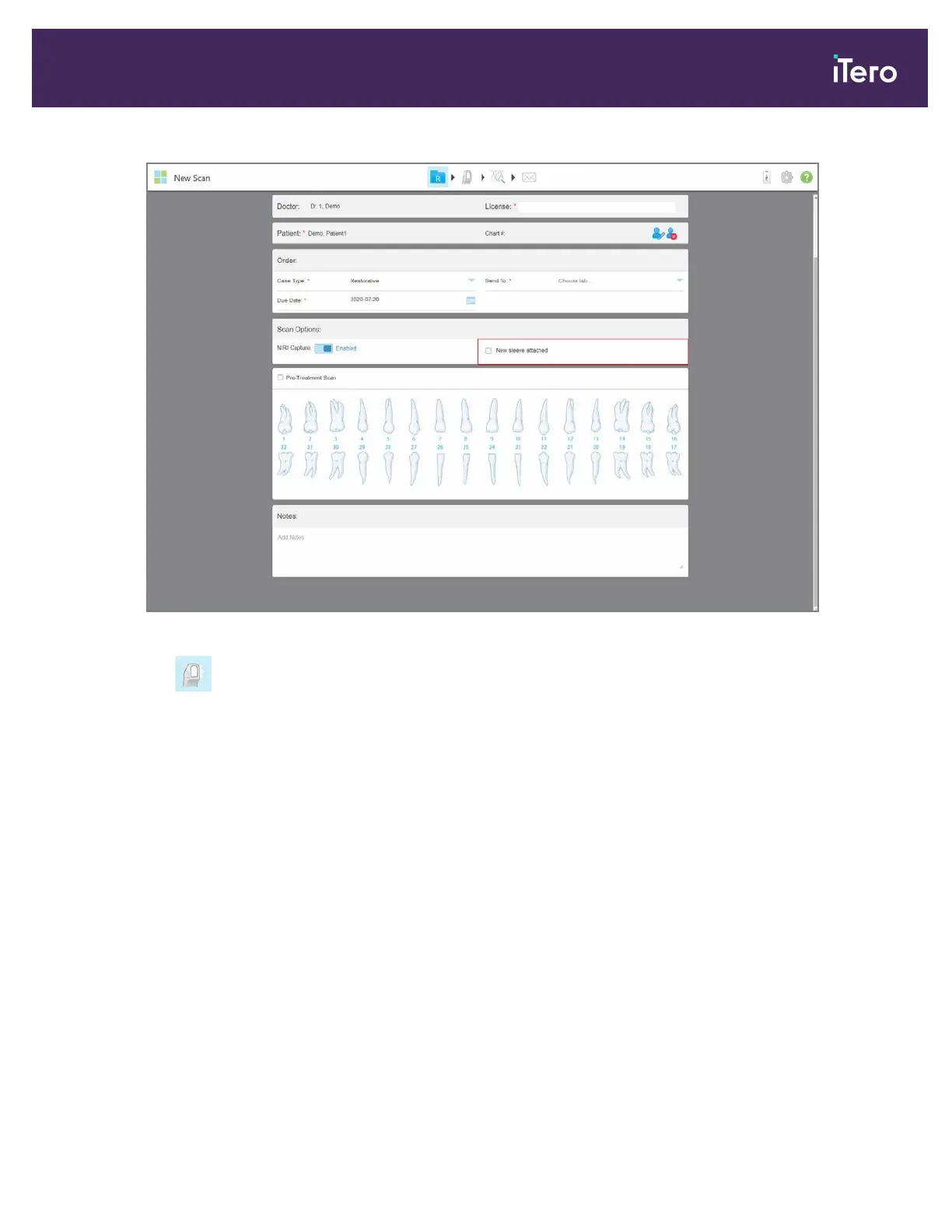
Figure 87: New sleeve attached check box
7.
Tap on the toolbar to move to Scan mode, as described in section 4.5.
4.4.1 Working with restorative scan types
When selecting restorative case types, you need to select the tooth that needs to be restored, the type of restoration
required, as well as the material, shade, etc. of the restoration.
To scan a restorative or chairside milling case.
1. From the Case Type drop-down list, select Restorative.
A tooth chart is displayed in the window.
iTero Element® 5D Plus User manual
© 2020 Align Technology, Inc. All rights reserved. 79



 To Next Page