7. Editing
7.01 Separating and Combining Shapes
Split
The Split function is used to break up combined shapes into individual shapes, but keep inner paths joined
to their respective outer paths. Sometimes the outer paths are called parent shapes and the inner paths are
called child shapes.
After selecting a combined shape, the Split function can be accessed in any of the following ways:
Click on the Split icon on the Magic Toolbar
Press Ctrl+P
Right click on the screen and choose Shape Magic>Split from the menu
Go to Edit>Shape Magic>Split.
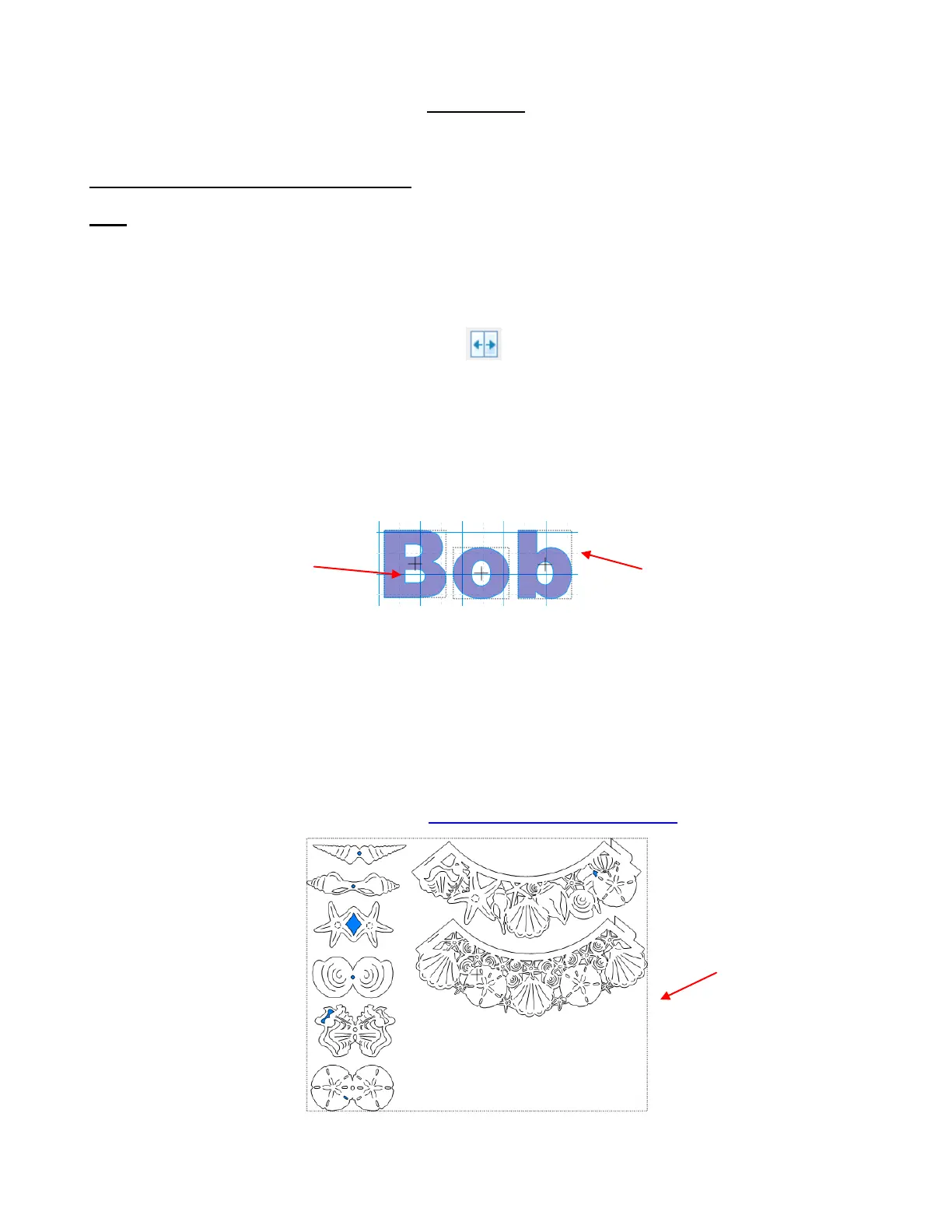
As was shown in Section 5.04, if you apply Split to a word such as “Bob”, the child shapes inside the letters
“B”, “o”, and “b” are still a part of the parent shapes:
Three things will let you know that the child and parents shapes are still joined to one another:
There are no individual bounding boxes around the child shapes, only around the individual parent
shapes.
You can see the grid lines of the Virtual Mat inside the child shapes, indicating those are empty spaces:
If you move one of the letters, the child shape moves with the parent shape.
The same is true when you open a file and discover that all of the parts are combined as one shape. First
apply the Split function to see if the file will then be broken into the combined shapes that make the most
sense. For example, the following SVG file (Cupcake Seashells by Judy Keating) is imported into MTC:
The file imports as a single shape. But once Split is applied, there are 8 individual shapes which can then
be individually moved, resized, re-colored, assigned to separate layers, etc:
The grid is visible through
the inner “empty” paths.
There are no bounding
boxes around the inner
paths.



 To Next Page