If you need to move the carriage quite a distance across the mat, then adjust that setting to a high
number.
If you need to move the carriage less than an inch or so, then adjust to a much smaller setting.
If you need extreme precision such as when you are setting the origin for a Print and Cut, then once
you are close to the location you need, reduce to the minimum setting of 4.
Note that when using the arrow keys on your keyboard, you can adjust the Move By dial by holding the
Ctrl key and clicking on the up and down arrow keys.
If you want the blade carriage to return to the Home Origin, then click on the [0,0] button and the blade
carriage will immediate return to that location.
If you want to use the same origin that was just used in your last cut, then click on the Use Last button and
the blade carriage will return to the same [X,Y] location previously set.
Once the blade carriage (or laser dot) is in the location you need, click on the Finished button to set that
location as the new origin and close that window.
2.09 Connection Status and Test Cut Menu
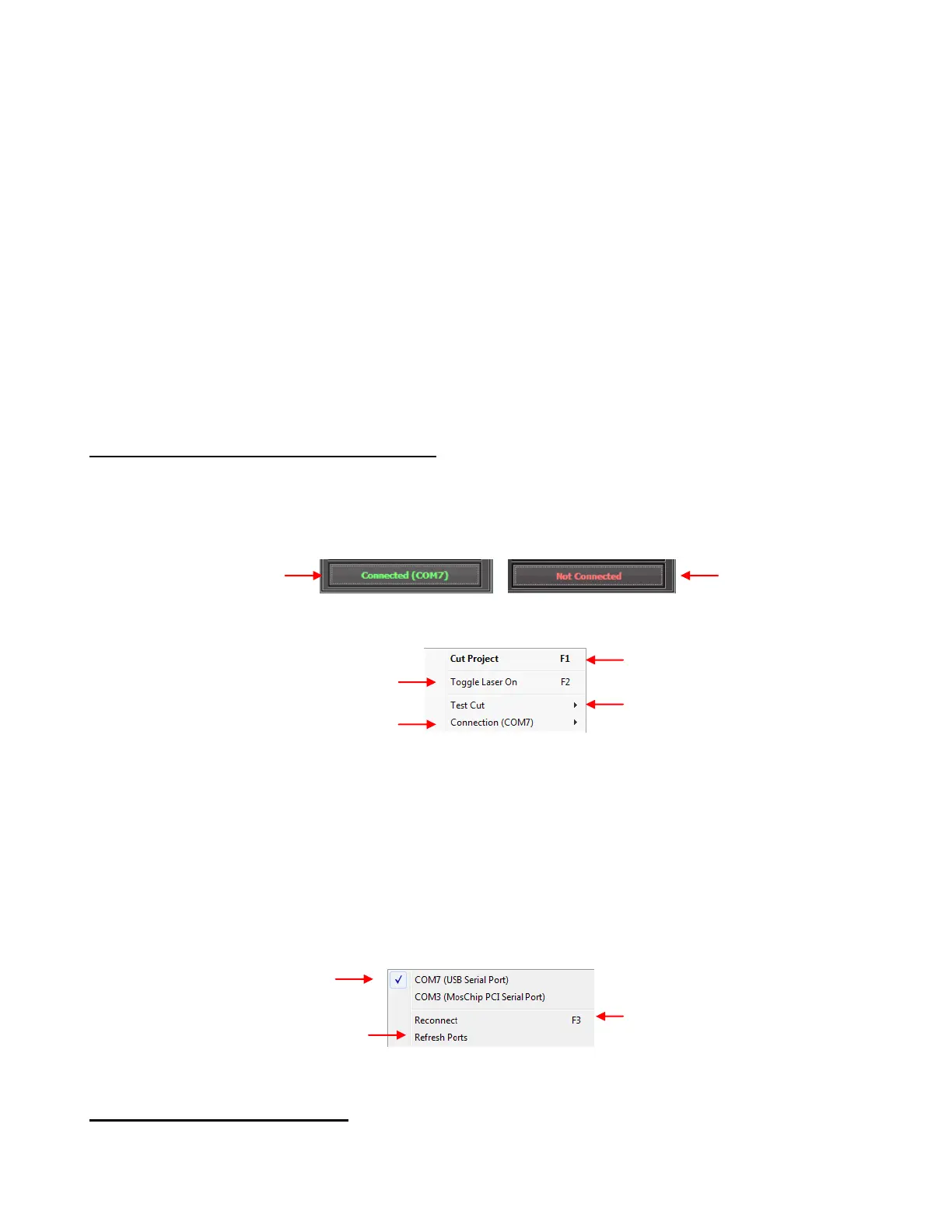
The Connection Status and Test Cut Menu button serves several functions:
The button will either read Connected (Com X) or Not Connected depending on whether or not the
computer has identified a connection to the Zing:
Clicking on this button will open a menu:
The laser can be turned on or off in this menu by choosing Toggle Laser On. Or, any time you are in
the Cut with Klic-N-Kut Zing window, you can press F2 to toggle the laser. The laser will also be
turned on when going to the Set Blade Origin window.
The Test Cut options menu contains a list of ten possible shapes to use for your test cut. Performing a
test cut is essential to make sure the cut settings, blade exposure, and blade tip height are correctly set
before executing your actual cut. In some situations you will want to select a shape based on your
actual shape. For example, cut the flower if you are going to be cutting a shape that has scallops. Or cut
the rhinestone template if you will be cutting an actual rhinestone pattern to verify that you will get clean
weeding of the circles.
The Connection ( ) menu opens with the following options:
2.10 Updates, Presets, and Help
The Updates and Help drop down menu is activated by clicking on the down arrow in the top right corner of
the Cut with Klic-N-Kut Zing window:
Zing is assigned to
Com 7 and is
ready to cut
No connection is
identified. Refer to
Section 1.09.
Open the Test Cut options
menu
Open the Connection ( ) menu
Reconnect the computer
to the Zing
Refresh list of active
ports identified



 To Next Page