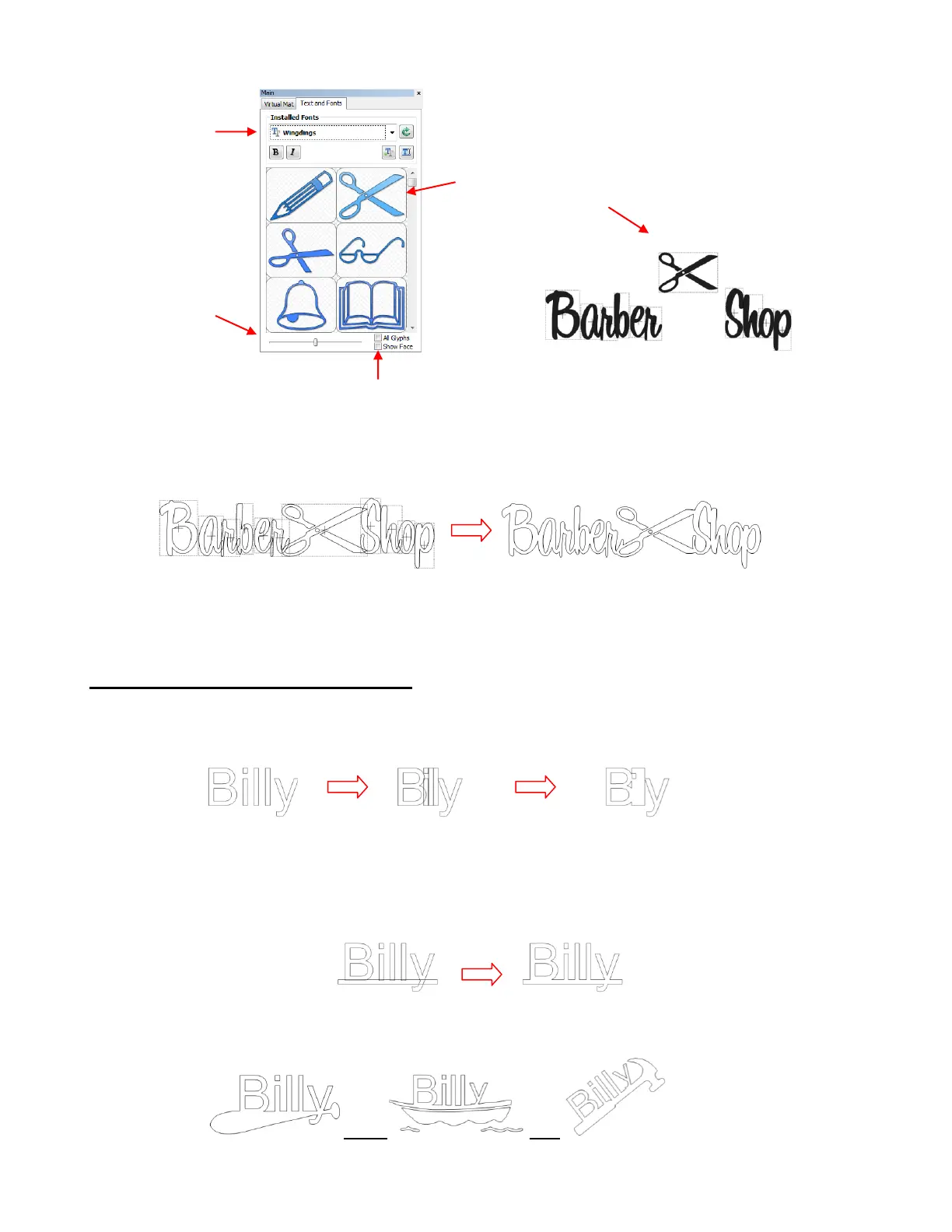
Resize and arrange the dingbat shape, as desired. Also overlap the letters with each other, as desired.
Then apply the Weld (Ctrl+W) tool.
Note that dingbat fonts are not the only shapes that can be welded to letters. Any shape imported or created
within MTC can be used!
5.06 Welding Titles in Imaginative Ways
Some fonts simply do not work well with the traditional overlapping of the letters to be welded into one piece
for cutting. For example, let’s take an extreme case with Arial font and the name, “Billy”. Note what happens
when you take the work and then overlap the letters in this particular font:
Most crafters will just start looking for a different font… one with ligatures (extenders) that easily connect the
letters to one another. However, many fonts with ligatures are script fonts and may not convey the desired
look. So, is there a solution? Definitely! Look for objects that can be used to connect the letters! A basic
thin rectangle is an easy solution. Just align it along the bottom of the letters and weld:
But the objects to use as a base do not have to be so basic! Look for objects that will tie into a theme! Here
are just a few examples:
Double click the image you
want and it will be inserted
at the location of the Caret.
Scroll to make
images larger,
if desired
Some dingbat fonts will show up, as images, in the dropdown
list of all fonts. Thus, uncheck Show Face, as needed.
Weld the letters – undesirable result



 To Next Page