Note that the Line Cap style option also works in combination with the Dash Style options to produce even
more options:
7.11 Erase Sections of Paths (Eraser Tool)
Erasing
The Erase Sections of Path function (Eraser Tool) is the 6
th
icon on the Node Mode toolbar and can
be activated by clicking the icon or by pressing F6.
Use this tool to erase parts of a shape as well as adding to a shape. To erase, drag the left mouse button
and the shapes beneath that drawn path will be deleted. For a straight line erasure, press the Ctrl key while
dragging your mouse.
Important! Before using the Eraser tool for extensive changes to an image, turn off Auto Simplify Welds.
Otherwise, the shape will begin to lose its form as the simplify process is applied repeatedly. To do this,
right click on the screen and choose Shape Magic>Advanced>Auto Simplify Welds from the menu (or
refer to Section 7.02 for the other methods). Then, after you have finished using the Eraser tool, apply
either the Auto Simplify Path or Smooth and Simplify functions to reduce the number of nodes for
smoother cutting. Again, refer to Section 7.02.
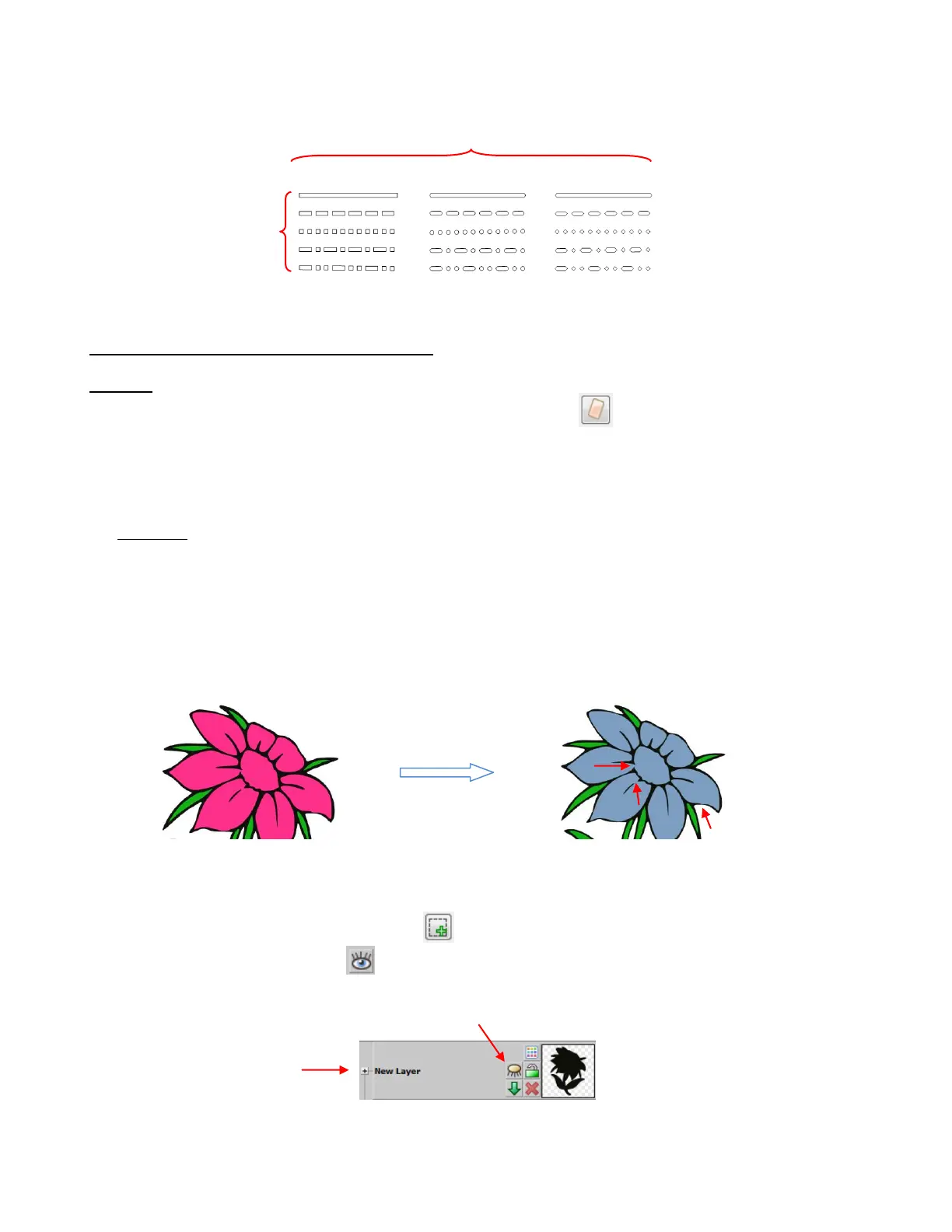
The flower that was traced in Section 6.03 will be used to illustrate the Eraser Tool. The flower will be re-
colored blue so that the red eraser lines, in the screenshots, will be easier to see in this user manual. The
arrows indicate the areas that need to have some of the blue layer erased:
When using the Eraser Tool, all layers will be erased in the location where the eraser is applied. So, to
avoid erasing the black layer when erasing the blue, the black layer needs to be hidden. Select that layer
and press the Selection to Own Layer icon at the bottom of the Layer Bar. Then hide the black layer
by pressing the Hide Layer icon
Zoom in close so that you’ll be able to see exactly where you need to erase. When you activate the Eraser
Tool, the following settings will appear at the top of the screen:
Black layer is on its
own new layer
After hiding the layer, the icon will
change to a closed eye.



 To Next Page