8. Designing
8.01 Where Do I Start with Learning to Design?
MTC offers some excellent easy-to-use designing tools to assist you in creating whatever you can imagine!
The best way to learn these tools is to focus on only one at a time, watch the related video, and pause the
video after each step, to repeat what you are seeing. You might want to also jot down some notes about any
particular settings or tips presented in the video. Try to imagine how the same tools can be used for other
kinds of designs and write down your ideas.
8.02 Shadow Layer
The Shadow Layer function allows you to create an outline or an inline of any shape including, of course,
text. After selecting the shape or shapes, the Generate Shadow Layer window can be opened in any of
the following ways:
Click on the Shadow Layer icon on the Magic Toolbar
Press Ctrl+H
Right click on the screen and select Shape Magic>Shadow Layer
Go to Edit>Shape Magic>Shadow Layer.
Outset Shadow
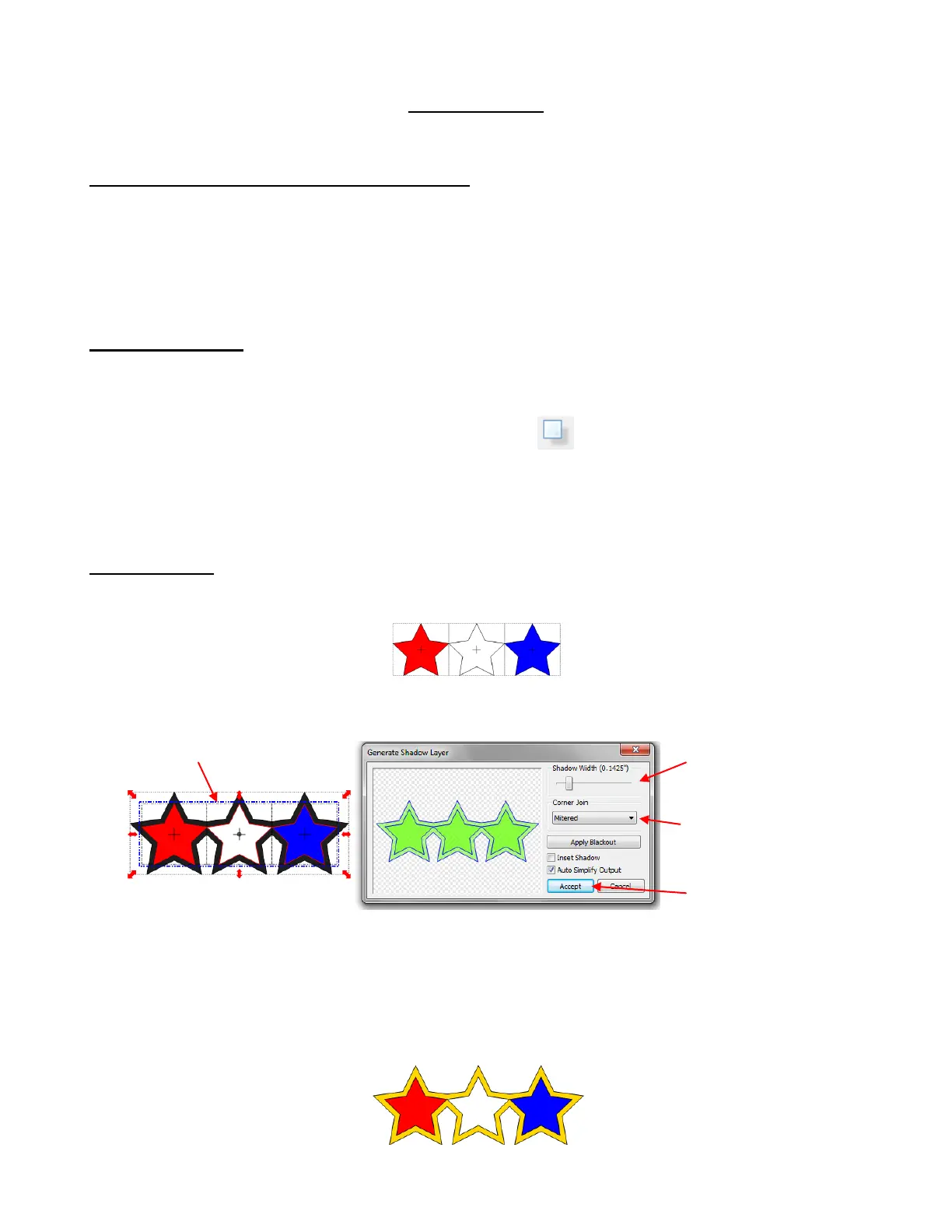
In this example, three stars have been added to the screen from the Basic Shapes library and they have
been colored red, white and blue:
Marquee-select the stars and then use Ctrl+H to open the Generate Shadow Layer window:
Note: All settings should be made first and then the Shadow Width scrolled. Changing settings will cause
the Shadow Width scroll to return to 0.
Note that the shadows on the three stars will automatically weld together to form one single outline shadow
and this shadow will be placed on its own layer on the Layer Bar. This layer can then be re-colored from
black to another color, as desired:
Scroll to increase
width of shadow
Corner Join and
Blackout and Inset
settings (covered
following this tutorial)
Click on Accept when
done.



 To Next Page