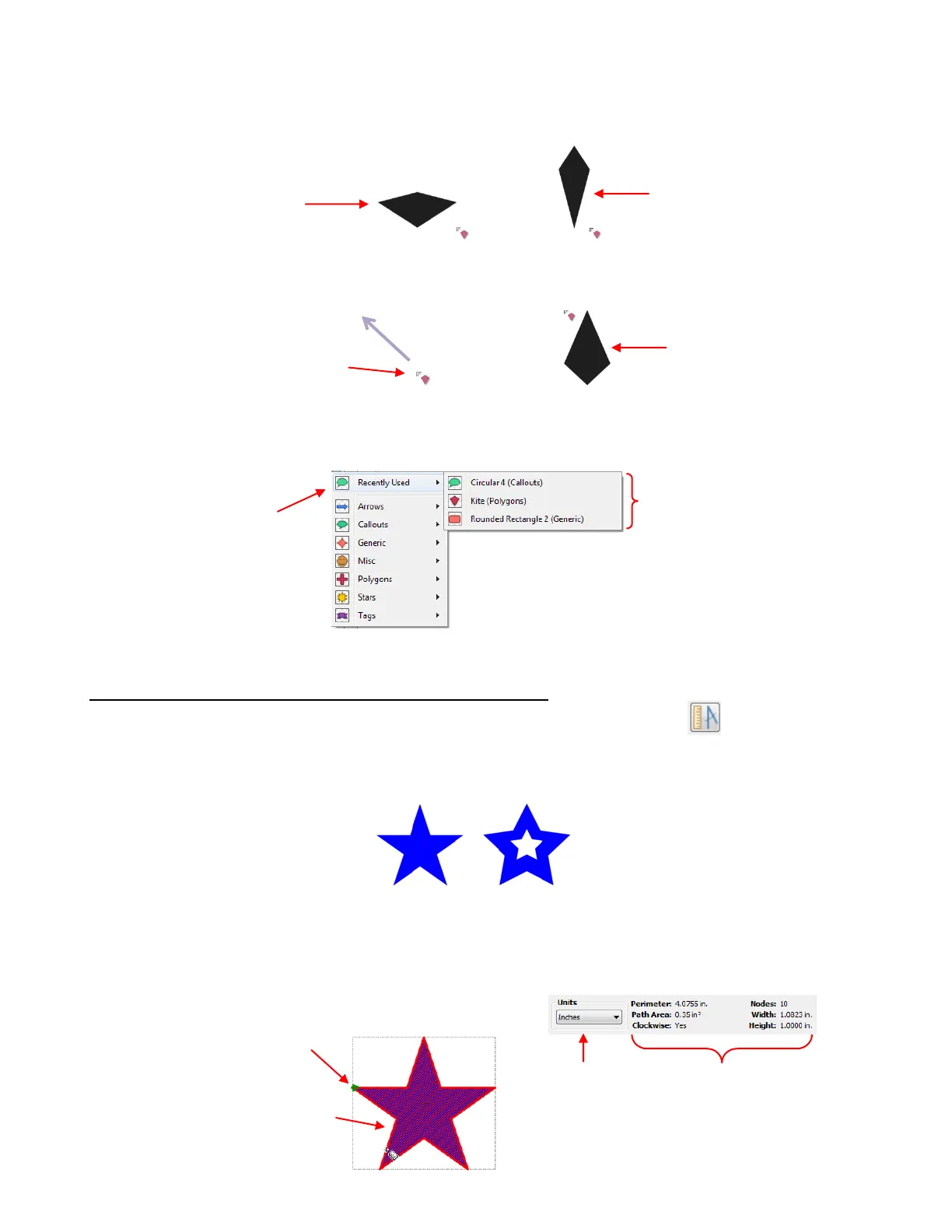
Holding the Ctrl key while dragging to create the shape will release the Aspect Ratio, allowing you to make
the shape thinner or wider relative to the height, as you desire. You may need to adjust Snap Position on
the Virtual Mat tab:
Dragging from the bottom upwards (rather than from the top downwards) will automatically vertically flip the
basic shape on the screen.
Upon releasing the left mouse button, you may immediately begin drawing another of the same shape.
This function also tracks your most recently used shapes and provides a list of them within the menu:
7.08 Measure Shape Lengths and Angles (Measure Tool)
The Measure Shape Lengths and Angles function (Measure Tool) is the 8
th
icon on the Node Mode
Toolbar and can be activated by clicking the icon or by pressing F8. It is used to obtain properties and
details about any shape, including internal paths within that shape.
In this example, the Measure Tool is used to note differences between these two stars:
Click on the Measure Tool icon and the mouse cursor becomes a ruler. Hover the cursor along the side of
one of the shapes. The shape will fill with stripes and the top of the screen will show the properties of that
shape, which include Perimeter (distance blade will travel), Path Area, Cut Direction, number of Nodes, and the
bounding box dimensions of the shape (W and H which should match those you see in the Sel. Properties
Bar when you are no longer in Node Mode).
Your most recently used Basic
Shapes are easily accessed
Recently Used shapes
appears at the top of all
categories instead of
Your Shapes
With Ctrl key held,
shape can be drawn
shorter and wider…
… or shape can be
drawn taller and thinner
Shape is drawn
vertically flipped
Begin dragging mouse from
bottom right toward top left .
Move cursor over outside line
of shape to bring up properties
Properties of the
highlighted part of
shape.
Small green arrow indicates
direction of cutting
Option to show
size in inches,
cm, or mm



 To Next Page