Combining Straight Lines and Curves
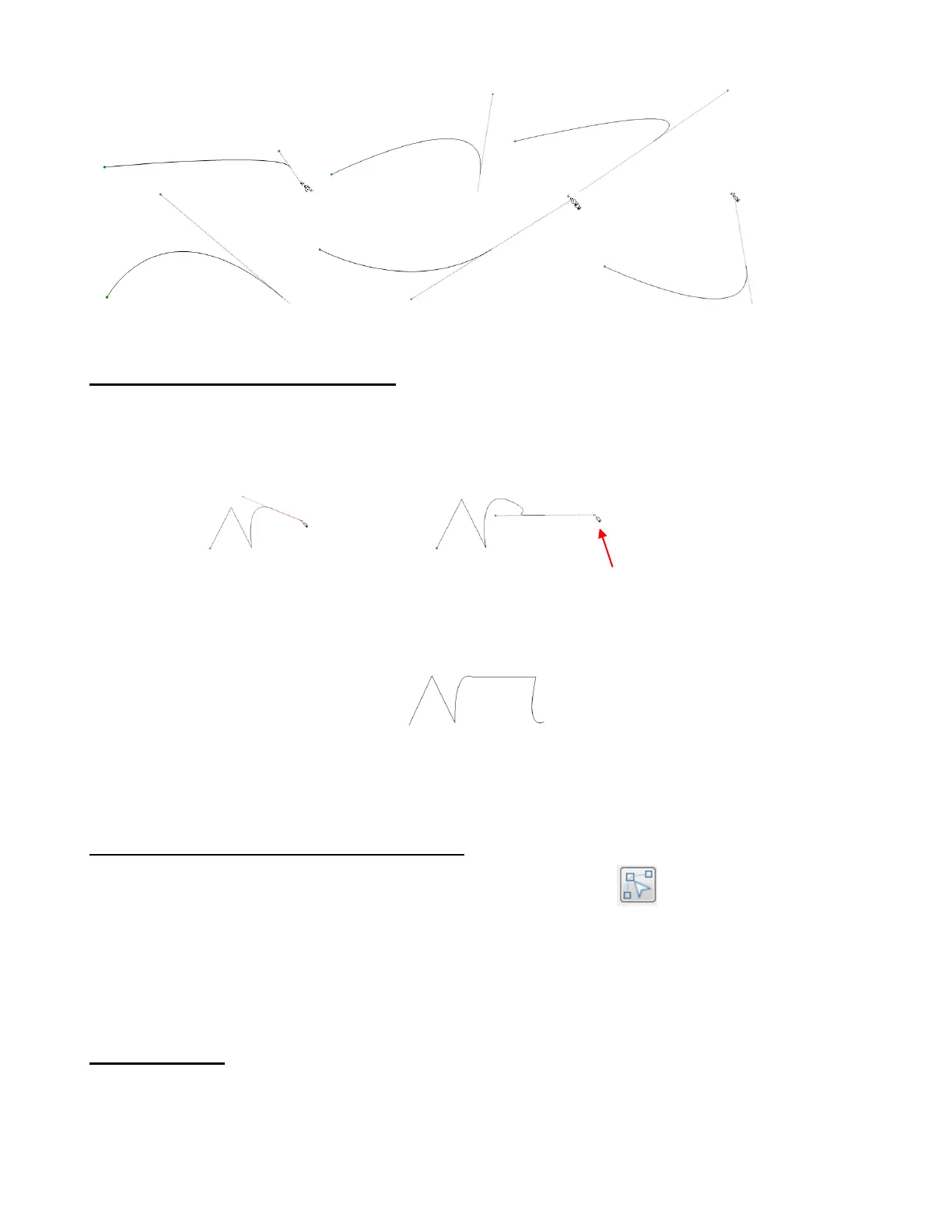
There are different methods for creating a continuous string of straight lines and curves. The straight lines
are easy because, as you left click to plant nodes, the straight lines remain straight and do not change as
you create the next connected straight line. However, once you begin creating Bézier curves, you cannot
return to straight lines, without right clicking to end the curves and then beginning the next straight line from
that point:
Not to worry! Once the curve is complete, you can right click to end that curve and then left click in the
same spot to begin a new straight line or another curve without disturbing the one just created:
In the end, all of those points/nodes will be connected. This is a method that can be used to do manual
tracing, as presented in Section 6.04.
7.13 Edit Paths at Node Level (Node Edit Tool)
The Edit Paths at Node Level function (Node Edit Tool) is the 2
nd
icon on the Node Mode Toolbar
and can be activated by clicking the icon or by pressing F6. Use this tool to edit both paths and nodes in
any shape.
Before editing paths and nodes, it is recommended that Snap Position, on the Virtual Mat, be set to No
Snapping, so that segments and nodes can be dragged freely. It is also recommended that Nodes On Mat
be made visible by pressing Ctrl+Shift+I (or any of the other ways shown in Section 7.03).
Segment Editing
In this section, the Tools shape from Basic Shapes will be used. Select the head of the hammer and then
activate the Node Edit Tool. You will notice that as you move the mouse over the shape, whichever
individual segment is beneath the mouse cursor will change to red. This is similar to how individual shapes
will turn red when in the regular mode in MTC. If you left click on a segment it will turn green, unless you
happen to have the green mat color selected in which case the segment will turn blue:
2 straight lines are drawn and
then a curve is created
But then, when you attempt to switch back to a
straight line, the curve becomes distorted



 To Next Page