8.09 Jigsaw Puzzle
The Jigsaw Puzzle feature installs as a separate application. To open it, go to your Windows Start button,
select All Programs, locate your Make The Cut! folder and then select Jigsaw Puzzle Generator.
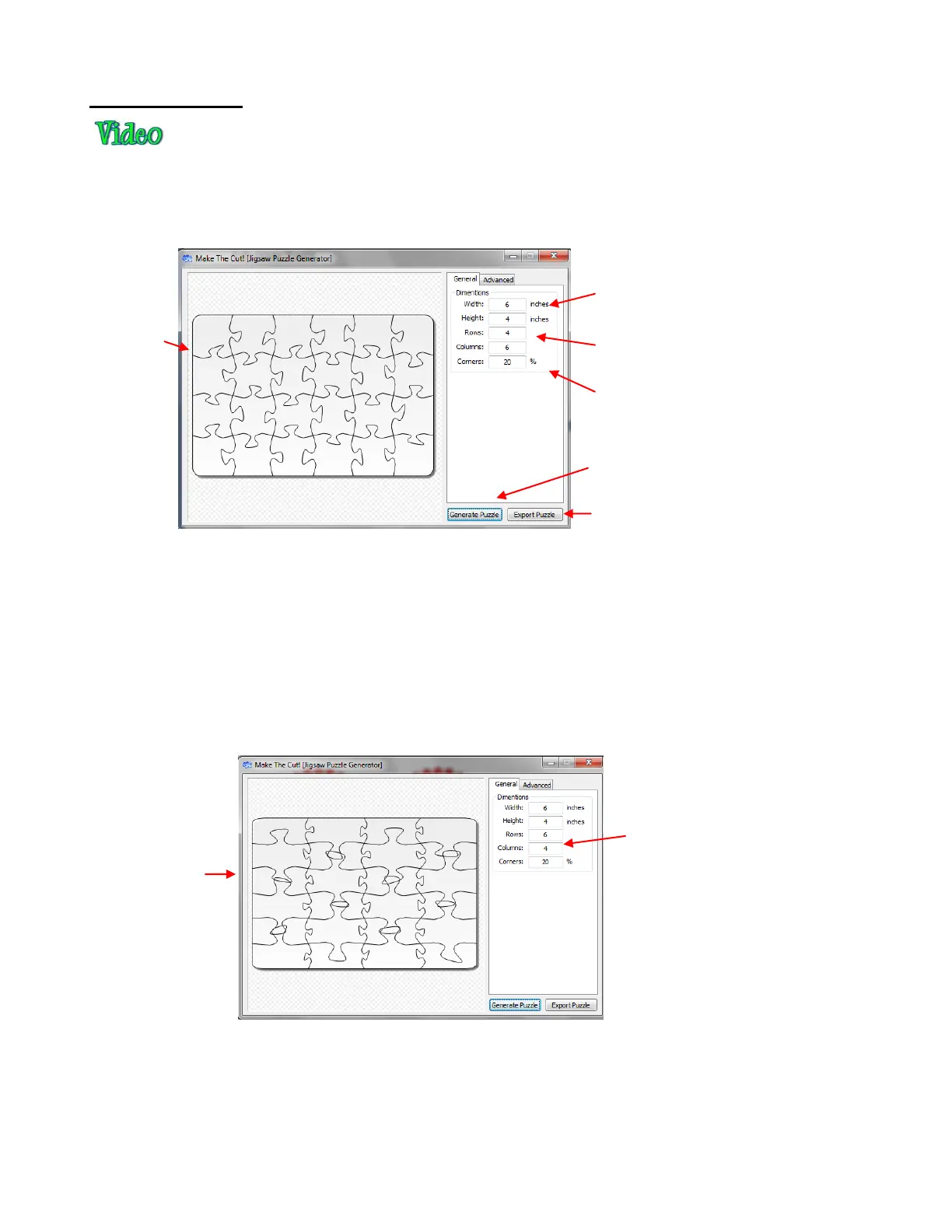
The following window will open:
If you plan to apply this puzzle over a specific image, you may want to choose dimensions that correspond
to your image. For example, let’s assume you have imported a 4” x 6” photo into MTC and plan to make a
print and cut jigsaw puzzle. Enter those dimensions into the Jigsaw Puzzle Generator, as shown above.
Further, to keep the pieces from becoming too distorted (or worse, overlapping), you should make the
number of Rows and Columns similar to the dimensions, as shown. If you want more pieces then you can
increase the number of Rows and Columns proportionately. For example, instead of having 4 Rows and 6
Columns, use double the number to 8 Rows and 12 Columns (or 1.5 times to 6 Rows and 9 Columns).
Note how the pieces would look if a rough proportion were not maintained. The pieces would cut into one
another:
There is also an Advanced tab you can use to alter the design of the pieces and even save your new
settings.
When you are satisfied with the appearance of your puzzle pieces, click on the Export button and a window
will open and you can save your puzzle as an SVG file.
In MTC, import your SVG puzzle file and align it over the image you wish to convert into a puzzle. Perform a
print and cut as presented in Chapter 9. Alternatively, if you print your image a little bit larger than the
Enter desired Width and Height (which
can be changed after importing into
MTC).
Enter desired Rows and Columns to
determine number of pieces in puzzle.
Increase or decrease Corners to
change the roundness of the 4 corners
of the puzzle.
Click on Generate Puzzle after each
settings change to update preview.
Click on Export Puzzle when the puzzle
is complete.
Instead of following the
dimensions of the puzzle, the
numbers entered for Rows
and Columns are opposite to
what was used above.



 To Next Page