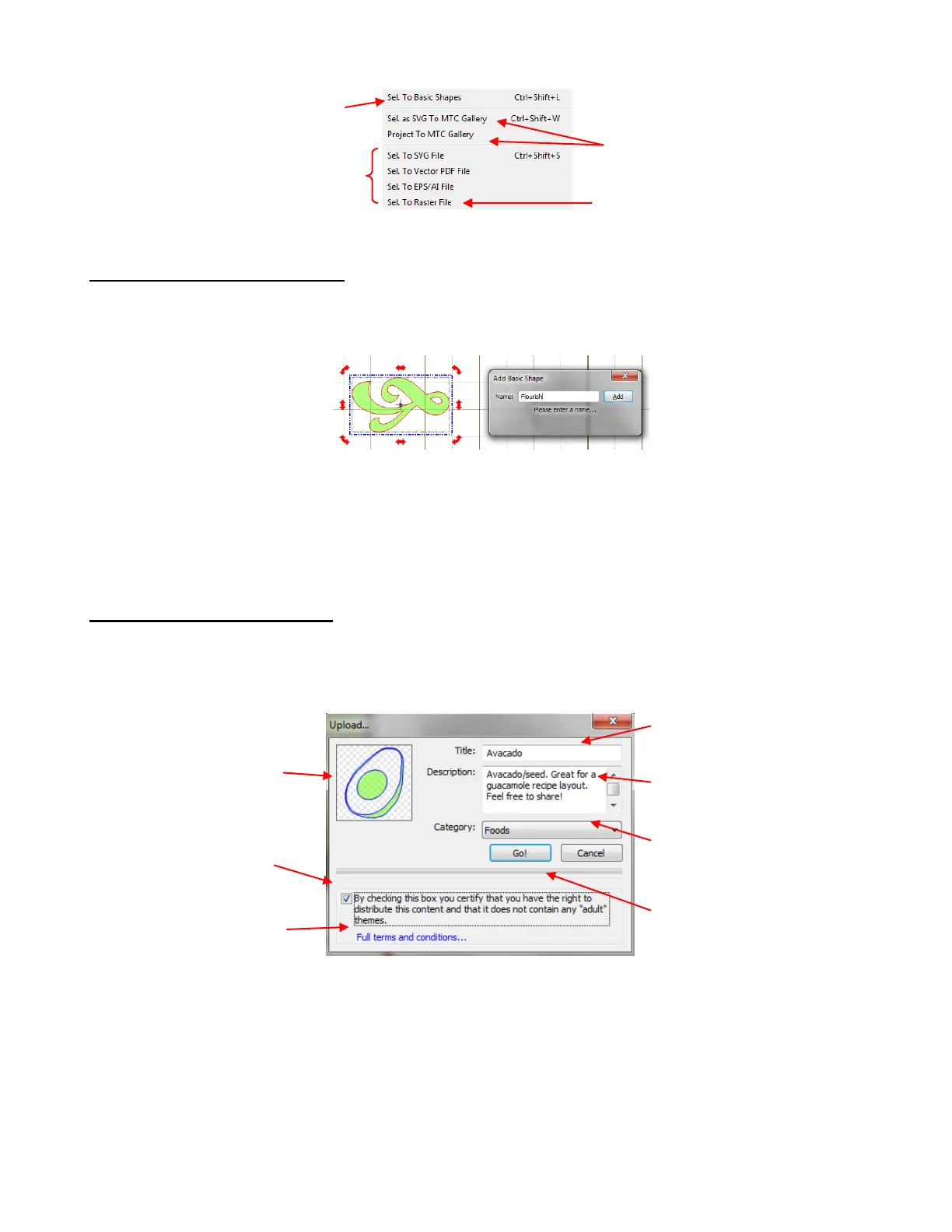
4.10 Exporting to Basic Shapes
When exporting a file to the Basic Shapes library, a popup window will appear asking for the file to be
named. Enter a descriptive name for the shape and then click on Add. That shape will be added to the
category – “Your Shapes”.
As you build “Your Shapes” library, you may want to back it up in the event you have a hard drive crash or
if you want to load “Your Shapes” to other computers you own. To access this function, go to
Help>Advanced>Backup and Restore “Your Shapes”. You will find the options to either Backup or
Restore.
4.11 Exporting to MTC Gallery
When exporting to the MTC Gallery, you have a choice between exporting as an SVG or as an MTC. To
export just a selected shape from MTC to the Gallery, select the file and then choose the Sel. as SVG to
MTC Gallery option. The following window will open where you can then enter information and select a
category:
When another MTC owner imports the file, it will automatically import at the height and location of the Caret.
If necessary, the designed size could be mentioned in the Description. For a file such as this avocado, it’s
not necessary. But for something like a cupcake wrapper, it could be important for the user to know the
original design dimensions.
Another alternative, which preserves the original dimensions of all shapes in the file, is available. From the
Export options, choose Sel. as Project to MTC Gallery. An identical window appears, but the upload will
include everything in the file, including the same Virtual Mat settings, Notes, Layers, etc.
Enter a title for your file.
Add a description and notes for
the person downloading.
Thumbnail of image
will automatically
appear.
Select a category from the
dropdown menu.
Check this box after
reading.
Read Full terms and
conditions
Click on Go to upload. File
will appear after being
approved.
Exports selected shape to the
“Your Shapes” category
under Basic Shapes.
Allows user to upload selected shape
to the online MTC Gallery
Export shape as a raster file
Export in one of
the common vector
standard formats



 To Next Page