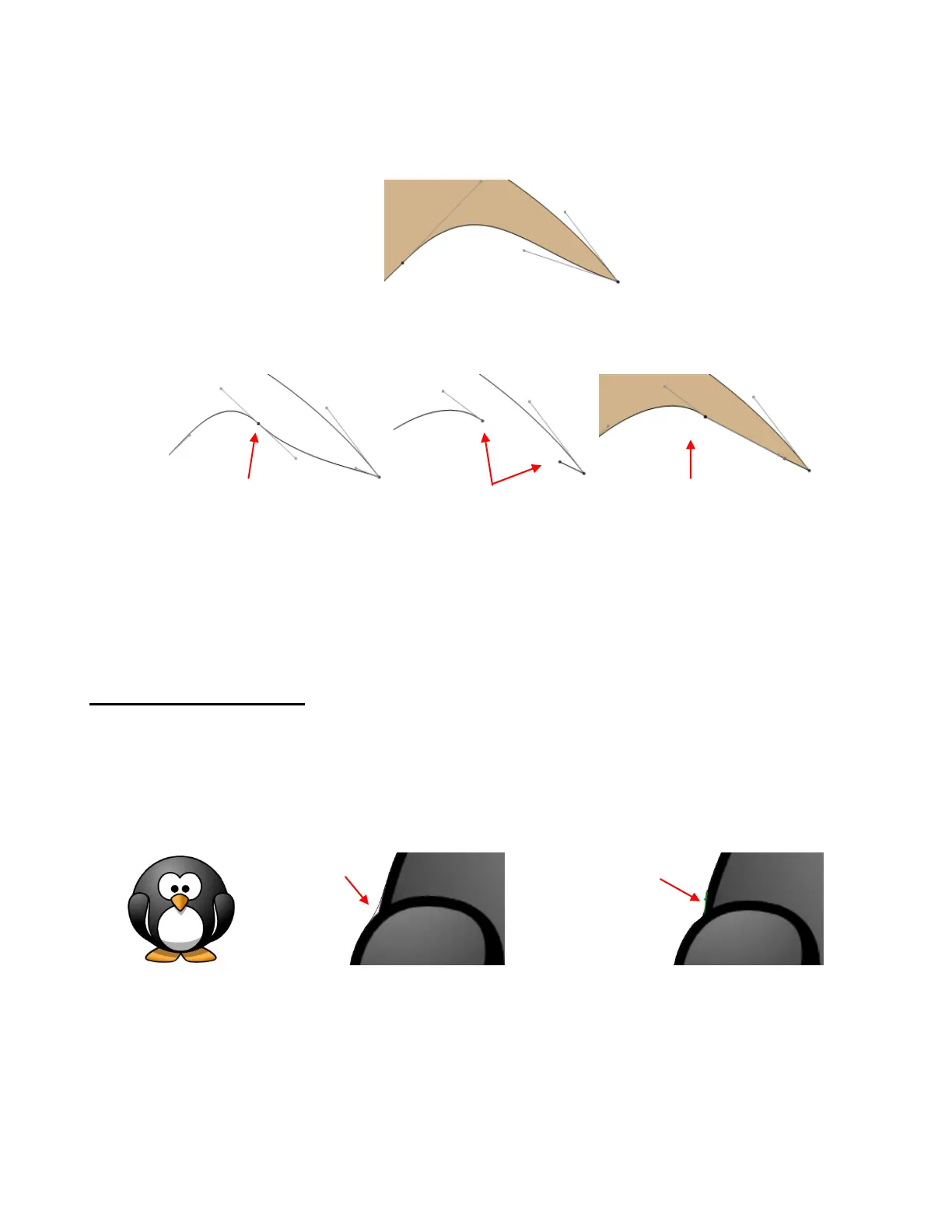
Delete Node: The node will be deleted and the two segments will become a single segment. The
Bézier control points of the new segment will automatically adjust to try to recreate the previous
path of the two segments:
Break Node: Breaks the node into two nodes so that the segments are no longer connected. The
shape is no longer a closed path, thus it will not be filled with color. The new broken nodes can be
moved to different locations, if desired and reconnected using the Pen Tool:
Note that you can also use node breaking to define the cutting start point of a path since, on a
broken path, the blade will always start cutting where a node is not connected to any other node.
Auto-Smoothing: Same function as Auto-Smoothing under Segment Edit. It is listed again, under
the Node Edit for quick access. Again, if a sharp transition needs to be maintained between the
segments involved, leave unchecked. Otherwise, select this option to automatically smooth curves.
Applications for Node Edit
It’s not always obvious when the Node Edit Tool (for either or both segment and node editing) might be
needed. Here are a few examples to keep in mind:
Editing of pixel traced images: Sometimes a pixel trace will appear to be perfect until, for example, you
use it for a print and cut and discover that some of the paths are slightly outside the printed areas of the
original image:
Manual tracing: One of the quickest ways to manually trace a raster image is to simply click/click/click
around the image and then use node and segment editing to move paths and nodes to more closely
align with the original image and to adjust segments for smoother cutting.
Improving a cut: If you have problems with a particular location on a cut shape, examine the nodes in
that location. You may find a cluster of nodes or a sharp cusp. Edit the segment and then retest the cut.
Modifying poorly designed files: Sometimes you will pick up free files that prove to not quite work the
way you expected. Examples are often fold-up templates where corners and fold lines do not quite
meet. Having the ability to move segments and nodes can perfect these kinds of designs and provide
cleaner and more professional end products.
Node is broken and shape loses
fill color
Broken nodes can be
dragged to new locations
Broken nodes can be
reconnected using Pen Tool.
Trace line doesn’t
follow shape here.
A node is added to
break segment and
segments are
dragged inward.



 To Next Page