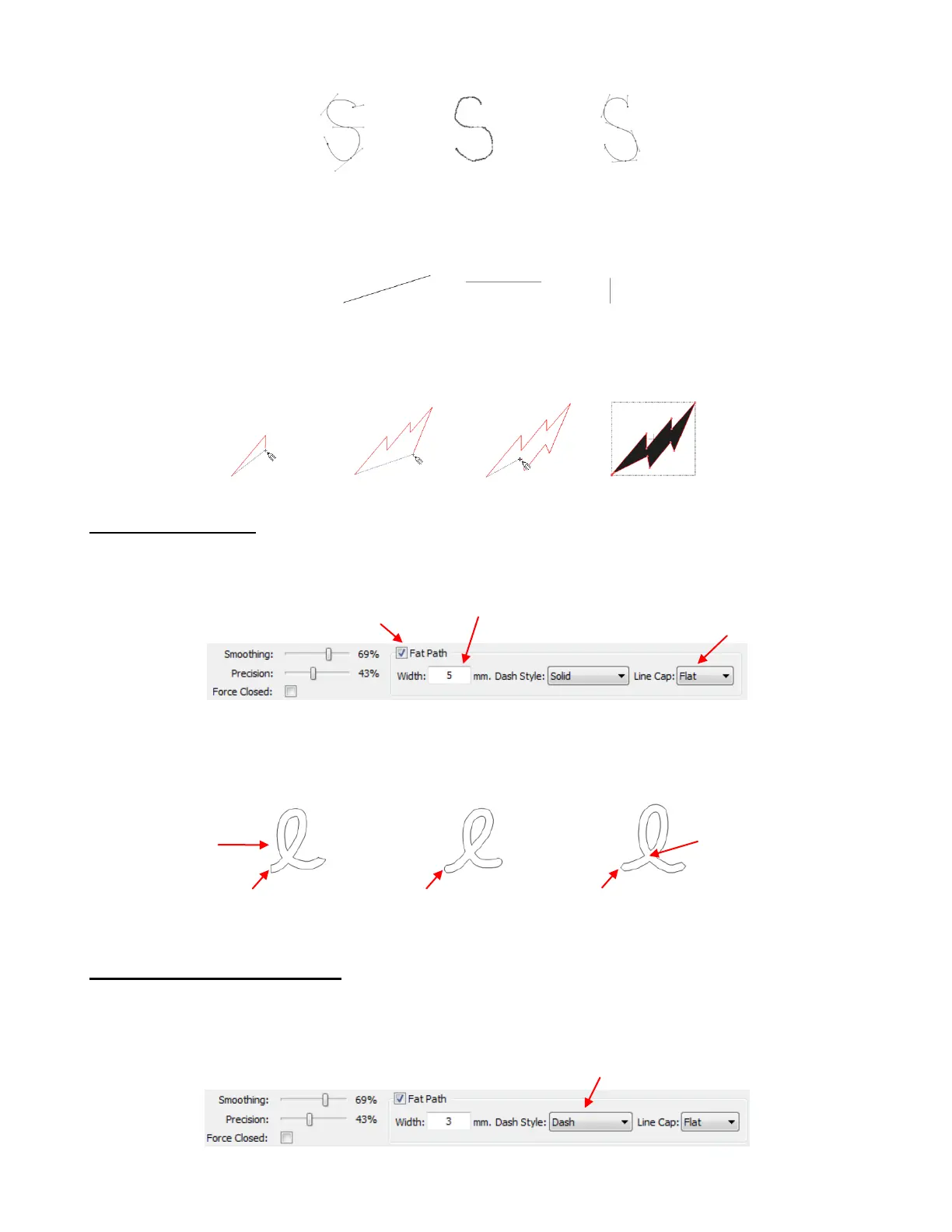
If you need to draw a perfectly straight line, hold the Ctrl key while drawing:
The Force Closed Path option can be marked so that, as you draw an image, the start and end will always
be connected. For example, in this freehand drawing of a lightning bolt, the end of the line is always
connected back to the beginning. Once the cursor returns to where it started, the shape will close and fill
with color (assuming Fill is turned on):
Drawing Thick Lines
To draw a line that is set to a particular thickness, mark the Fat Path box and enter settings for thickness
and Line Cap style:
When you freely draw with Fat Path selected, the line will be the thickness you selected. Note that when
you cross the path, the overlap will be automatically removed. Also note the differences in the three Line
Cap options:
Drawing with Other Line Styles
The Freehand Drawing Tool offers other line styles besides solid lines, including dashes, circles, and
combinations of the two:
Choose from Flat,
Round, or Triangle
Enter a Width
(thickness of the line)
Overlap is
automatically
removed
Choose from Solid, Dash, Dot,
Dash Dot, or Dash Dot Dot



 To Next Page