After you insert the cutting mat or materials, flip the levers up to lower the pinch wheels onto the mat or
material.
1.08 Mat/Material Guides
There are two mat/material guides at the front of the cutter (refer to the parts diagram in Section 1.04). At
the time of this writing, both guides are moved to the far right when the Zings are packed. Those guides
should be repositioned with one on each side of the mat or backed material. When you unscrew a guide
counter-clockwise, it will then freely slide left or right.
If the blade carriage is preventing easy access to the guides, then turn off the Zing. Now you can manually
slide the blade carriage to the left so that you can more comfortably access these guides.
While the guides can be positioned anywhere, note that when you first turn on the Zing and the blade
carriage comes to its home origin, that position marks the beginning of the 14” cutting range. Thus, you do
not want to position your two guides too far to the left or you risk not having the full range of cutting you
might need.
Thus, move the left guide to the left side but leave loose. Now position the right where you want it, turn
clockwise to lock into place.
Now insert the cutting mat or the backed material you are cutting and move the left guide to just touch the
mat or material. Then turn clockwise to lock it into place. Note that once you have the guides in place, you
do not need to readjust them unless you insert a different sized cutting mat or cut from a backed material
with a different width.
1.09 Test Drawing Shapes
Landscape Versus Portrait: Which do you prefer?
Based on your own past experience with MTC or other cutting programs and cutters, you may have a
particular mode (landscape or portrait) that you are accustomed to using. There is no right or wrong mode,
only the mode that works best for you… or your brain, as the case may be!
Some people find it easier to work in one versus the other when visualizing where shapes will cut. For that
reason, tutorials in this user manual will be presented in both modes so that you can use whichever one
seems easier.
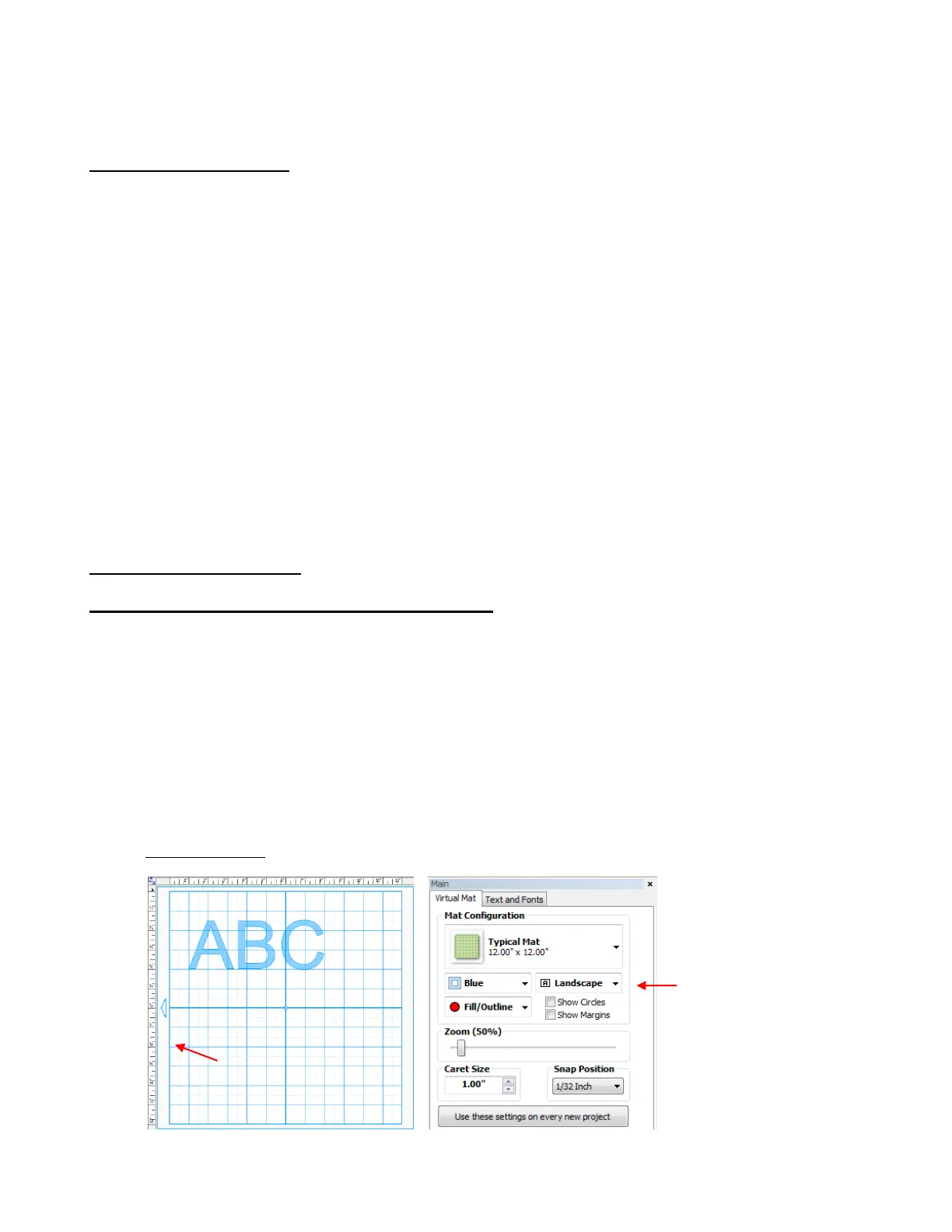
In MTC, the orientation is set on the Virtual Mat tab on the Main Bar. The settings on this tab are presented
in detail in Section 3.04. For now, just note the location of the Mat Configuration settings for Landscape
and Portrait:
Landscape Mode
This arrow indicates the
direction the mat will be
fed into the Zing, relative
to the orientation the
shape will be cut.



 To Next Page