4. Importing and Exporting
4.01 Accessing the Import Options
Go to File>Import and select from one of the available import options. Note the shortcut keys for the
various file types:
Alternatively, click on the appropriate icon on the Import Bar. Note the sections of the user manual included
with each label:
Alternatively, right click on the project tab on the Tab Bar and select Import from the menu. This is the
same as going to File>Import.
4.02 Importing from the Online MTC Gallery
The MTC Gallery can be accessed using the three methods shown above or by going to Help>Free SVG’s
and MTC’s. When selected, the following window opens and you can choose from thousands of freely
shared files from other MTC owners:
Upon clicking on Search, thumbnails of the images identified in the search will appear:
Opens LD’s web site with access to
user’s account and ability to import free
and purchased files
Freely shared files from
other MTC owners
Shapes which come with MTC, as well as,
user’s own assigned shapes
Ready-to-cut vector
formats
True Type and Open Type fonts that need
not be preinstalled in Windows
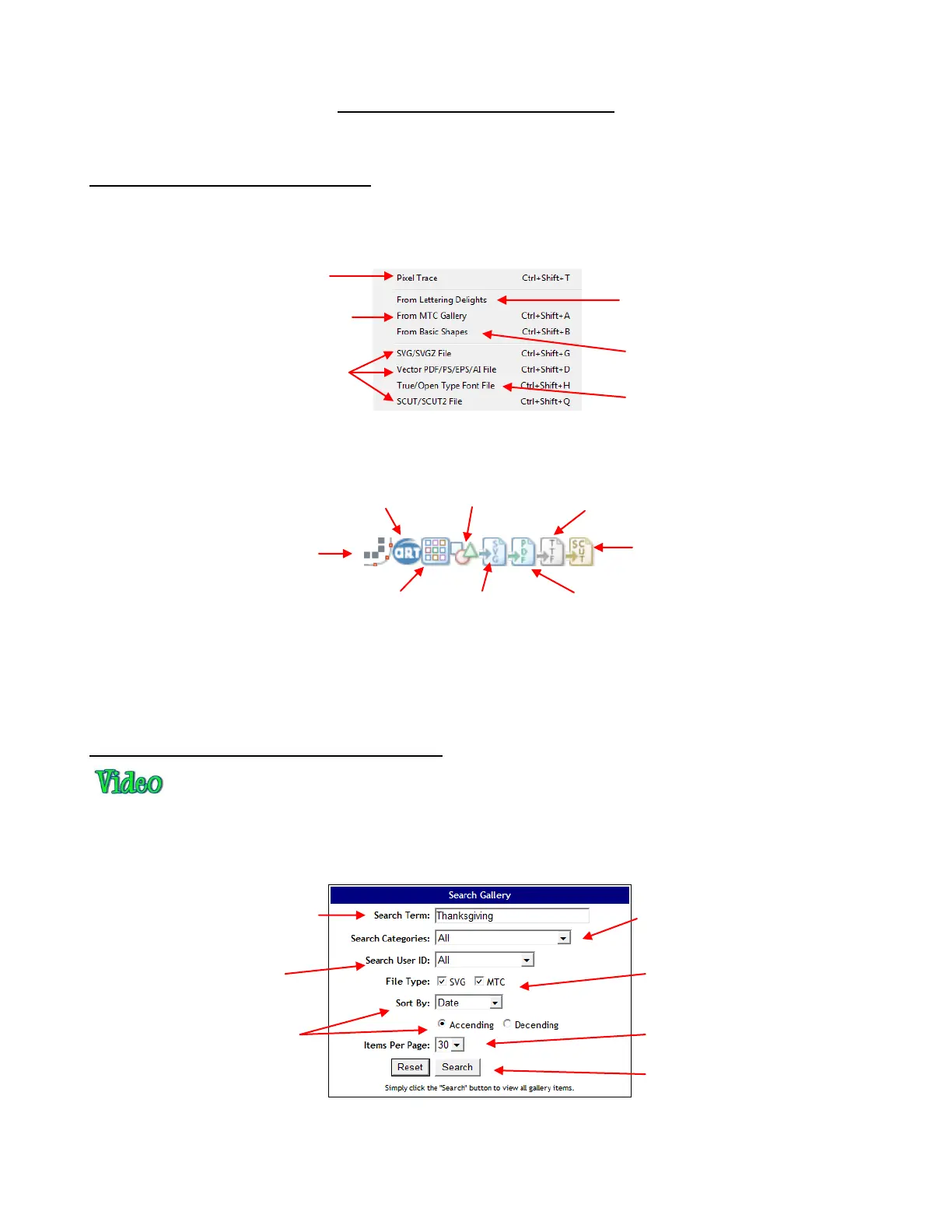
Optional: Enter a Search Term
that may have been used in the
file name or description.
Select a Category from
dropdown list
Select a particular User ID
Select File Type- SVG, MTC
or both
Select Sort By Date, Title,
Description, or ID and
choose between Ascending
or Descending
Select # of Items to view per page
After entering search options, click on
Search button
Pixel Trace of JPG, BMP,
TIF, PNG, GIF files:
4.08, 6.02
TTF, OTF Font Files:
4.06, 5.02
PDF, AI, EPS, PS Files:
4.04



 To Next Page