Note: throughout this user manual, screen shots of shapes will sometimes appear without the gridlines of
the virtual mat in the background and without the bounding boxes around the shape(s). This was done to
make the images appear clearer and less cluttered.
3.14 Changing Color, Texture, and Line Style
There are three ways to access the functions for changing the Color, Texture or Line Style of a selected
shape:
Right click on the screen and select Change Color/Texture/Line
On the Layer Bar, click on the Set Color for All Shapes in Layer icon.
Press Ctrl+Shift+U (Color), Ctrl-Shift+O (Texture), Ctrl+Shift+Y (Line Style)
Changing Color
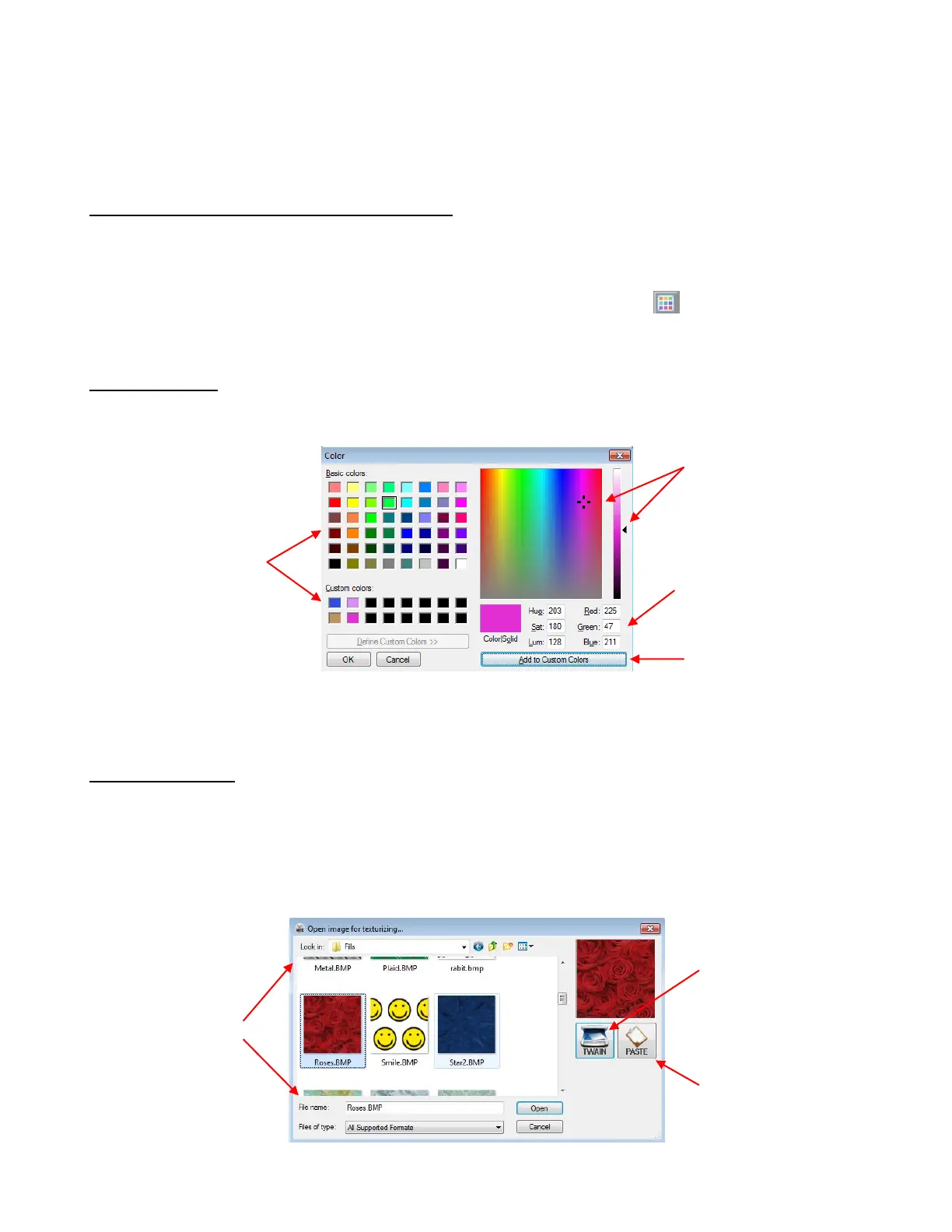
In the Color window, you can click on any of the Basic colors or create a custom color.
Note that a new Custom Color will only be saved and available in the current project.
Changing Texture
Instead of using a solid color, you can also fill shapes with textures, which are typically raster files, such as
.bmp, .jpg, .png, imported into MTC. When you access the Change Texture function, the window which
opens will depend on whether or not you already have a texture available from another shape in your
project. If you do not, then when you go to Change Texture, the Open Image for Texturizing window will
open and you can browse your computer to open a texture file, scan one into MTC, or paste one from
Windows Clipboard:
Option 1: Select
one of the Basic
colors or one of
the Custom
colors already
created in the
current project
Option 2: Click in the
window and then scroll
up and down to lighten
or darken
Option 3: Enter the
RGB values directly (or
Hue, Sat, Lum)
Click on Add to
Custom Colors, if
desired
Option 1: Browse
computer to locate
folder and file
containing texture
you wish to use
Option 2: Click on
TWAIN to scan
texture image into
MTC
Option 3: Click on
PASTE to paste an
image from
Windows Clipboard



 To Next Page