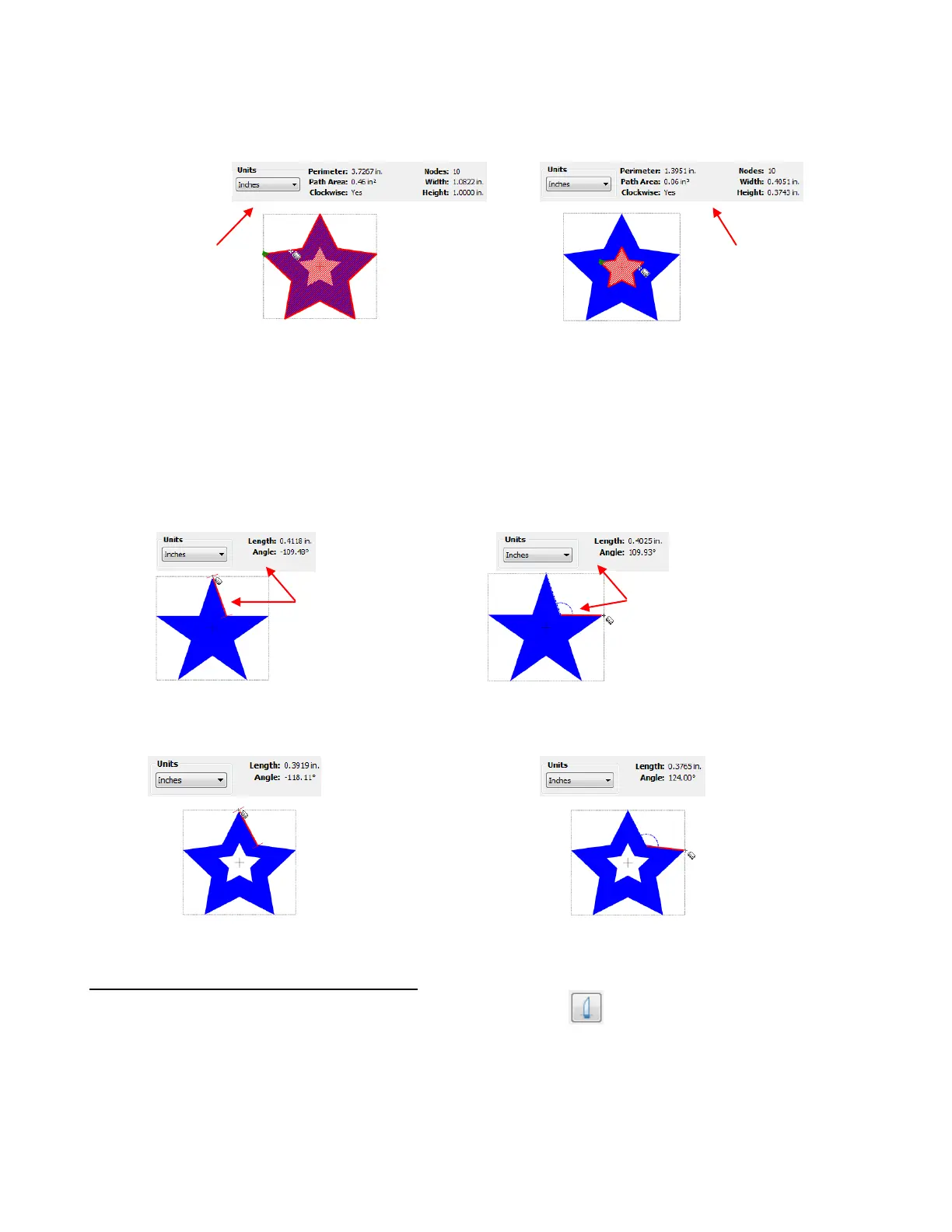
Likewise, when you hover the cursor over an outer side of the other star, the solid area of the star will fill
with stripes and the properties of the outer star will be displayed. If you hover the cursor over the inner star,
then the properties of that star will be displayed instead:
Note that the Path Area of the outer star includes the area of the inner star. It does not subtract out that
part of the shape. This makes sense with regards to cutting since the same amount of material would be
needed to cut the outer star, regardless of whether or not the inner star were cut. If, for any reason, you
needed the actual area of the larger star, then you could subtract the Path Area of the inner star from that of
the outer star.
To measure an angle, place the cursor at the point where the two sides of the star meet and drag outwards
along one of the sides. The length and the angle of this side to the horizon are displayed. Then hold the Ctrl
key and bring the mouse cursor down to the outer tip of the other side. The length of this side and the angle
relative to the other side are now displayed:
Similarly, the Angle of the other star can be measured and then the full list of properties compared between
the two stars:
7.09 Slice Shapes and Lines (Knife Tool)
The Slice Shapes and Lines function (Knife Tool) is the 7
th
icon on the Node Mode Toolbar and can
be activated by clicking on the icon or pressing F7. It is used to cut an existing shape or shapes along
straight lines or freely drawn paths.
For example, let’s use the Secret Agent Man shape from the Basic Shapes library. Let’s say you want to
remove the bottom of the shape so that when cut, the shape would still be attached to the material and
could be folded up:
Length of side is
shown, along with the
Angle of this side to
the horizon.
Hold Ctrl key and move cursor
to the end of the other side.
Properties shown are the
Length of the side and the
Angle between the two sides.



 To Next Page