Knife Point – Portrait Mode
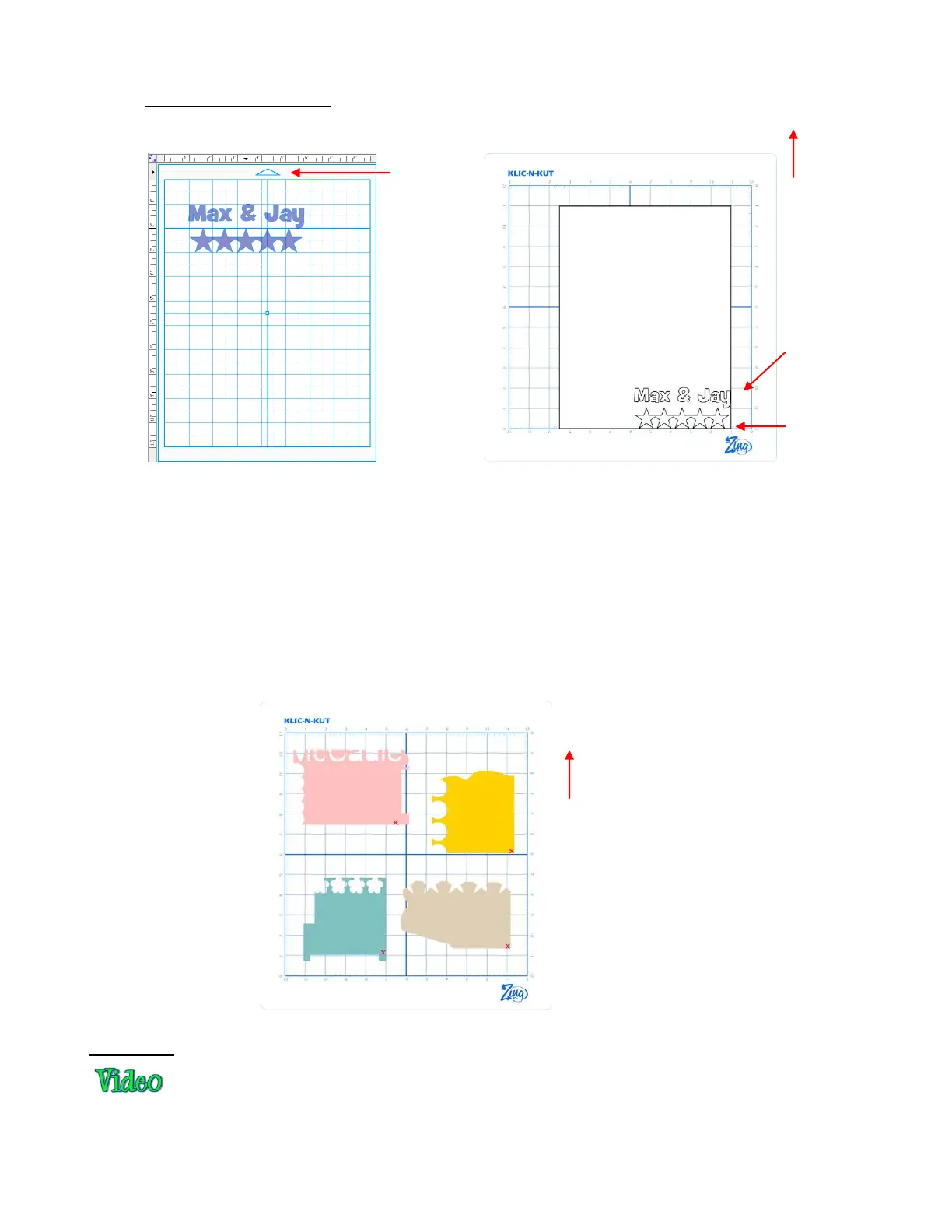
If you plan to use scraps of materials for cutting shapes, you will want to use the Knife Point mode:
Place several scraps (large enough for the shapes on your screen) on your mat in different locations, as
shown below.
Insert the mat into the Zing and then set the origin at the lower right corner of one of the scraps and cut
the currently selected shape.
Move the pen to the bottom right corner of the next scrap and set the origin there and cut the same
shape (or another shape, depending on what you have on your Virtual Mat). Repeat for other scraps.
Note the red “X”’s indicate where the origin would be set so as to not cut off the scrap:
WYSIWYG
This is the mode recommended when you need to cut shapes in very specific locations on your material
(such as the center front of a greeting card). The laser light is used to set the origin.
Location of shapes on the screen
Where shapes are drawn or cut on material
Origin set
here using
the blade tip
Feed the mat this direction into the Zing
Feed the mat this
direction into the Zing
Shapes are
cut to align
with the
origin you set
on the Zing.



 To Next Page