To Paste shapes from the clipboard, use any of the following:
Click on the Paste from Clipboard icon located on the File Toolbar
Right click on the screen and select Paste
Press Ctrl+V
Go to Edit>Paste.
To Paste in Place shapes from the clipboard, use any of the following:
Click on the Paste in Place icon located on the File Toolbar
Right click on the screen and select Paste in Place
Press Ctrl+Shift+V
Go to Edit>Paste in Place.
Note that once you press Paste in Paste, you’ll see a darkening of the original image, if you haven’t moved
the original image since invoking the Copy.
Duplicating
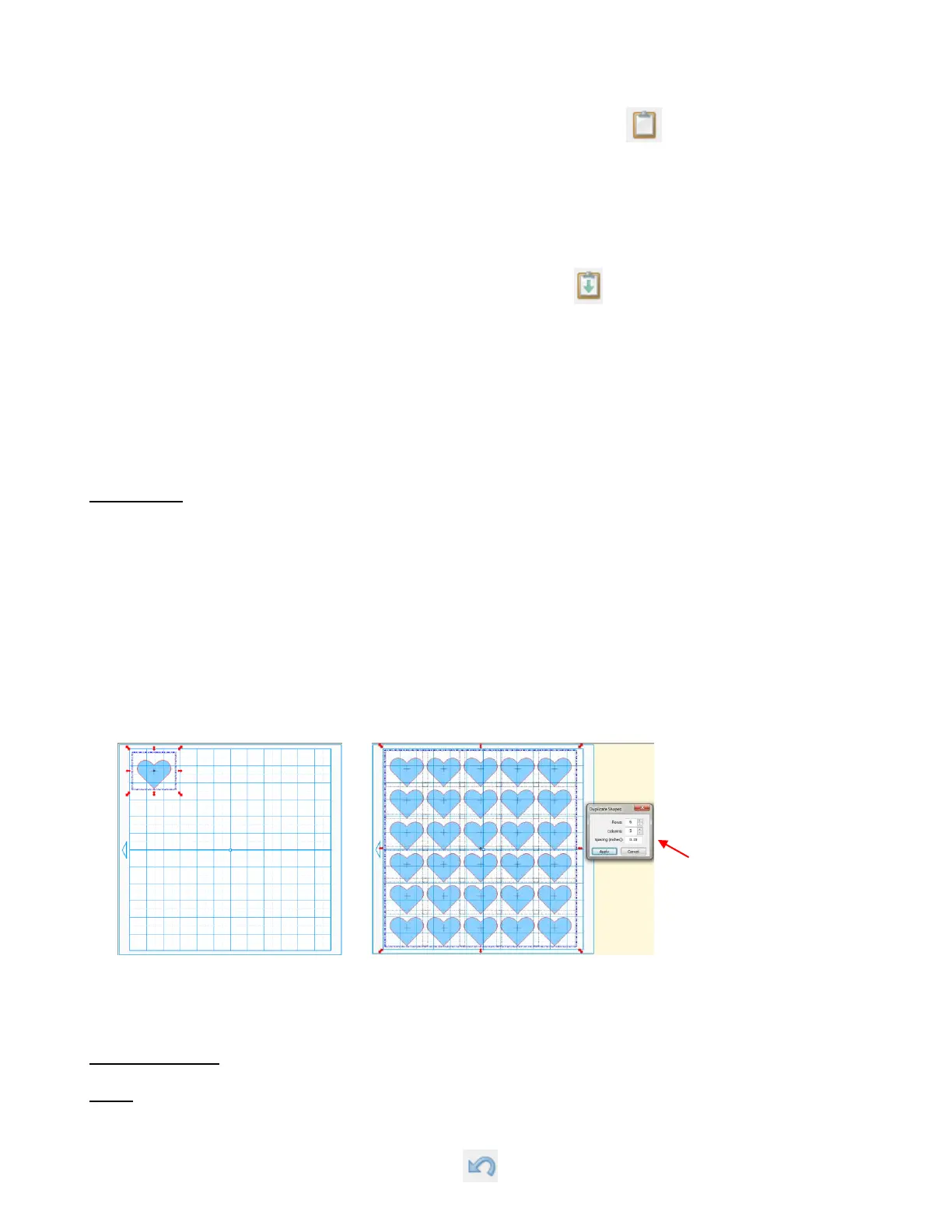
The Duplicate function allows you to make multiple copies of a shape aligned in rows and/or columns, with
the spacing you desire. To Duplicate, first select the shape and then use any of the following:
Right click on the screen and select Duplicate
Press Ctrl+D
Go to Edit>Duplicate.
To fill your grid with images, select or create a custom Virtual Mat size that matches your cardstock (e.g.
8.5 x 11, 12 x 12 ,etc). Place the shape in the top left corner of the gridded part of mat. Then select the
shape and use Ctrl-D (or other options) to bring up the Duplicate Shape window. Enter the number of
duplicates in each Row and in each Column, plus the Spacing. Click on OK to accept.
An additional application for the Duplicate function is presented in Section 8.03.
3.11 Undo/Redo
Undo
As with most Windows applications, there is an Undo function to reverse the most recent steps performed.
You can use any of the following to invoke the Undo function:
Click on the Undo icon on the File Toolbar
Increase Rows and
Columns to fill Virtual Mat
and change Spacing, as
desired or as needed.



 To Next Page