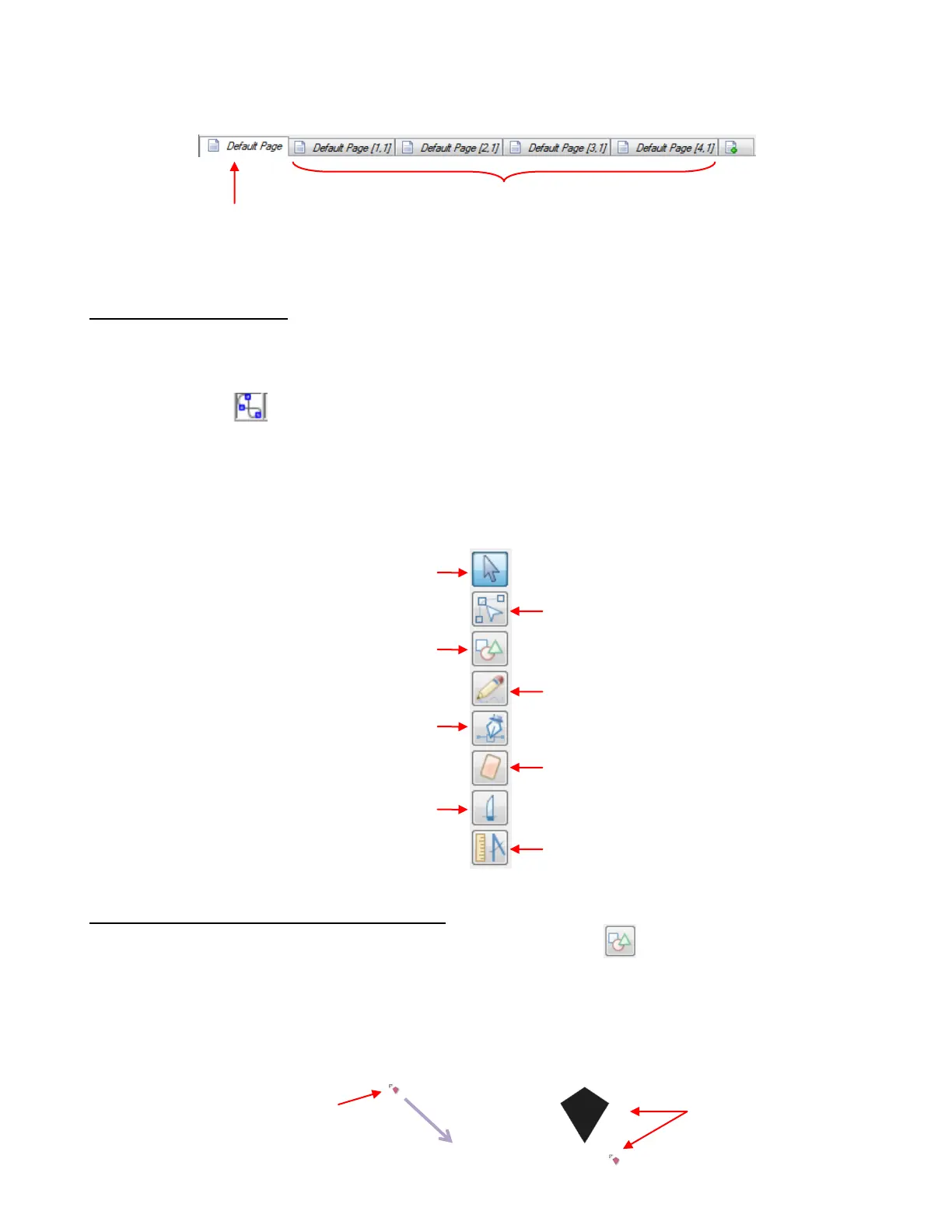
The individual tiles are placed on new Pages on the Page Bar:
7.06 Node Mode Toolbar
The Node Mode Toolbar offers tools to use for editing shapes, drawing lines and curves, importing from the
Basic Shapes library, and a number of other functions. This toolbar can be activated in any of the following
ways:
Click on the icon in the upper left region of the screen as show in Section 4.01.
Press F1 or W
Go to View>Node Mode.
The Node Mode Toolbar appears along the left side of the screen. The following screenshot shows the
function of each tool and section number detailing this tool:
7.07 Add Basic Shapes (Basic Shapes Tool)
The Add Basic Shapes function (Basic Shapes Tool) is the 3
rd
icon on the Node Mode Toolbar
and can be activated by clicking on the icon or pressing F3.
This tool will access the same library of shapes found on the Import Toolbar, with the exception of the
“Your Shapes” category. However, instead of double-clicking on a shape to automatically place that shape
on the screen, this function allows you to hold down the left mouse button and freely drag the shape to the
size you need. In this example, the kite shape from the Polygons category has been selected:
Original shape will still
be on original page
Four new pages are created to house the four tiles
Edit this project normally (deactivates tools
on this toolbar so that other tools and
functions in MTC can be used (Select Tool)
Add basic shapes (Basic Shapes Tool):
7.07
Draw Bézier curves and straight lines
(Pen Tool): 7.12
Slice shapes and lines (Knife Tool): 7.09
Edit paths at node level (Node Edit Tool):
7.13
Draw freehand lines (Pencil Tool):
7.10
Erase sections of paths (Eraser Tool):
7.11
Measure shapes lengths and angles
(Measure Tool): 7.08
Begin dragging mouse from
top left towards bottom right.
Note that cursor icon looks
like the chosen shape.
Cursor will jump to
bottom left and shape
will be drawn.



 To Next Page