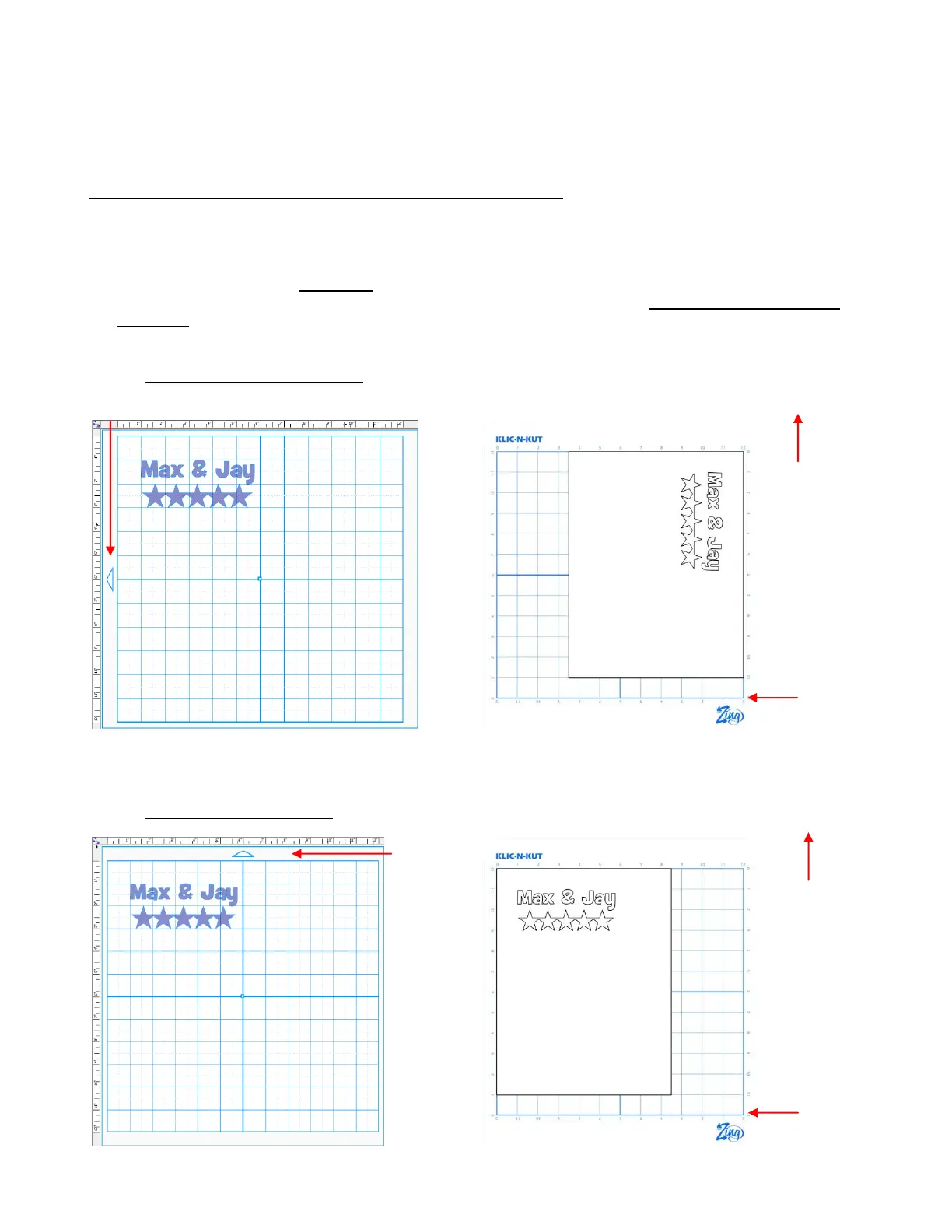
Shapes are cut based on where they are located on the Virtual Mat. The mat dimensions should match
either the ruled dimensions of the mat you are using or they should match the dimensions of the material
you are cutting. These two situations are covered separately.
WYSIWYG – Virtual Mat Matches Ruled Grid on Actual Mat
Create the typical mat that is sized 12” x 12” and uncheck the option to Show Margins. This will be a mat
that matches the ruled dimensions of the Zing mat. You can use either Portrait or Landscape mode - just
remember to place your material on the mat in the correct orientation for feeding into the Zing.
The origin is set using the laser light, not the blade tip. The laser light will automatically turn on when you
go to the Set Blade Origin window. Direct the red dot of the laser light to the bottom right corner of the
ruled grid (see below). Note that if you need absolute precision for the location of your cuts, it will be
necessary to calibrate the Laser Offset, which is covered in Chapter 9.
WYWIWGY – Landscape Mode
WYWIWGY– Portrait Mode
Feed the mat this direction into the Zing
Origin is set
here using the
laser light
Location of shapes on the screen
Where shapes are drawn or cut on material
Origin is set
here using the
laser light
Location of shapes on the screen
Where shapes are drawn or cut on material
Feed the mat this direction into the Zing



 To Next Page